Troubleshooting
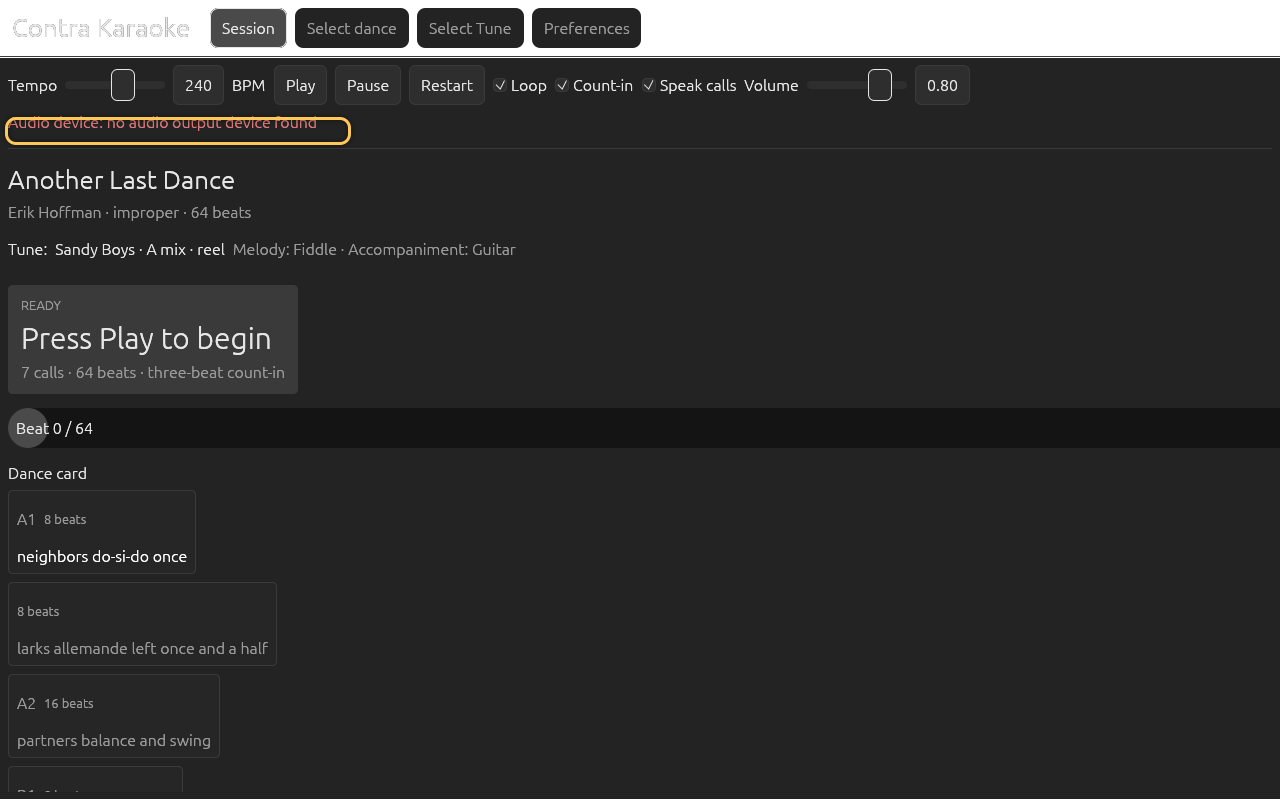
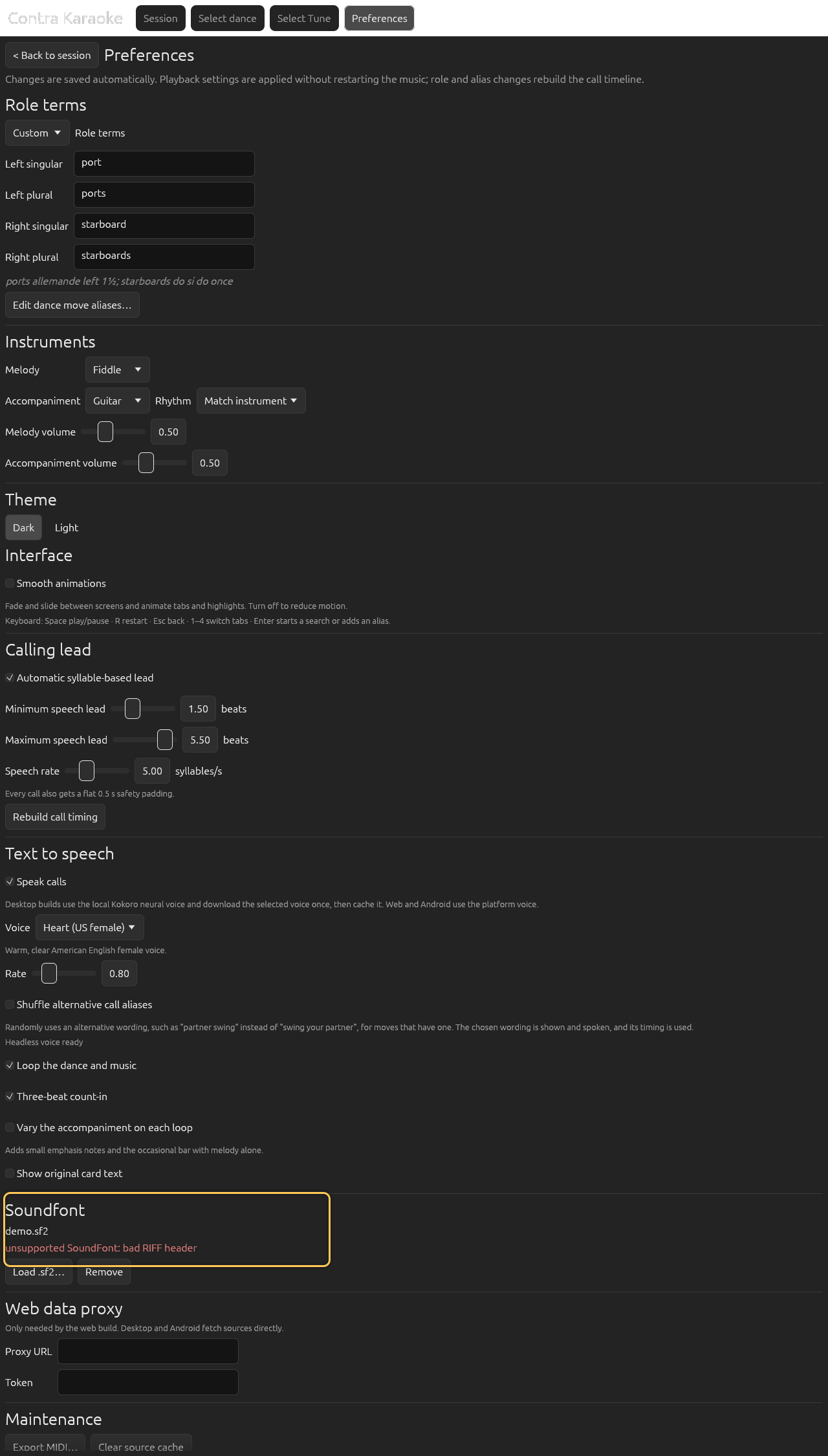
Most recoverable errors appear in a red panel at the bottom of the window. Select Dismiss to close it. Some problems are reported inline where they belong, such as the audio device message above the dance card or the SoundFont message in Preferences.
Quick checks
| Symptom | What to try |
|---|---|
| No music | Check Volume, the OS output device, and the Audio device: message. Pause and Play again. |
| Music does not start | The app prepares the loop in the background. If the status reads Preparing music…, wait for it; the window stays responsive. In a browser, press Play once to allow audio. |
Press Play to prepare the music… will not go away | Press Play to install the prepared loop. Tempo, instrument, percussion, accompaniment rhythm, melody/accompaniment/percussion volume, SoundFont, and count-in changes rebuild the loop; while playing they apply without restarting. |
| A call seems late or early | Check Calling lead and the alias length. A longer call is moved earlier automatically. |
| The first call appears during the count-in | Expected. The first call starts before beat 0. |
| Keyboard shortcuts do nothing | Click a non-text area first. Space, R, Esc, the number keys 1-4, and Enter are ignored while a text field has focus. |
| A media key does nothing | The operating system sends the key to the active media player. Pause any other player, or use Space in Caller Karaoke. On Android, check that the app is still running; the media session is not a foreground service, so Android can stop playback in the background. The browser build has no media session in 0.1.0. |
| Check for updates cannot reach GitHub | Check the network and try again later. The message under the Preferences title gives the HTTP status or network error. A browser may block the request through an extension or a privacy setting; the desktop and Android builds fetch directly. |
| Submit feedback did not open a page | The button asks the operating system for the default browser. Check the default-browser setting, or open the issue tracker manually. |
| Search returns an error | Dismiss it and retry. Cached content may still be available. In a browser, check the web proxy URL/token. |
| Search results look old | The cache is 7 days for searches and 30 days for details. Clear it from Preferences → Data & Storage. |
| No spoken calls | Check the Speak calls toggle, Rate, the selected Voice, and that the music is playing. On desktop or Android, wait for the first voice preparation or select Retry neural voice. |
| SoundFont sounds wrong or silent | On desktop, choose Use bundled to return to the packaged instruments; check the GM programs required by your file. |
| SoundFont loading is unavailable | The browser and Android builds cannot load .sf2 in 0.1.0; they play the bundled Fluid R3 GM subset. |
| MIDI export is unavailable | Export is desktop-only in 0.1.0; the browser and Android builds report the limitation. |
| A card does not total 64 beats | The card is allowed; the music keeps its 64-beat grid. Check the preview total. |
| The window opens behind other windows | The app asks for the keyboard focus once the window is painted, so it normally comes up in front. If the desktop still keeps it in the background, click the window or pick it from the taskbar. |
Source errors
A failed network request or parse is shown in the bottom panel with the source's message. The currently loaded dance and tune are not replaced.
Source ABC is normalized before it is parsed: a leading byte-order mark, Windows or classic Mac line endings, and leading or trailing blank lines are ignored, so tunes edited in other tools still load. A tune whose music itself is malformed still reports the parser error.
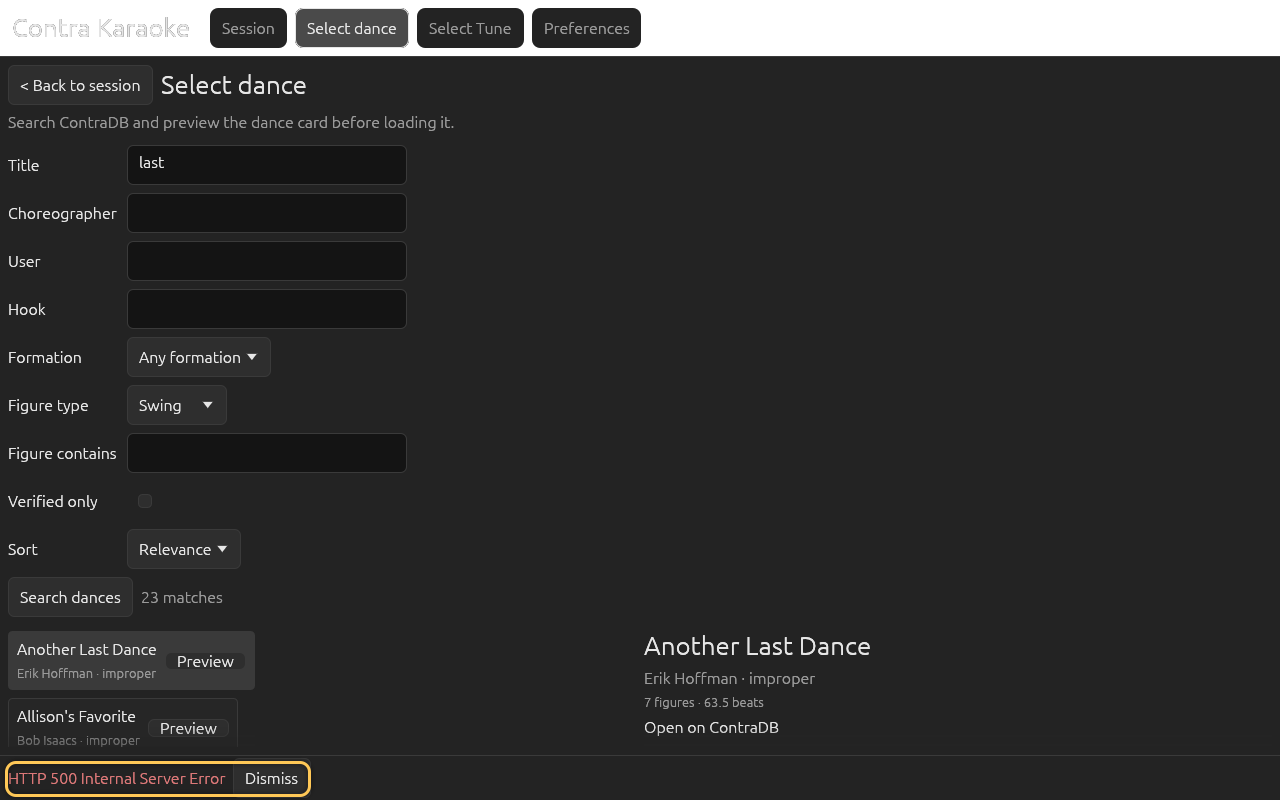
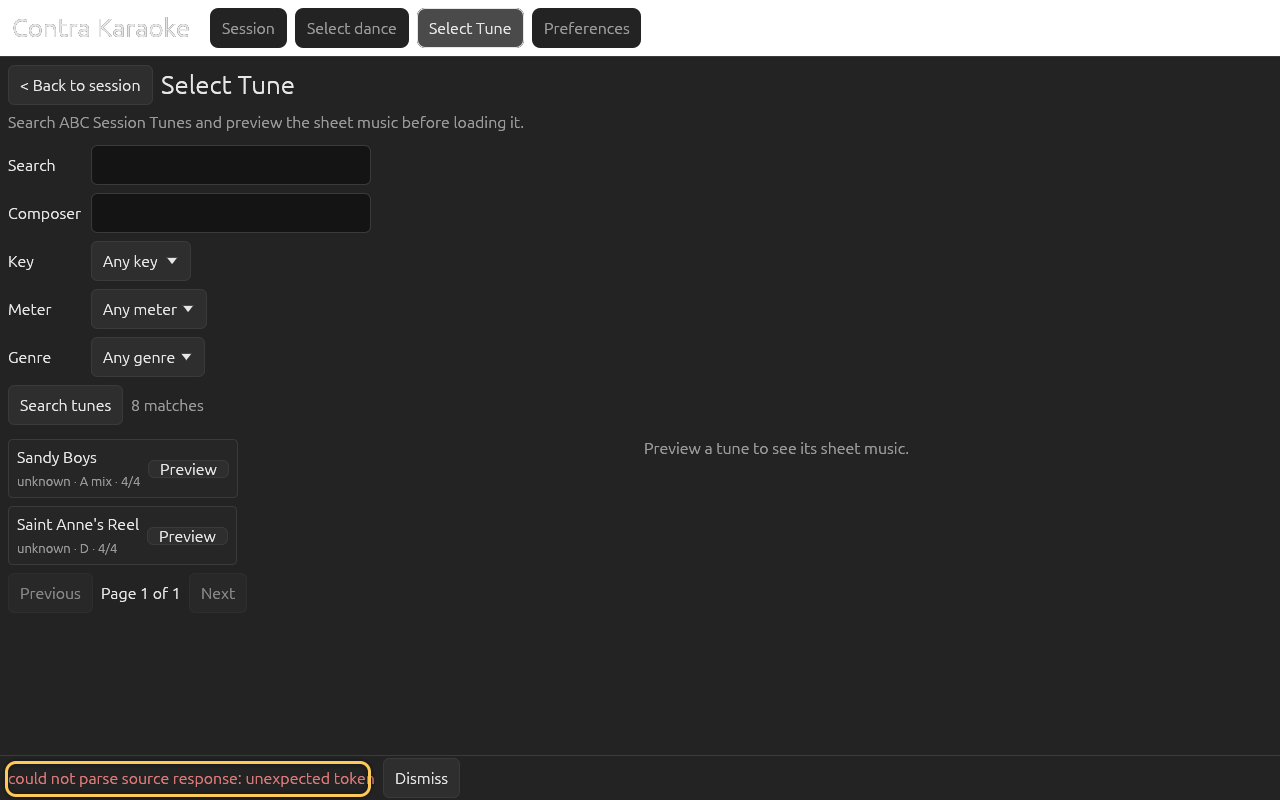
If the app can use stale cached content, it does so silently. If it cannot, it shows the error. There is no separate offline banner in 0.1.0.
Audio errors
If no output device is available, the app falls back to a silent engine and
shows an Audio device: message. The session still runs so you can read the
calls, but there is no sound. Restore the device and restart the app.
In the browser, audio requires a user gesture. If the page has just loaded, press Play. If the browser still blocks audio, check the site's sound permission and any muted tab.
The audio callback is real-time and does not allocate or block. If the audio stream reports an error, the app logs it and keeps the UI running.
Browser-specific problems
- No online search: deploy and configure the
proxy/worker, then set the URL and token under Preferences → Data & Storage. Defaults and cached content still work without it. - Preferences did not persist: the browser build uses
localStorage. Check that site data is not being cleared on exit. - Page does not load the app: serve the bundle over HTTP;
file://will not start the WASM app.
Android-specific problems
Android audio and TTS are still being device-tested. If the app opens but has no sound, check the media volume and the device's audio route. Loading a SoundFont and exporting MIDI are not available in the Android build yet; the bundled instruments are used instead.
TTS errors
On desktop and Android, the first use of a Kokoro voice downloads the model and style file. If that fails, the app shows the reason, offers Retry neural voice, and falls back to the platform voice. If neither voice is usable, Speak calls does not produce sound and the Preferences section shows the reason in muted text. Visual calls continue; see Text to speech.
SoundFont errors
A failed .sf2 load appears below the current SoundFont name. The app keeps the
previous font and falls back to the bundled instruments if nothing else is
loaded. Choose Use bundled and try a different file.
Window and displays
Caller Karaoke asks for the keyboard focus when it starts, so it opens in front of the program that launched it: the window is shown only after its first frame is painted, and an explicit focus request keeps it from appearing behind the terminal or file manager. The request is made during startup only; if you move to another window, the app does not take the focus back.
Caller Karaoke keeps its logical window size when you drag it between monitors with different display scaling, so the controls and the dance card stay the size you expect. The size is corrected when the drag ends, so the window stays under the cursor while you move it. The sheet-music preview is rasterized again for the new display density, so it stays sharp.
If the window opens larger than the screen, maximize and restore it, or drag it back to the other monitor and release it there. The app does not restore a previous window position between launches in 0.1.0.
Rendering and timing
The app renders the count-in and loop offline before playback. A long tune, a large SoundFont, or a slow machine can make the first Play take a moment. There is no cancel button in 0.1.0; the window may appear busy while rendering.
If the music and the call prompt appear to drift, confirm that the tempo matches the band and that the machine is not overloaded. The UI follows the audio playback position, not wall-clock time.
Still stuck?
Open an issue with:
- the screen and action;
- the exact error text;
- whether it reproduces with the bundled defaults;
- the platform and whether audio/TTS/SF2 were involved.
Do not include proxy tokens, private dance URLs, or full file paths.