Choosing a tune
Select tune lists the tunes saved on this device. Saved tunes are available offline; they are not the same as the temporary source cache. The bundled default, Sandy Boys, is in the list from first launch.
Unless Cycle tunes is on, the current tune stays loaded until you press Use this tune.
Build a tune set for a long session
For a real dance the music usually changes every few minutes. Add tunes to the tune set with Add to tune set in a saved tune's preview, then turn on Cycle tunes in the session controls. Each saved tune can be in the chosen set once; Remove from tune set takes it out again.
A folder can be the tune set instead. Select the folder in the panel and choose Use this folder as the tune set; the tune set line then names the folder and its count. The set follows the folder's contents as it changes: a tune saved into the folder joins the set immediately, and moving a tune out removes it. If the folder is deleted, the set falls back to the chosen tunes and the screen shows a status line; Use the chosen tunes switches back on purpose. The chosen list is kept while a folder is active, so switching back loses nothing. Cycle tunes works the same either way.
The session line shows the current position and the next tune, and Change tune every sets how many 64-beat times through each tune stays. The default is eight, about four minutes at 240 BPM. Cyclic playback needs Loop on.
tune-library-tune-setFind a saved tune
tune-libraryType into Search saved to filter the list. The search is local and matches the tune title, composer, key, meter, genre, and credits. Every word you type must match. Select a saved tune to read its metadata and engraved sheet music on the right. The chip at the top right names the current grouping and its saved count: All tunes, Unfiled, or the selected folder.
The saved list and the sheet-music preview fill the height below the search field and scroll inside their own panes, so a long tune or a long folder list never pushes the search field off screen. Each saved row is one click target: clicking it previews the tune, and the row has no buttons. Use this tune, Add to tune set / Remove from tune set, Delete tune, and Move to folder live in the preview. On a desktop, drag the divider between the list and the preview, or between the folder panel and the list, to resize them; Reset panes restores the defaults. The phone layout stays stacked.
tune-library-searchThe folder panel works exactly as it does for dances:
| Choice | Shows |
|---|---|
| All tunes | Every saved tune. |
| Unfiled | Tunes that are not in a folder. |
| A folder name | Only the tunes in that folder. |
Organise saved tunes into folders
Create a folder with New folder and Create folder, then select a saved tune and use Move to folder in its preview. On a desktop you can also right-click the row (or press and hold it on a touch screen) and choose Unfiled or a folder there. The counts beside All tunes, Unfiled, and each folder update immediately.
Folder names are case-insensitive. Select a folder to reveal Rename folder and Delete folder. Renaming keeps the folder's tunes with it. Deleting a folder keeps its tunes and moves them to Unfiled; if it was the tune set, the set returns to the chosen tunes. Delete tune in the preview deletes that saved copy only; a tune already loaded in the session keeps playing.
Folders can be reordered like dance folders: drag a folder row, or use Move up and Move down in the folder controls. On touch, hold the folder until it lifts, then drag; a quick tap still selects it.
Download another tune
Select Download tune at the top of Select tune to open the ABC Session Tunes search screen. Previewing a tune does not save it; use Download tune, or Use this tune to download and load it at once.
Import ABC files
Select Import ABC tune at the top of Select tune to add tunes from your
own .abc files. The desktop build opens a file dialog and accepts several
files at once; the browser opens the browser's file picker; Android opens the
system document picker.
An imported tune is saved with the source local and an id derived from a hash
of its ABC text, so importing the same file twice updates one entry instead of
adding duplicates. Its title, composer, key, meter, and genre are read from the
ABC headers. The Open on ABC Session Tunes link is omitted for imported
tunes because they have no source page.
A file can contain more than one tune (X: headers). Only the first tune is
imported, and the status line says how many more the file holds. Split the file
or import the remaining tunes separately. Import never changes the loaded tune
until you select Use.
If the ABC cannot be parsed, the red error panel explains why and nothing is added.
Export a saved tune
Select a saved tune, then select Export as ABC. The file contains the tune's ABC text exactly as the preview shows it. On desktop the save dialog chooses the destination; the browser downloads the file; Android writes it to the app's export folder and offers Share so the file can be sent to another app. Exported file names are derived from the title and cleaned of characters that are unsafe on Windows, Linux, or Android.
Edit a saved tune's ABC
Edit ABC in a saved tune's preview opens a plain text editor with a live sheet-music preview. Select Save to keep the draft, Cancel to discard it, or Restore original to put the downloaded ABC back. Saving changes only the ABC text; the title, composer, key, meter, and source stay as they were. Malformed ABC shows the parser error and cannot be saved, so the previous text stays in the library. See Editing a saved tune's ABC.
The search form stays at the top, the Previous and Next row stays at the bottom, and the result list and sheet-music preview share the height in between. On a phone the form, results, and preview stack into one scrolling page.
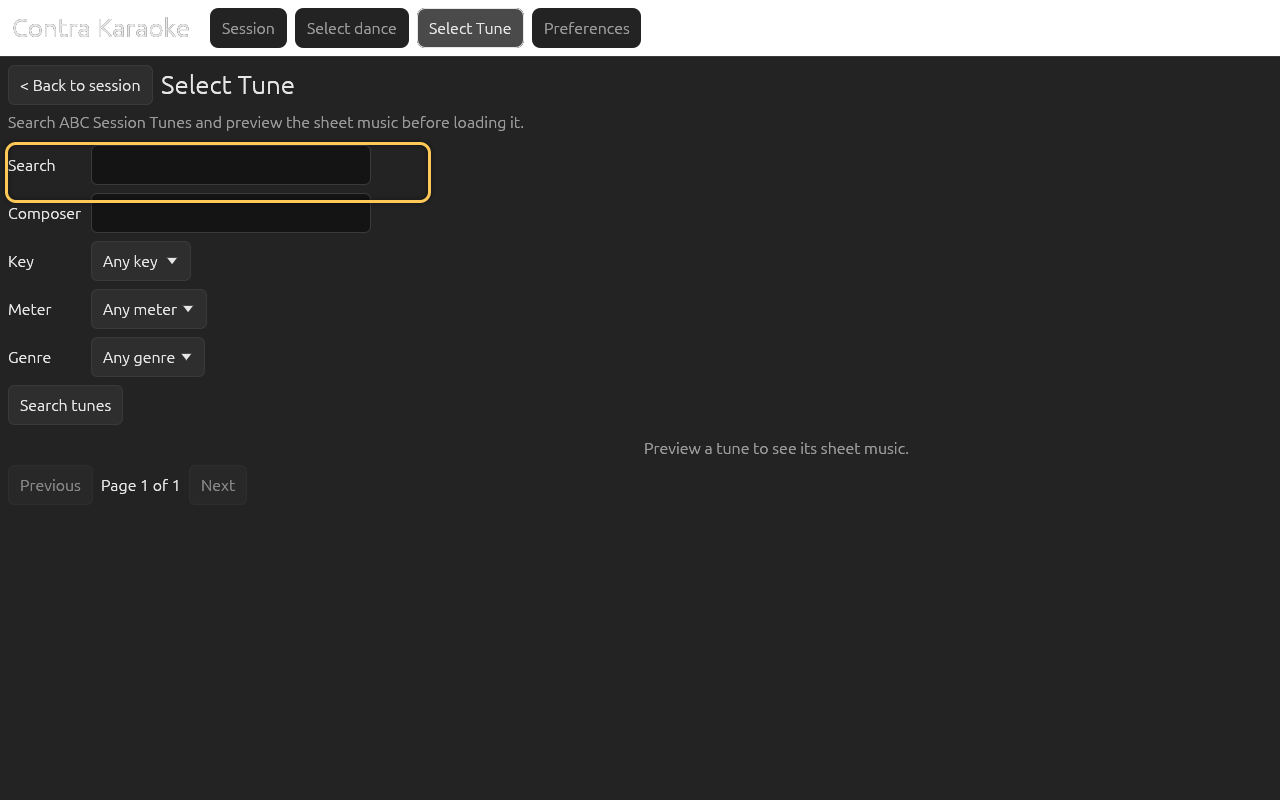
| Field | What it does |
|---|---|
| Search | Matches the tune title (and the source's search index). |
| Composer | Matches the composer name. |
| Key | Any key, or a curated list including D/G/A/C/F/B♭ major, A/E/B/D minor, A dorian, and A mixolydian. |
| Meter | Any meter, or 4/4, 2/2, 2/4, 6/8, 9/8, 12/8, or 3/4. |
| Genre | Any genre, or reel, jig, slip jig, hornpipe, polka, slide, strathspey, or waltz. |
The key and genre lists are curated rather than exhaustive. ABC Session Tunes accepts other values, but the UI keeps the common contra choices short.
Search and page through results
Type a title or composer and select Search tunes. Results show the title, composer, key, and meter. A downloaded line marks tunes already in your saved tunes.
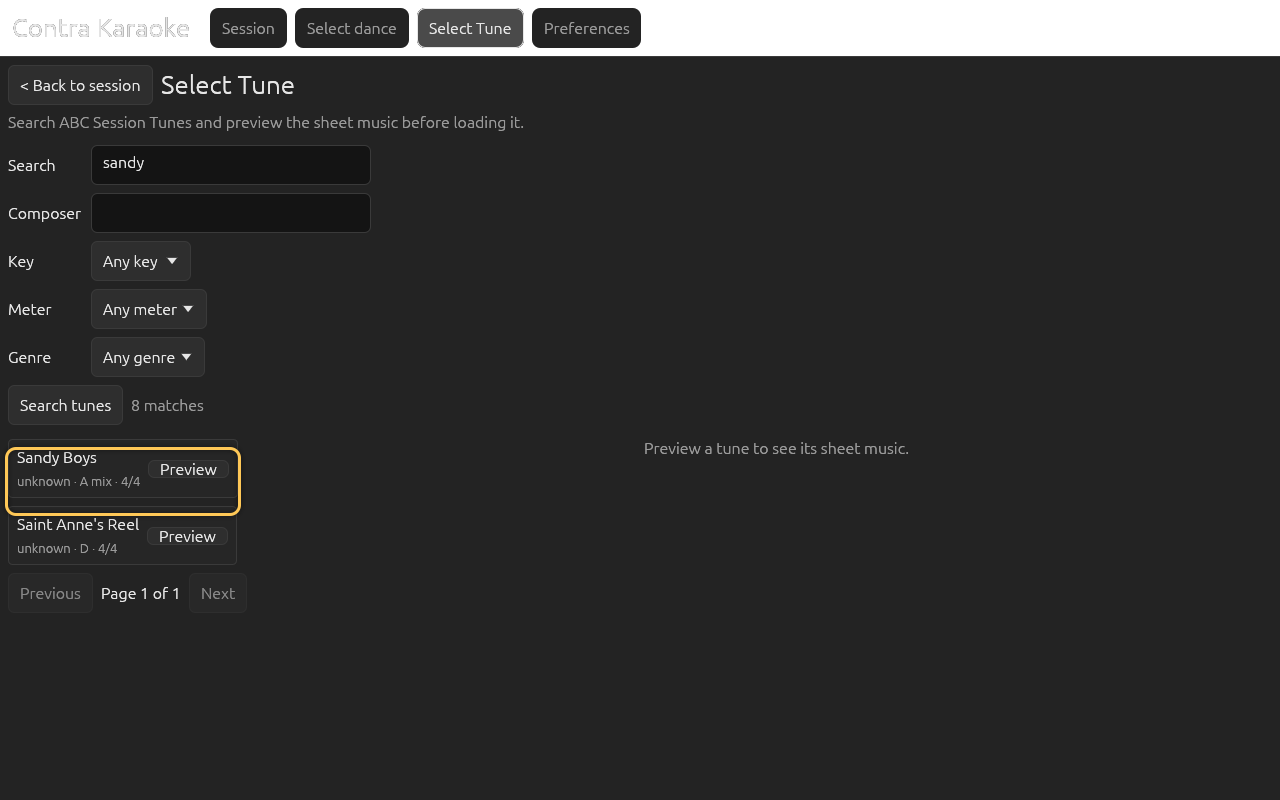
Search matches title and composer; filters narrow the result set. Open Key to narrow the result set. The same pattern applies to Meter and Genre.
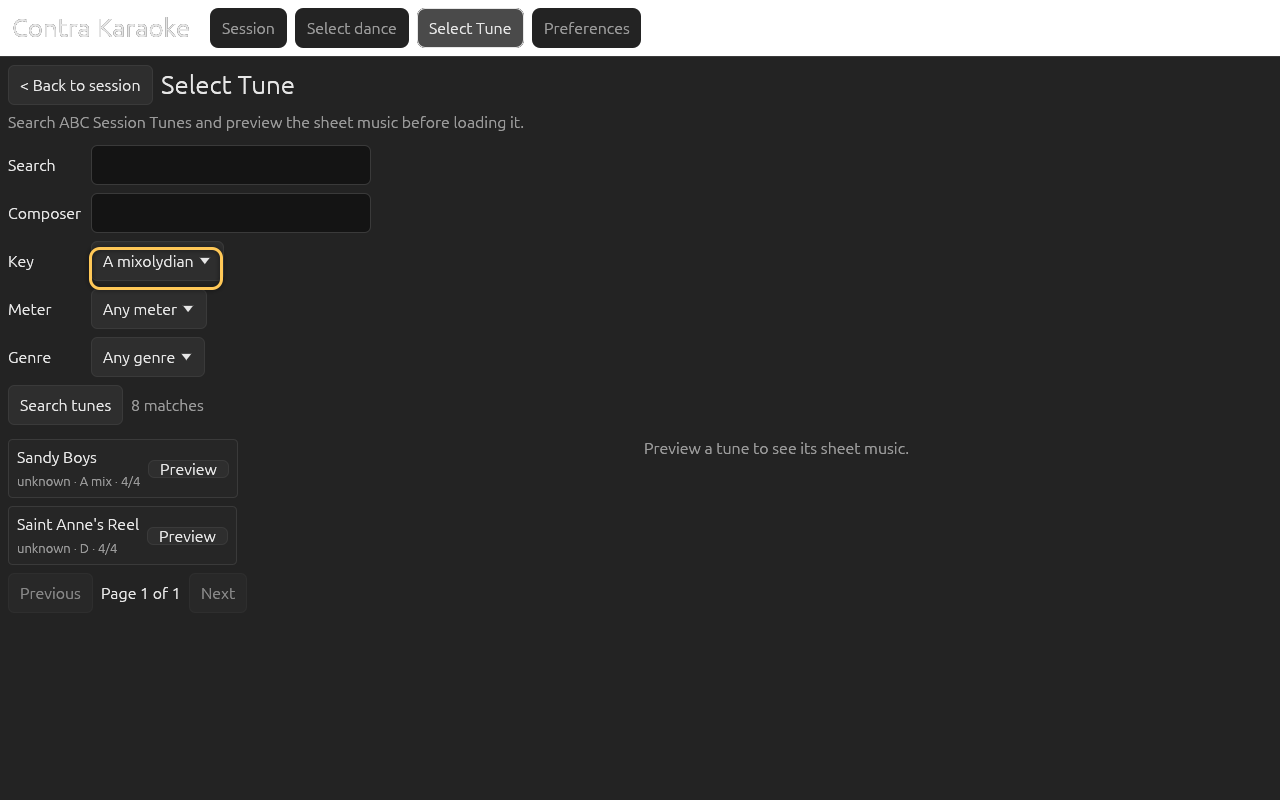
The key menu uses a curated list of common contra keys. Choose a meter, then search again.
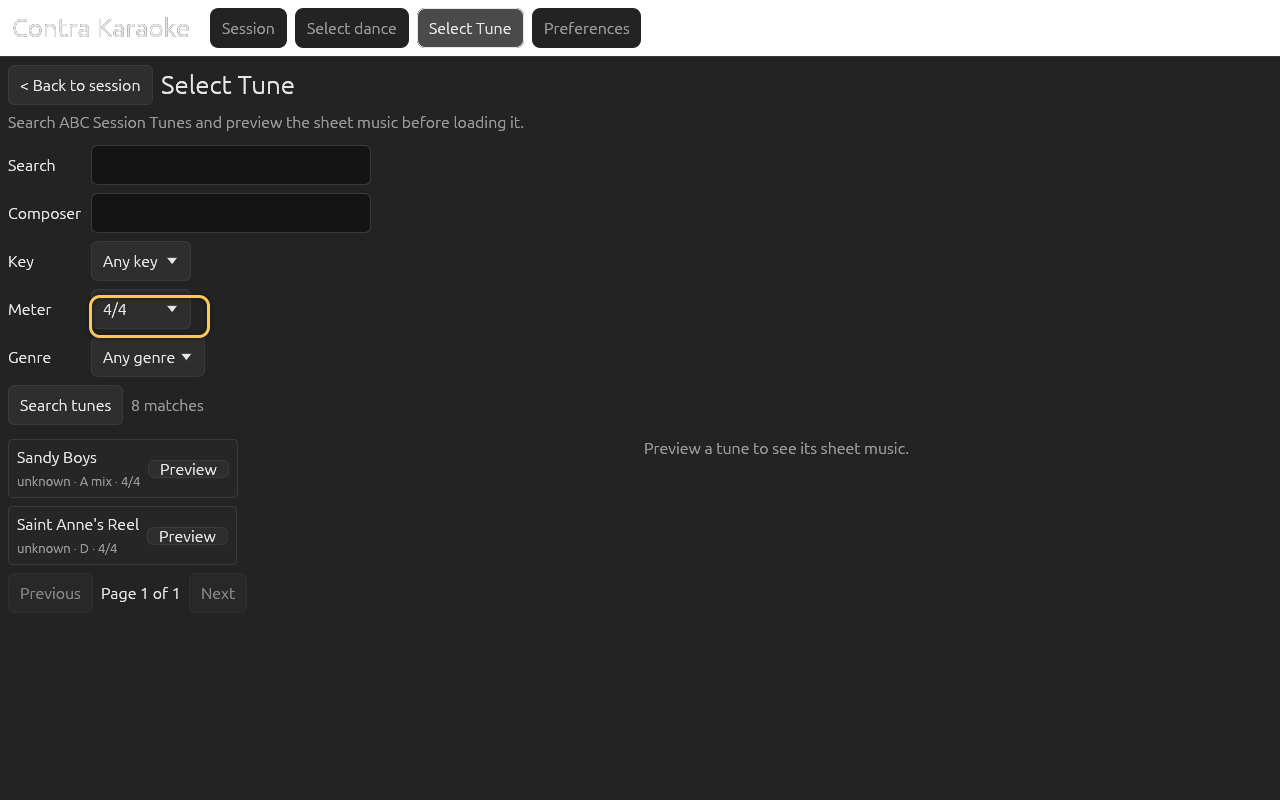
Meter filters the ABC Session Tunes results before searching. Choose a genre such as Reel or Jig, then search again.
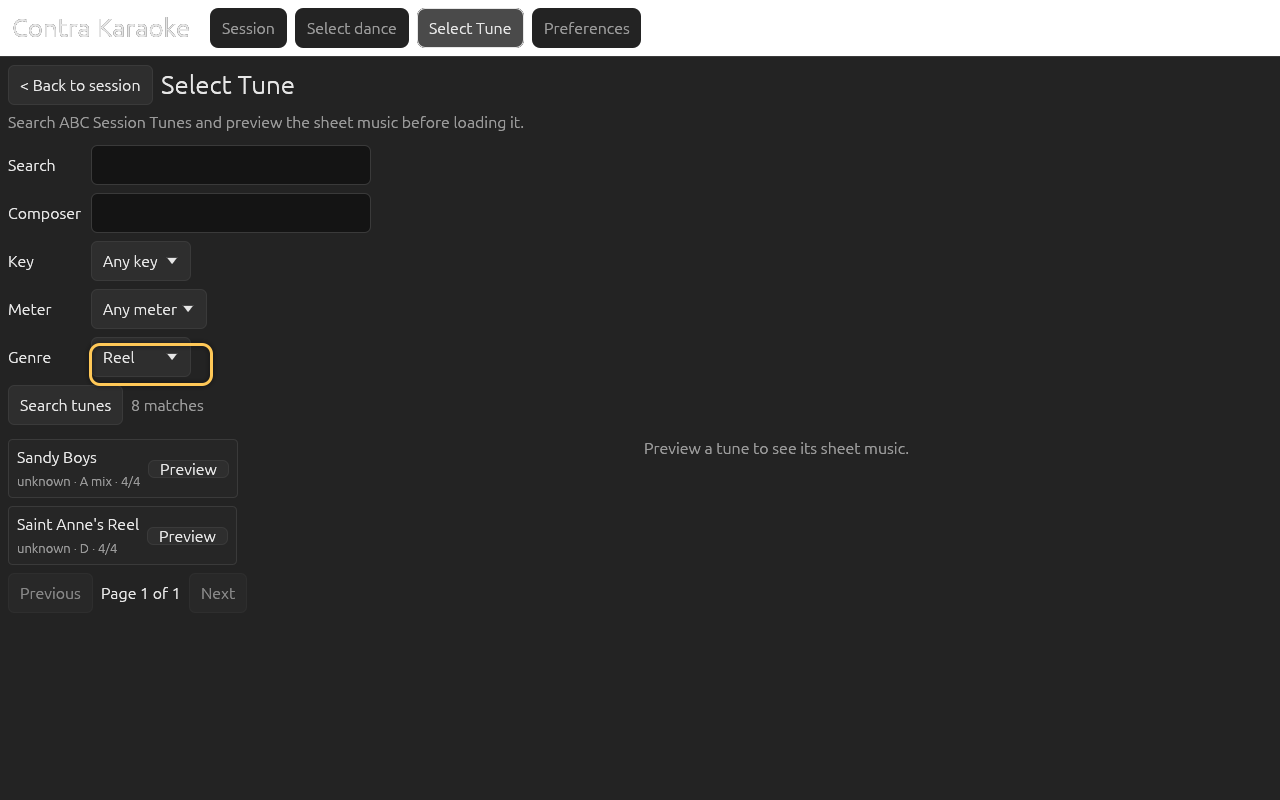
Genre is the ABC Session Tunes rhythm field.
Results are ten per page; Previous and Next sit below the columns.
Preview, download, and load
Select a result row to preview it. The right column shows the title, composer, key, meter, credits, the rendered sheet music, and an Open on ABC Session Tunes link. Download tune saves the tune for offline use; Use this tune saves and loads it. Show ABC switches between the staff and the source text.
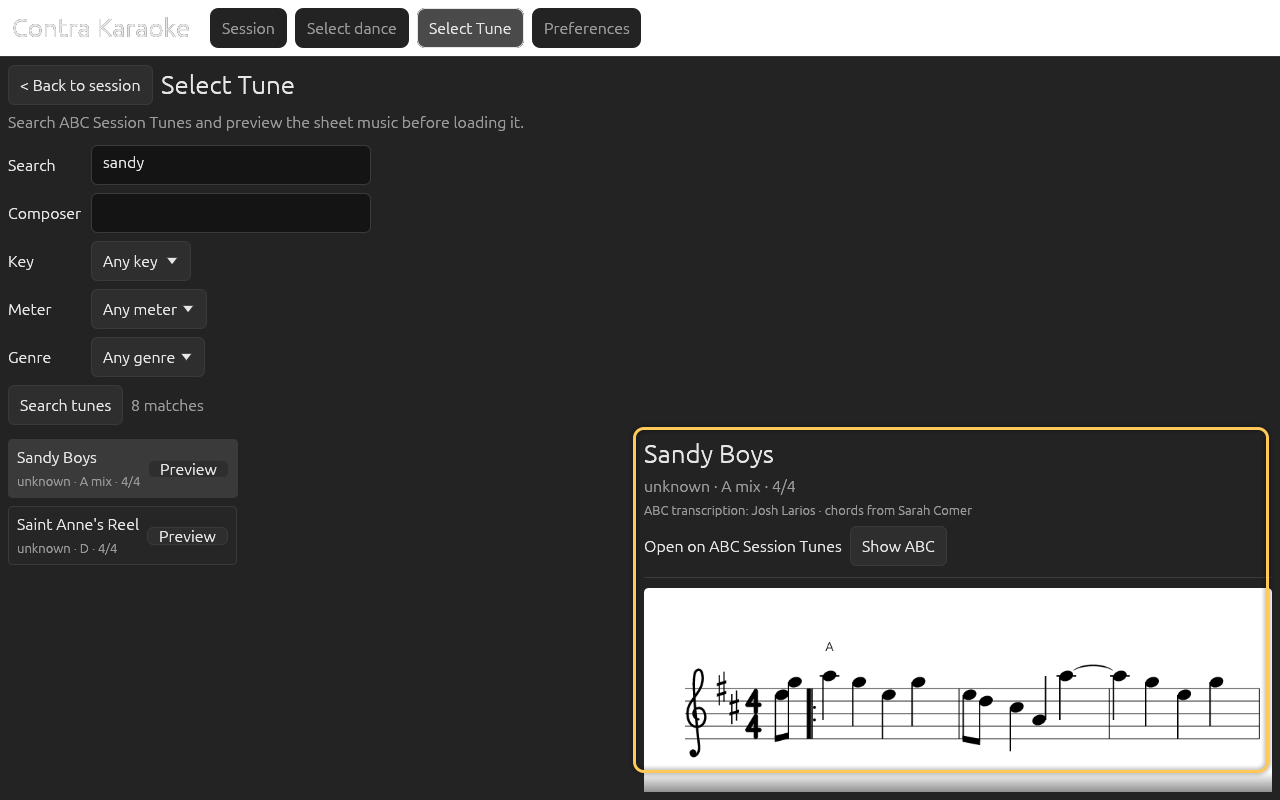
The preview engraves the ABC as sheet music; Download saves it and Use loads it.
The sheet music is engraved from the ABC by the app. The Show ABC view displays the source text in a preview field; edits there are local and do not change the loaded tune or the saved copy. If the engraver cannot render the tune, the app explains why and the ABC view remains available.
What happens to the tune
The arranger turns the tune into a 32-bar, 64-dance-beat loop:
- a shorter tune is repeated at bar boundaries;
- a longer tune is trimmed at the loop boundary;
- pickup notes are preserved around the loop seam;
- short fades avoid clicks at the start and end of the rendered buffer;
- the accompaniment follows the quoted chords, or an inferred progression if the ABC has no chord symbols, using the selected rhythm;
- the accompaniment stays out of the melody's register: a chord tone closer than a minor third to the tune is moved down an octave;
- the countermelody adds a countermelody derived from the melody and that chord track.
The UI does not show an extended/trimmed warning in the tune preview. The arranger's warning appears on the session screen after the music is rendered. The arrangement itself keeps the same 64-beat grid as the dance.
Defaults, storage, and attribution
The bundled default is Sandy Boys (ABC Session Tunes 75815). Its credits are shown in the preview: ABC transcription by Josh Larios, chords from Sarah Comer. Tunes remain the work of their transcribers.
Saved tunes are stored with your app data: JSON files on desktop and Android,
localStorage in the browser. They survive Clear source cache, which only
clears temporary search and detail responses. See
Cache and offline.
Errors and storage
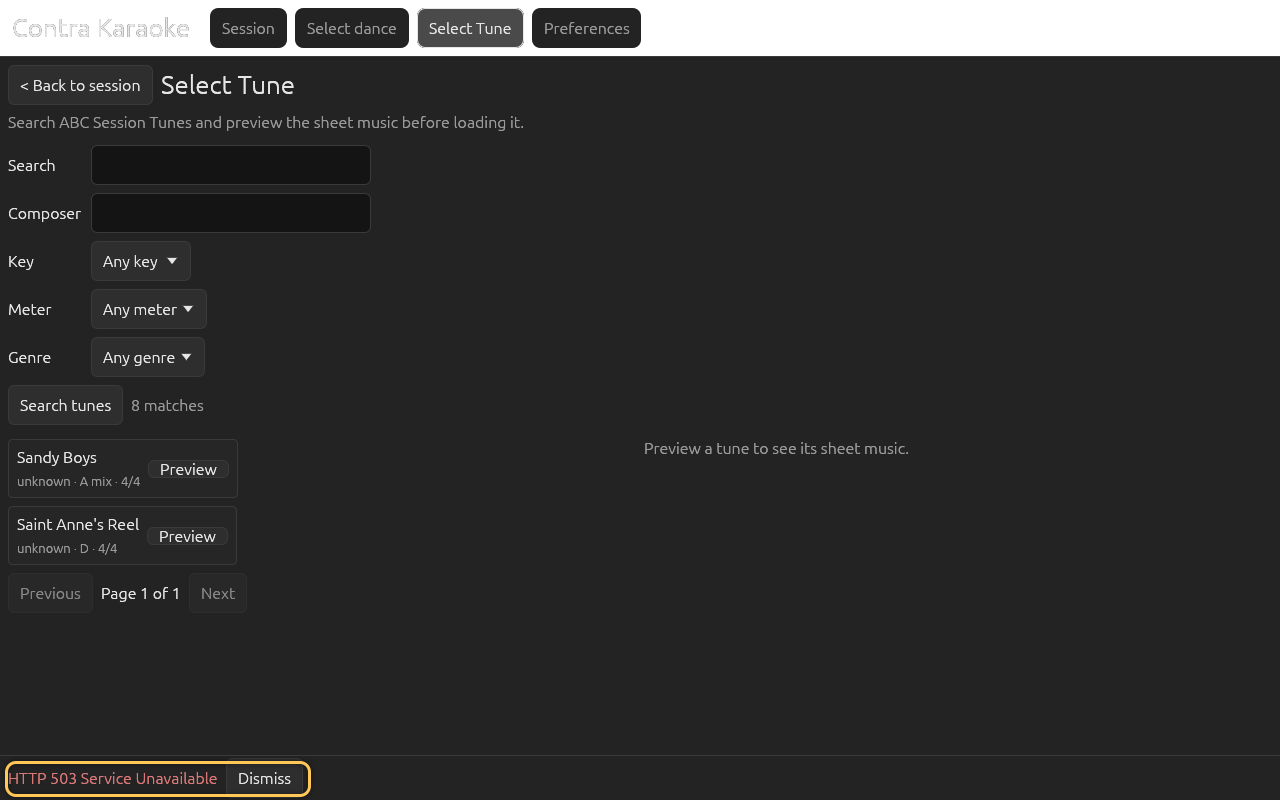
A failed tune search or detail request appears in the red bottom panel. The current tune is not replaced. Search results are cached for seven days and tune details for thirty days.
Next: Session controls.