Dance move aliases
The dance card is written in shorthand. Callers expand it differently: one
caller says swing your neighbor, another says neighbor swing. Aliases let you
change the rendered call without changing the source card.
The alias is not just display text. The lead time is calculated from the rendered words, so a longer alias is automatically moved earlier.
Open the alias editor
Open Preferences with the gear button in the top-right corner.
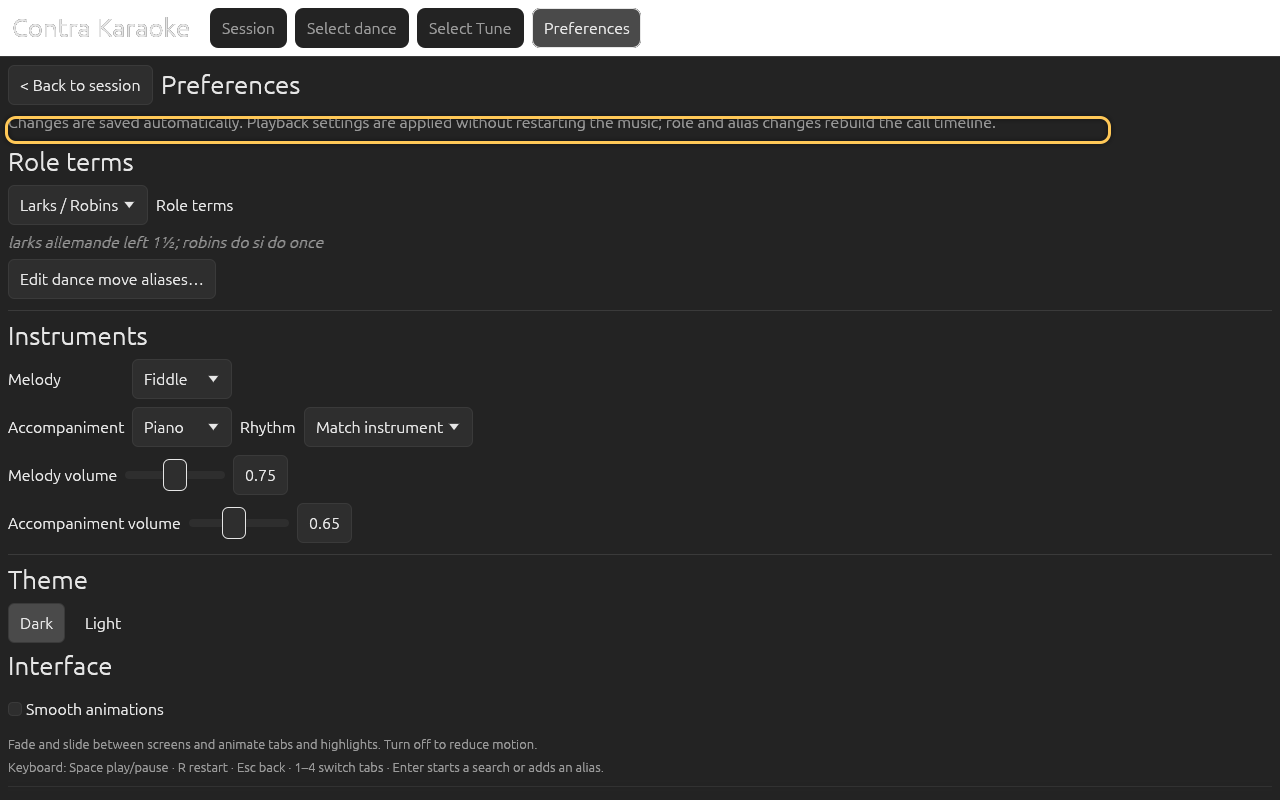
The gear opens Preferences; categories keep settings in one place, feedback and update checks sit in the header, and playback changes apply without restarting. Select Edit dance move aliases… under Role terms.
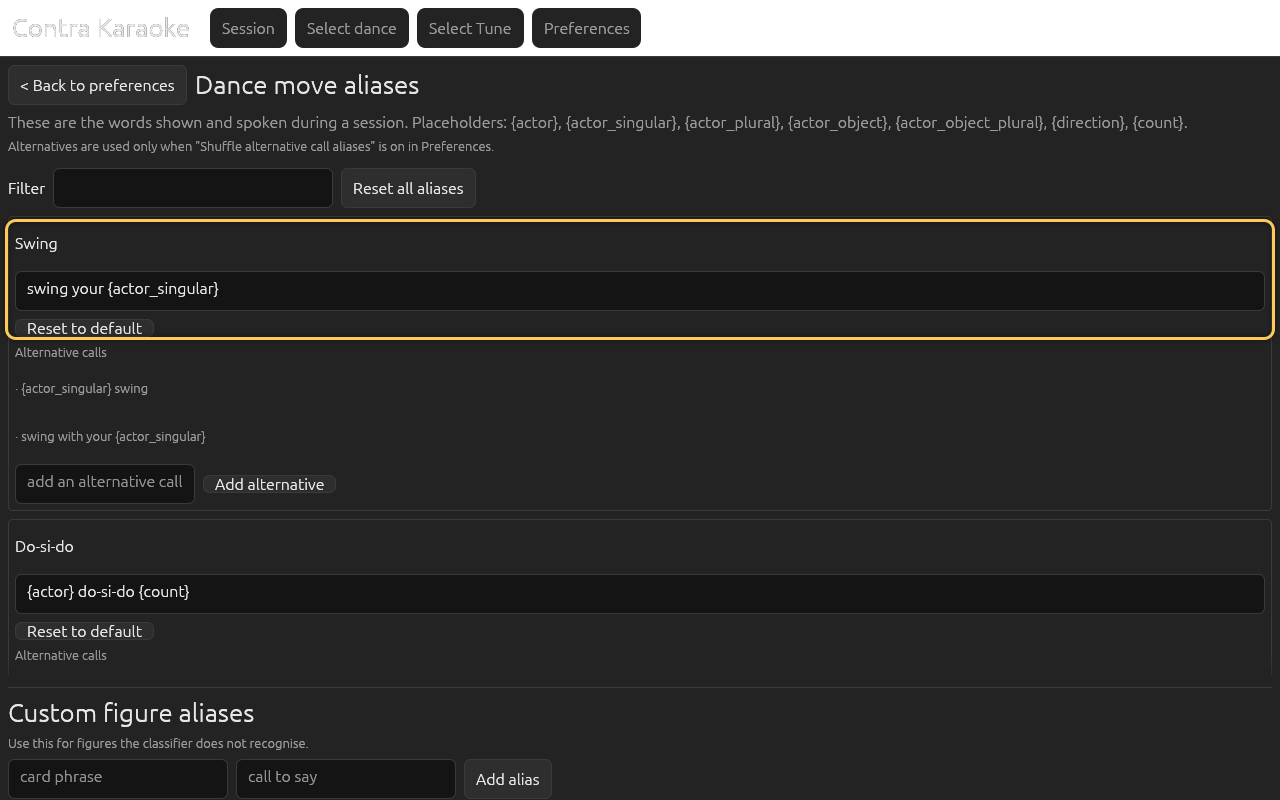
Each recognised move type has an alias template; overridden entries are marked.
The screen lists every recognised move type. An entry marked overridden has a custom template. The Filter field narrows the list by move name or id.
Edit one move type
Find a move such as Swing, edit its template, and leave the field. The change rebuilds the call timeline.
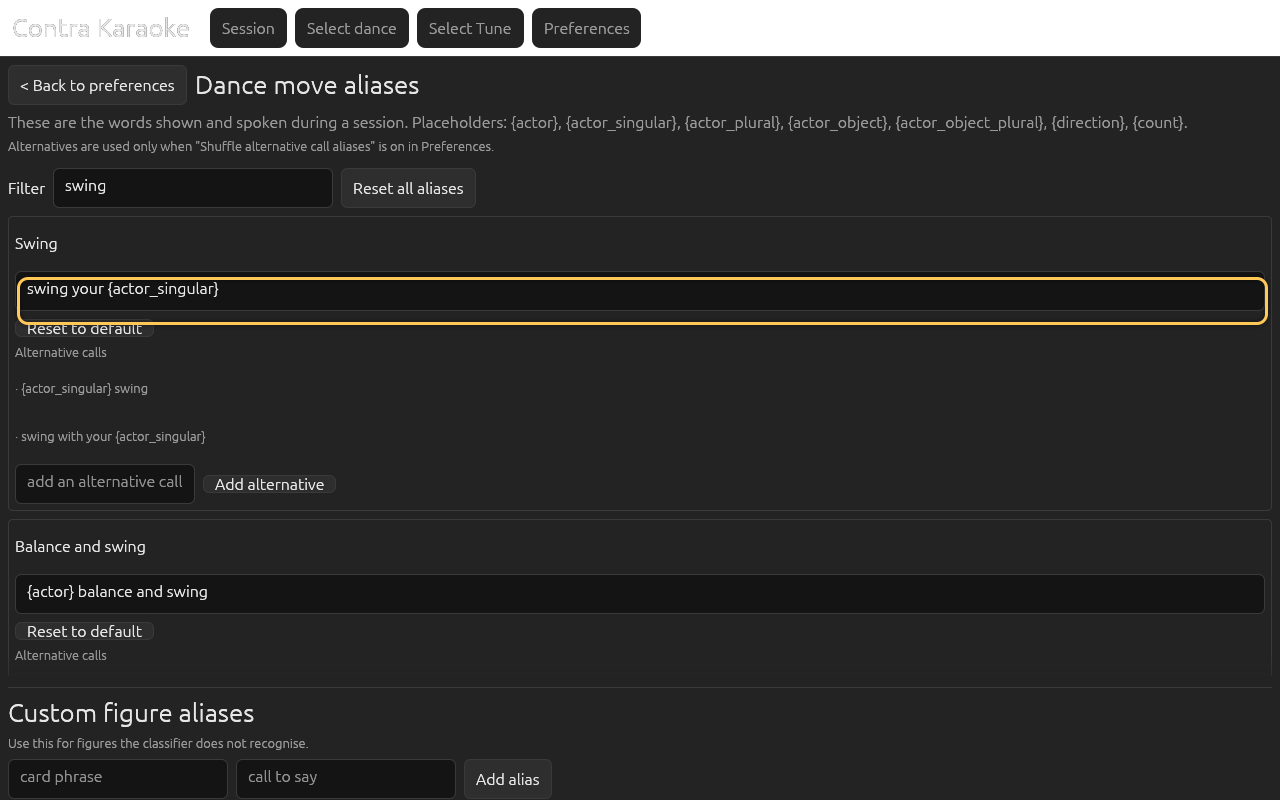
Edit the words shown and spoken for a move type.
The defaults are examples, not rules. A few from the current table:
| Move type | Default template | Example call |
|---|---|---|
| Swing | swing your {actor_singular} | swing your neighbor |
| Do-si-do | {actor} do-si-do {count} | neighbors do-si-do |
| Allemande | {actor} allemande {direction} {count} | larks allemande left once and a half |
| Balance and swing | {actor} balance and swing | partners balance and swing |
| Circle | circle {direction} {count} | circle left three places |
| Long lines | long lines forward and back | long lines forward and back |
Placeholders
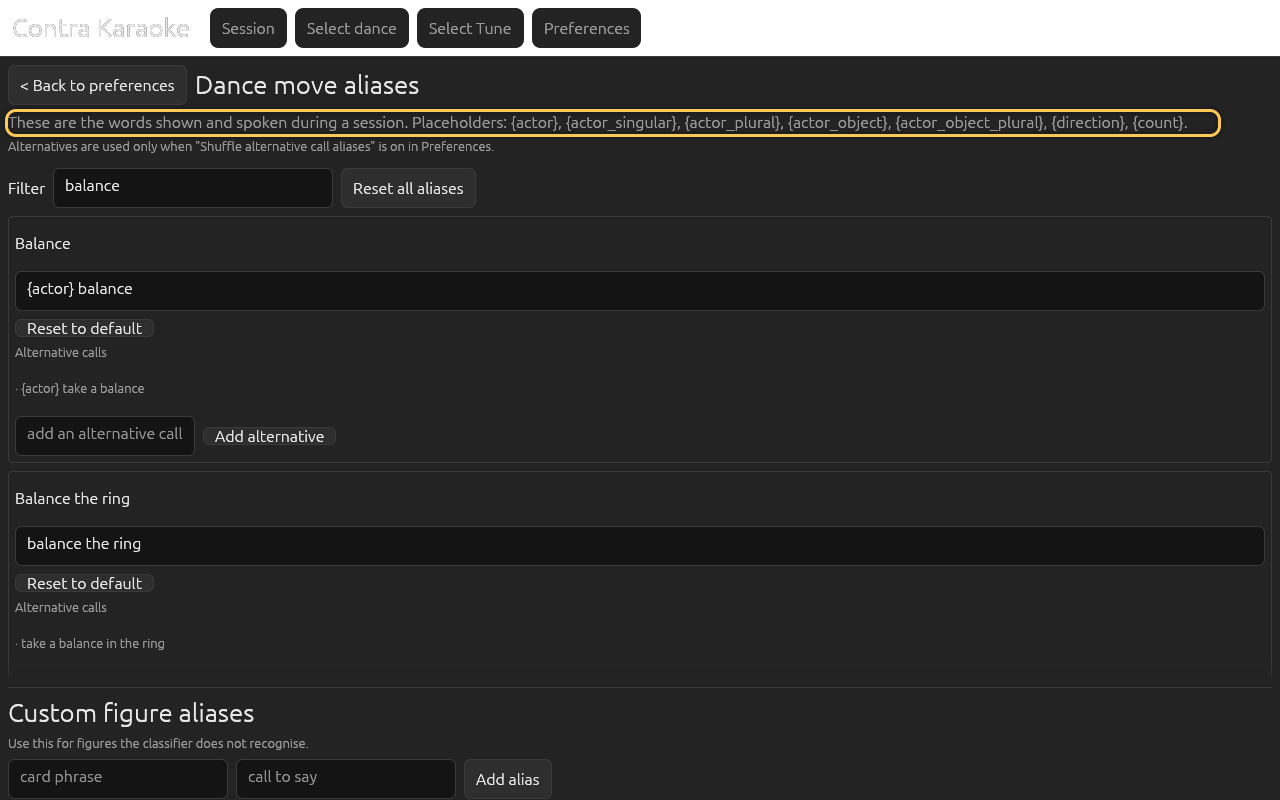
The editor supports seven placeholders:
| Placeholder | Filled with |
|---|---|
{actor} | The actor as written on the card, using your role terms (neighbors, larks, partners). |
{actor_singular} | A singular form (neighbor, lark, partner). |
{actor_plural} | A plural form (neighbors, larks, partners). |
{actor_object} | A singular possessive object form (your neighbor, your partner). |
{actor_object_plural} | A plural possessive object form (your neighbors, your partners). |
{direction} | The direction parsed from the card (left, right, across). |
{count} | The count parsed from the card (once, twice, three places, 1½). A count of once is rendered as empty. |
Unknown placeholders are left as literal text, so a typo is visible in the session rather than silently disappearing. Empty placeholders are removed and extra spaces are cleaned up.
A count of once is omitted from the call: neighbors do-si-do once becomes
neighbors do-si-do, and the shorter wording also gets a shorter lead.
Fractional counts keep their words, for example once and a half.
Alternative calls
A move can have more than one natural wording. Swing, for example, can be
swing your partner or partner swing. Preferences → Calling has a
Shuffle alternative call aliases checkbox. When it is on, the app chooses one
usable wording for each figure, including the active template, and shows and
speaks that choice. The chosen wording also determines the lead time.
The alias editor lists the built-in alternatives under a move. Add your own in add an alternative call and press Enter or select Add alternative; your alternatives are marked and can be removed individually. Shuffling is off by default so calls stay predictable; selecting a new dance advances the shuffle. Turning it off returns every call to its active template.
Reset
Select Reset to default on one row to restore that move's built-in template.
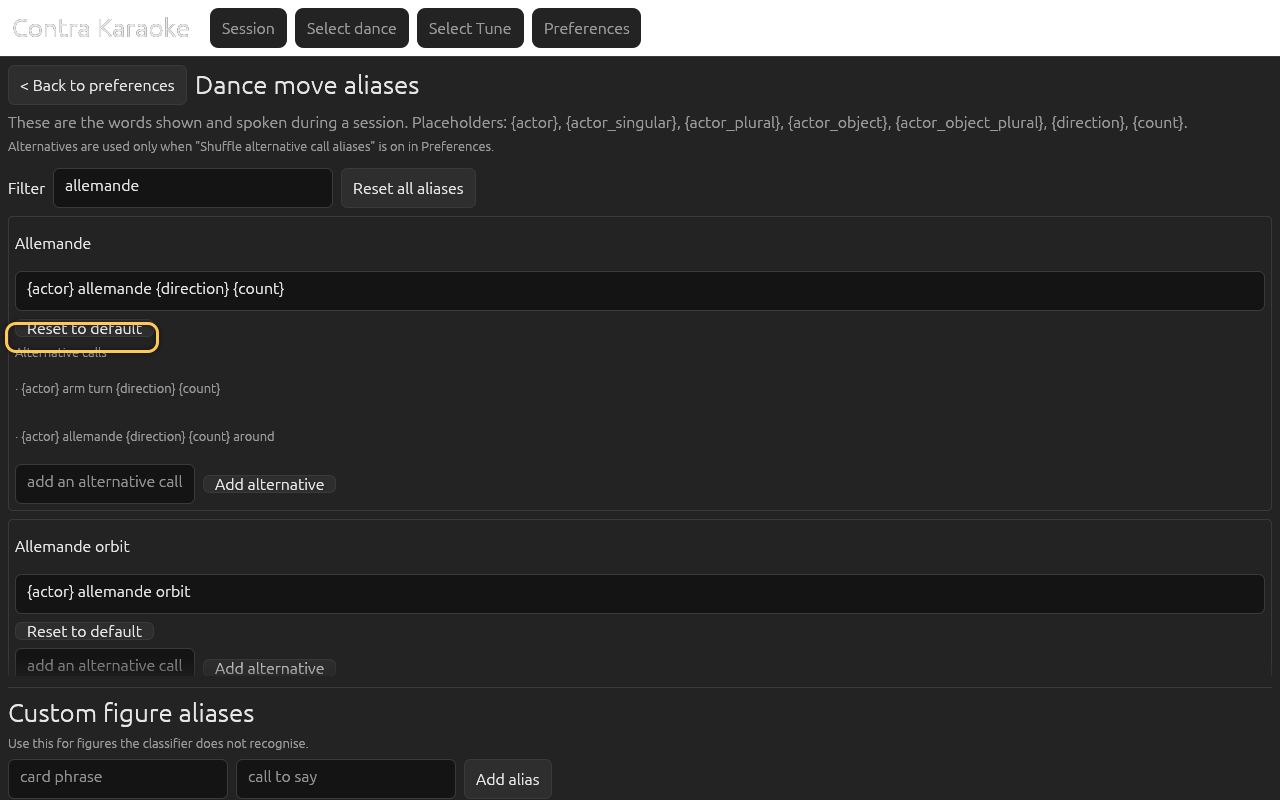
Resetting one alias restores the built-in wording for that move. Select Reset all aliases to restore every move template and remove all custom figure aliases.
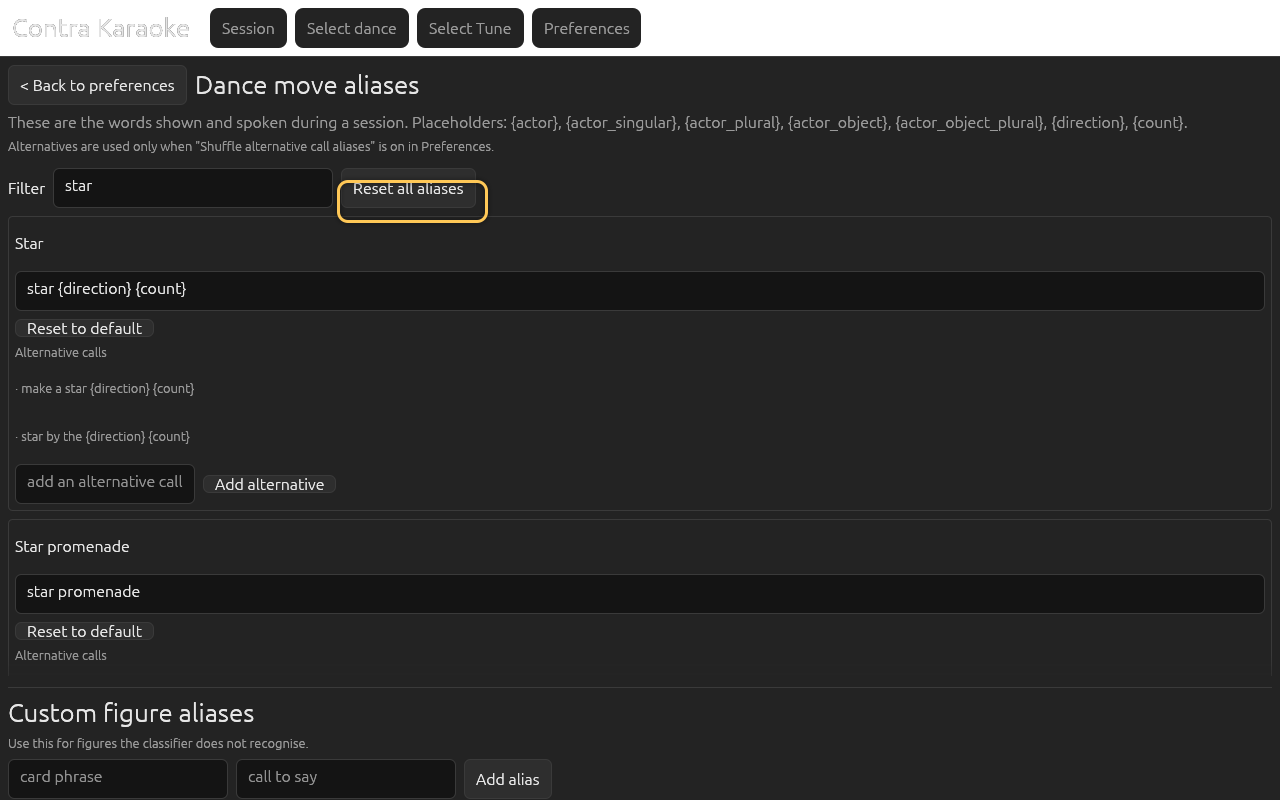
Reset all aliases returns every move type to its default template.
Reset all is broader than it sounds: it clears the override table and the custom alias table in one action.
Add an alias for an unmatched figure
The classifier recognises many common moves, but not every card phrase. When a figure is classified as Other, a custom alias can supply its wording.
Under Custom figure aliases, enter the card phrase and the words to say, then select Add alias.
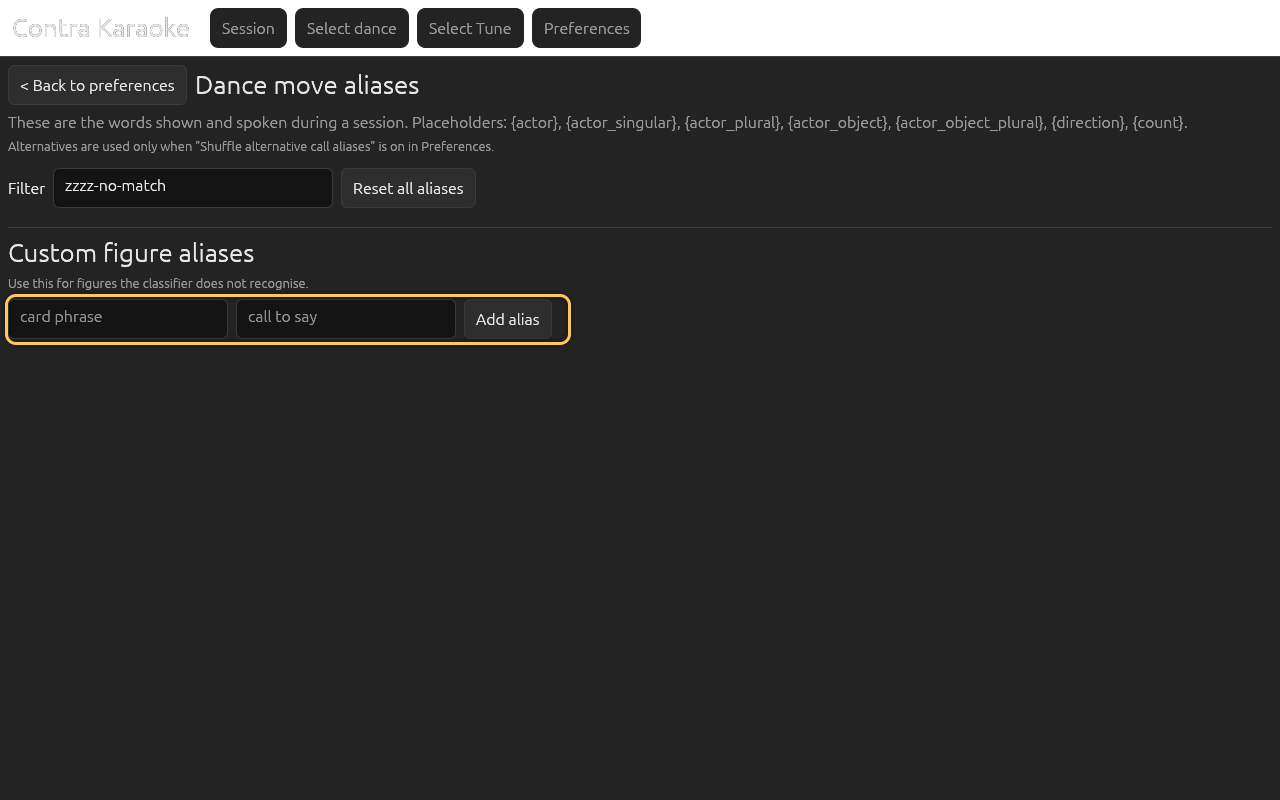
Use a custom alias when the classifier does not recognise a figure phrase. Return to the session and check the rendered call. Remove the custom alias with Remove if it is wrong.
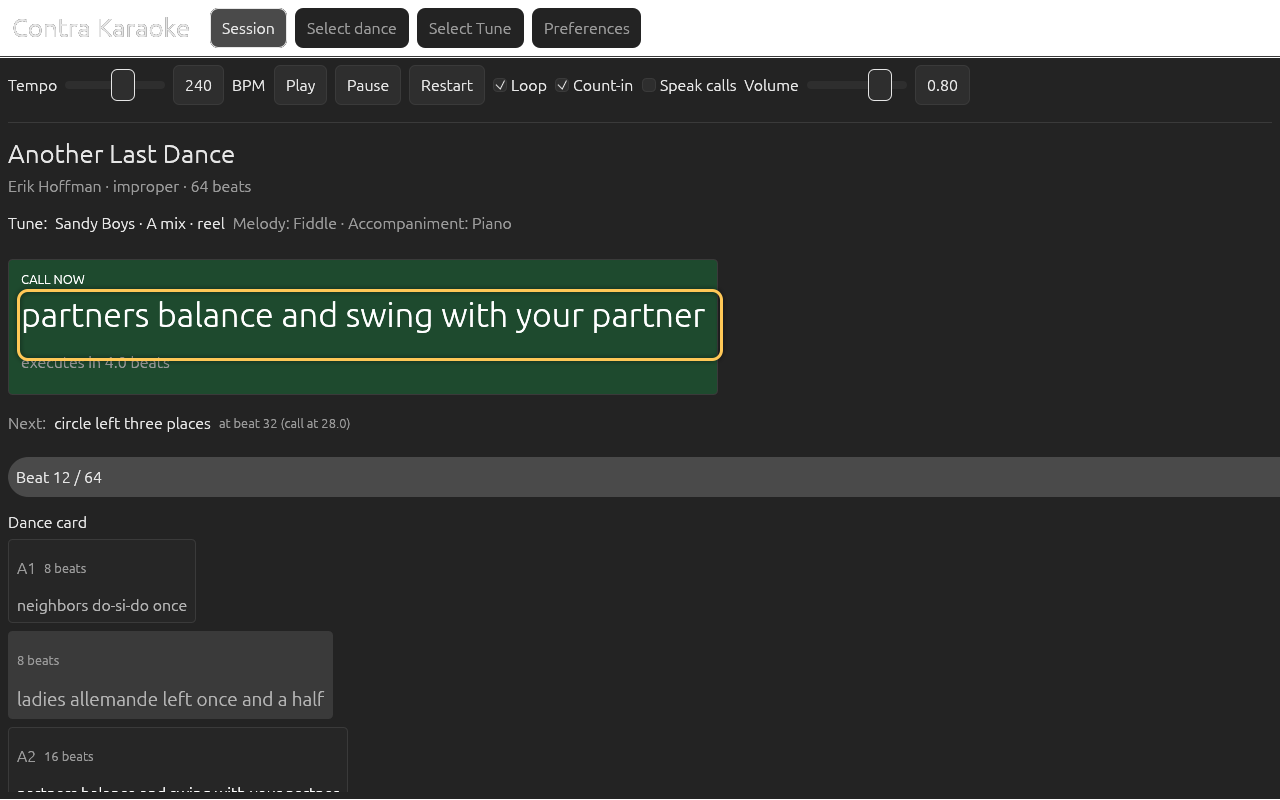
Alias changes rebuild the call timeline and move calls earlier or later as the wording changes.
The phrase is matched after normalisation (case, punctuation, and spacing), so
Strange thing! and strange thing use the same entry.
A custom alias only applies when the classifier does not already recognise the phrase. To change a recognised move such as Swing, edit the move-type template instead.
Sub-calls and splitting
A figure row normally produces one call. Two separators create sub-calls:
- a semicolon (
;); - a spaced dash (
-,–, or—).
balance & swing stays one call because & is not a separator. If a row is
split, the row's beats are divided between the sub-calls; a trailing balance
gets about two beats when they fit.
What triggers a rebuild
Any alias edit rebuilds the call timeline immediately. The music keeps playing; the new wording and its lead times apply without re-rendering the loop. The role preset and custom role fields rebuild in the same way. Only changing an audio setting such as tempo, instrument, volume, count-in, or SoundFont marks the music for a rebuild.
Next: Instruments and soundfonts.