Instruments and soundfonts
Caller Karaoke imitates a small contra band. The band is a list you edit: by default it has two melody fiddles, a piano, two countermelody fiddles, and three foot taps, so a session sounds like a full band on first launch. Playback uses sampled instruments from a bundled subset of the Fluid R3 GM soundfont, so no download is needed.
The band list
Open Preferences → Band & Sound. Each row is one instrument: its Part chooses the notes (Melody, Countermelody, Accompaniment, or Percussion), its Instrument chooses the voice, its Players stepper creates a section, and its Direction places it in the stereo or surround image.
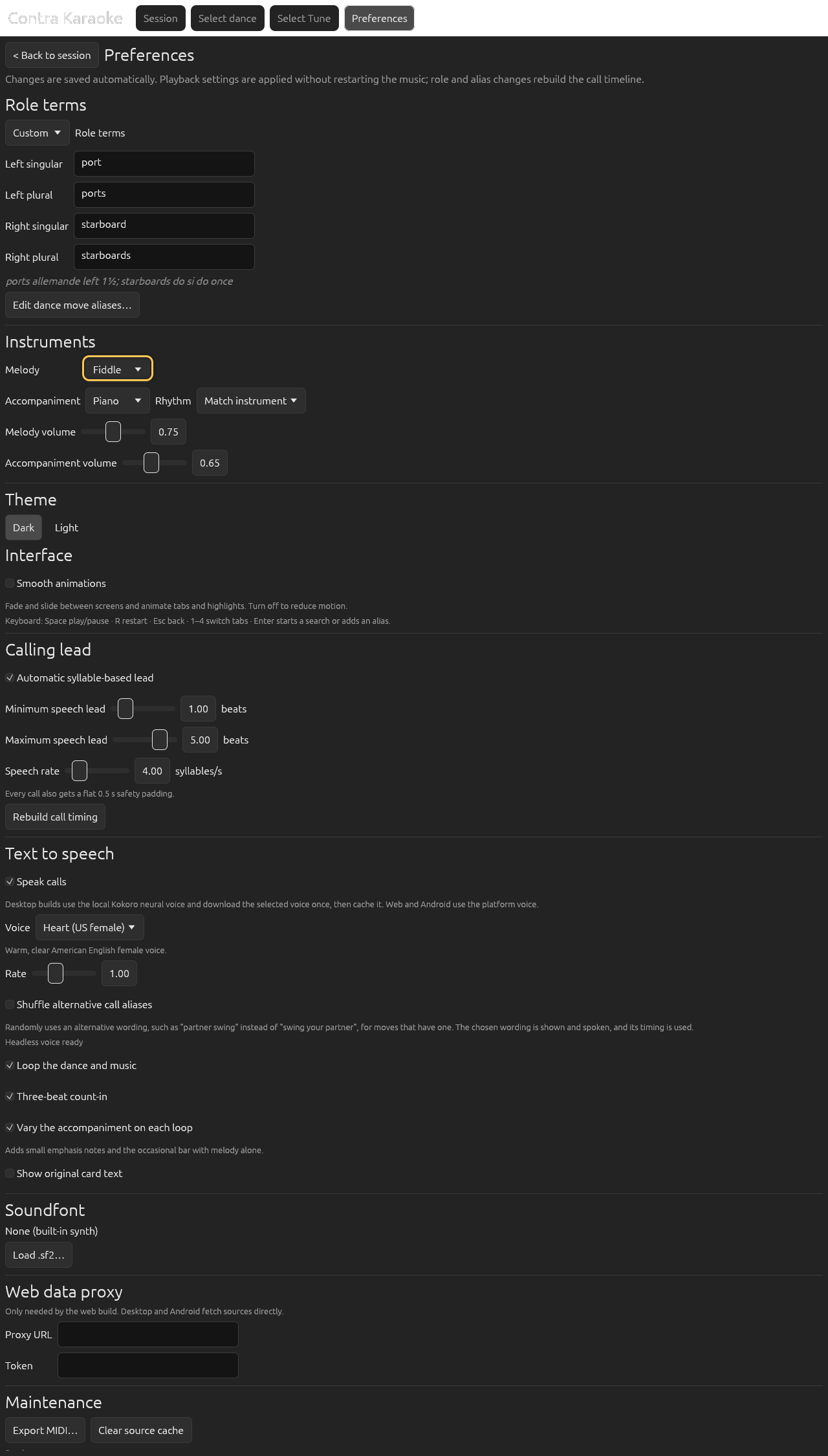
The default band is two melody fiddles, a piano, two countermelody fiddles, and three foot taps. Use Add instrument to add a row and Remove to take one away. Up and Down reorder the list, which is the order the summary and exported MIDI use. A second piano is its own row, not a copy of the first.
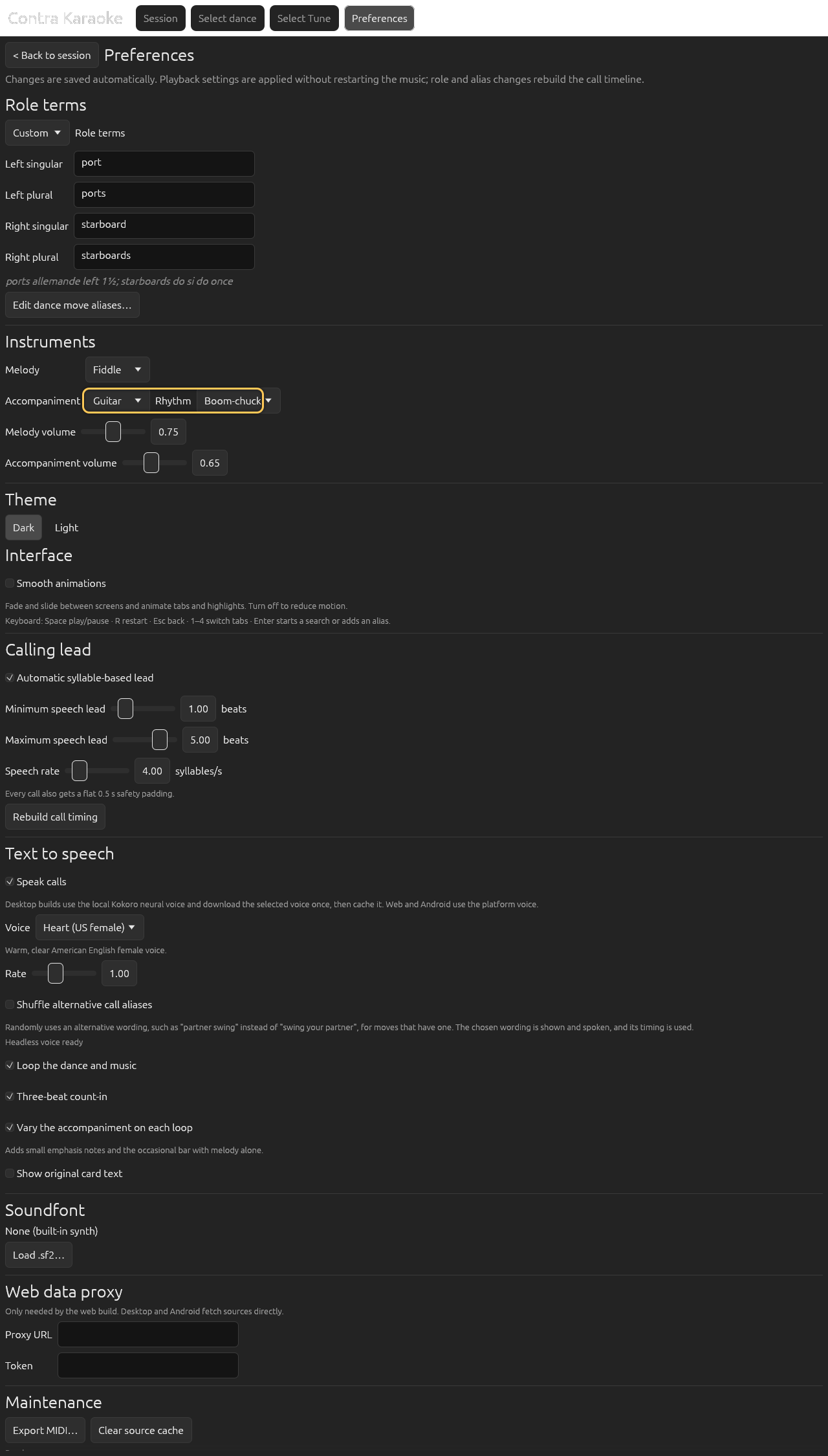
Any voice can take any part: a guitar accompaniment is its own row with its own players, level, and place. Set a row's Part to Countermelody for the line under the tune. The part chooses the notes; the instrument can be a fiddle, an accordion, a clarinet, or any other voice.
Screenshot pendingprefs-instrument-secondA countermelody row adds a second line without copying the melody row; the default is two countermelody fiddles. Add a Percussion row and choose Foot taps to keep the dance beat with a soft tap, or Drumset for kick, snare, and hi-hat. Remove every percussion row for no percussion.
Screenshot pendingprefs-instrument-percussionPercussion is a band row: Foot taps play a one-and-a gallop, Drumset adds a full kit, and the rhythm menu changes the pattern. Set each row's Volume, then use the shared Caller volume and Band volume sliders. The caller and the band have independent levels.
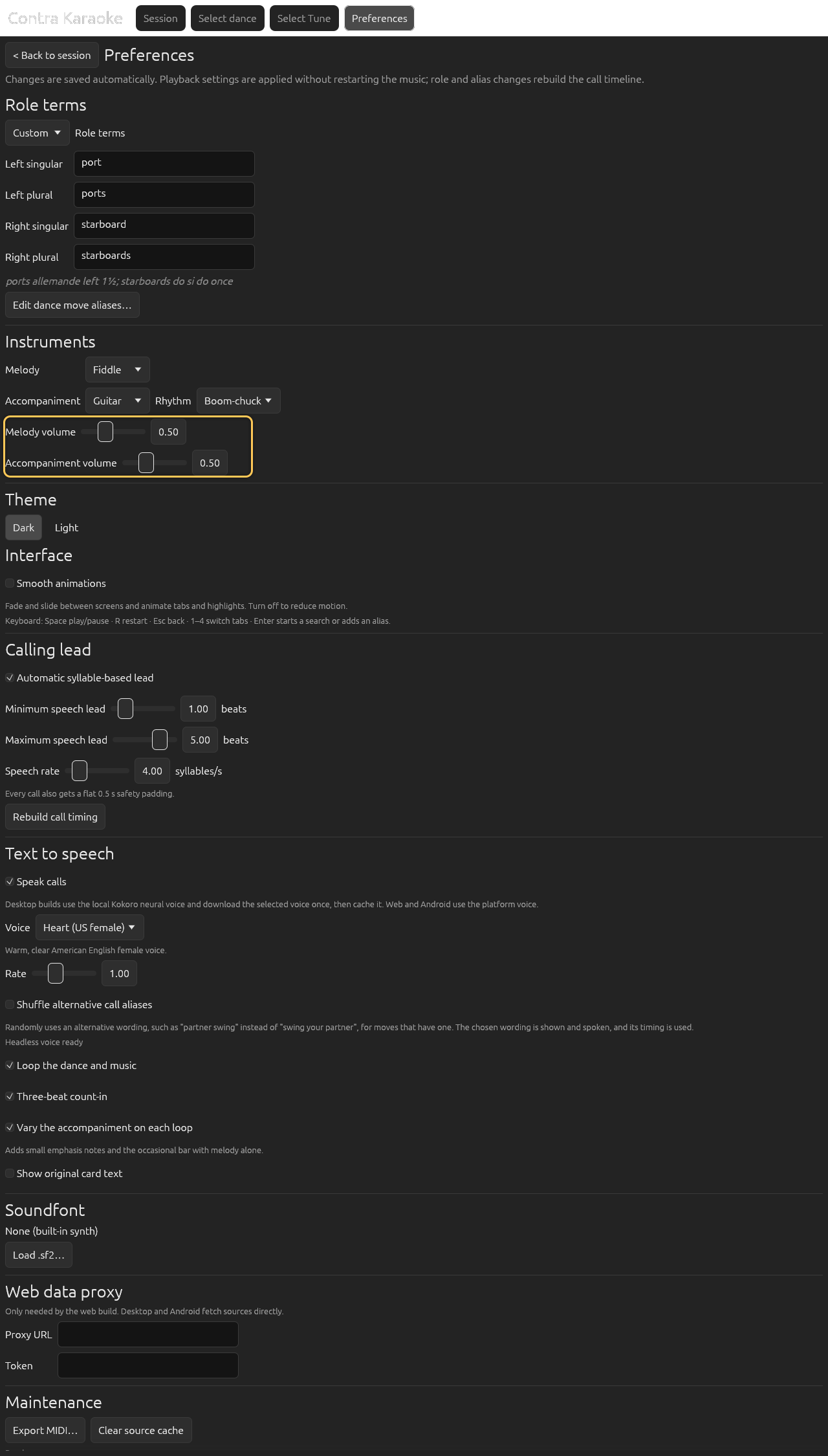
The caller and the band have independent levels; dancer sounds are temporarily disabled while their rhythms are corrected.
The session's tune summary lists every band row below the call prompt. The band always keeps at least one pitched instrument: removing the last one falls back to a front fiddle rather than leaving the session silent.
Players and sections
A row's Players stepper accepts one to four players for a pitched part and one to three for percussion. Each player is a real second player, not a volume boost: it gets its own pan position, a few milliseconds of constant latency, and a small tuning or velocity difference, so a two-fiddle section sounds wider and thicker instead of merely louder. All players still play on the same dance-beat grid: the latency is a fixed offset of at most a dozen milliseconds, never drift. The section is levelled so that adding players thickens the part without changing how loud it is, and the renderer still removes any peak above its headroom.
The list is saved with the other preferences. Changing a row prepares a new loop in the background without restarting playback, like any other instrument change.
The countermelody
The countermelody is not another chord track. It is a countermelody generated from the tune: one note per dance beat, voiced a diatonic third below whichever melody note is sounding and snapped to a nearby chord tone. It follows the tune's contour instead of holding a pedal, and it leaves a beat open rather than repeating a pitch.
It stays on the same 64-beat grid, adds no new timing, and uses its own row's Volume and Direction settings. During a variation pass it rests in the same bar as the accompaniment, so a "melody alone" bar really is alone.
Percussion
Percussion is optional and comes from the band list; the default band has one foot-tap row with three players. Foot taps play a one-and-a gallop by default: on each dance beat, an eighth-note tap on the beat followed by two sixteenth-note taps halfway and three-quarters through the beat (“one and a two and a…”). Drumset adds a basic kick, snare, and hi-hat pattern: the hats subdivide each beat in half for reels and in thirds for compound meters such as jigs. The rhythm menu can change either pattern.
Percussion starts with the count-in and sits on the same 64-beat grid. It does not change the dance timing or the calls. Each percussion row has its own Volume, Players, and Direction; the percussion voices are generated by the app, so they work with the bundled soundfont, a user-supplied font, and the built-in synth. Removing every percussion row leaves them out.
Dancer sounds
Dancer sounds is temporarily disabled in 0.1.0 while its rhythms are corrected: the hand claps and foot stomps it derived from figure names did not match what dancers actually do. The preference stays in place, greyed out, so the layer can return in a later build without discarding saved settings. Nothing else changes: the music, calls, timing, and 64-beat loop are unaffected.
Percussion rhythms
Percussion rhythm changes when the layer sounds, just as the accompaniment Rhythm menu does. It never moves the grid or the calls.
| Rhythm | What it plays |
|---|---|
| Match style | Gallop foot taps (eighth + two sixteenths per dance beat), or the basic kick/snare/hat kit. |
| Basic | The style's basic pattern. |
| On the beat | An accent on each dance beat. |
| Offbeats | Accents between the dance beats. |
| Half time | One accent per bar, with a sparse kit. |
| Double time | Two accents per dance beat. |
| Shuffle | A swung long-short feel. |
| Gallop | An eighth-note tap on the beat, then two sixteenth-note taps at the half and three-quarter points. |
| Triplet | Three even taps on every dance beat. |
| Train beat | Alternating accents in steady eighth notes. |
The count-in stays one clear note per beat regardless of the selected rhythm.
Choose an accompaniment rhythm
The Rhythm menu changes how the accompaniment realises the chord track. It does not change the dance timing, the calls, or the length of the loop.
| Rhythm | What it plays |
|---|---|
| Match instrument | The default for the chosen voice: boom-chuck piano, strummed guitar, or sustained accordion. |
| Block chords | One bass note and chord on each dance beat. |
| Boom-chuck | Alternating bass and chord on each half beat. |
| Offbeat stabs | A held bass with short chord stabs between the beats. |
| Arpeggio | The chord tones broken into a steady arpeggio. |
| Shuffle | A swung long-short boom-chuck. |
| Strum | Alternating down and up strums on every half beat. |
| Sustained | One chord held for each harmony change. |
The accompaniment still follows the tune's quoted chords, or an inferred progression when the ABC has none. Only its rhythm changes.
Balance the mix
Set each row's Volume (0 to 1.5). Then use the two shared sliders: Caller volume for the spoken calls and Band volume for the whole music mix. Both range from 0 to 1.5.
The caller and the band have independent levels; dancer sounds are temporarily disabled while their rhythms are corrected.
The caller and band levels are independent: turning the band down never hides a call, and turning the caller down never changes the music. Both apply immediately without re-rendering. The band master sits on top of the per-row volumes; adding players does not change the balance, because the section is levelled automatically.
Output layout
Preferences → Playback → Output mode chooses how the band is mixed:
| Mode | Channels | What you hear |
|---|---|---|
| Mono | 1 | The same music folded to one channel. |
| Stereo | 2 | The default left/right image. |
| Surround | 5 | Front left, front right, centre, rear left, rear right. |
A row's Direction sets its side and whether it sits at the front or behind the dancers. In surround, a rear row is sent to the rear pair and a front row to the front pair, with a smooth crossfade at intermediate depth. A surround render played on a stereo device is folded down to the front pair plus a little centre and rear, so no instrument disappears; a mono or stereo render on a multichannel device keeps its channels and leaves the extra outputs silent.
Effects
Preferences → Band & Sound adds room and movement to the whole band. The effect chain runs after the virtual instruments and percussion are mixed, so every voice shares the same space:
| Effect | Choices | Default |
|---|---|---|
| Reverb | Off, Small room, Medium room, Large room, Hall | Medium room |
| Echo | Off, Subtle, Strong | Subtle |
| Chorus | Off, Subtle, Rich | Off |
The subtle echo is a short slapback: it widens the band without smearing the dance pulse. Choose Off for a completely dry session or Strong for a longer echo.
Changes prepare a new loop while the old one keeps playing; playback keeps its position. The same settings are written into an exported MIDI file as General MIDI effect sends, so the arrangement retains its character in a DAW or MIDI player. See Export MIDI for what the file carries and which players honor the echo send.
Vary the music
In Preferences → Playback, enable Vary the music on each loop. The arranger adds melody ornaments and harmony doubles, small accompaniment emphasis notes, and the occasional bar with melody alone.
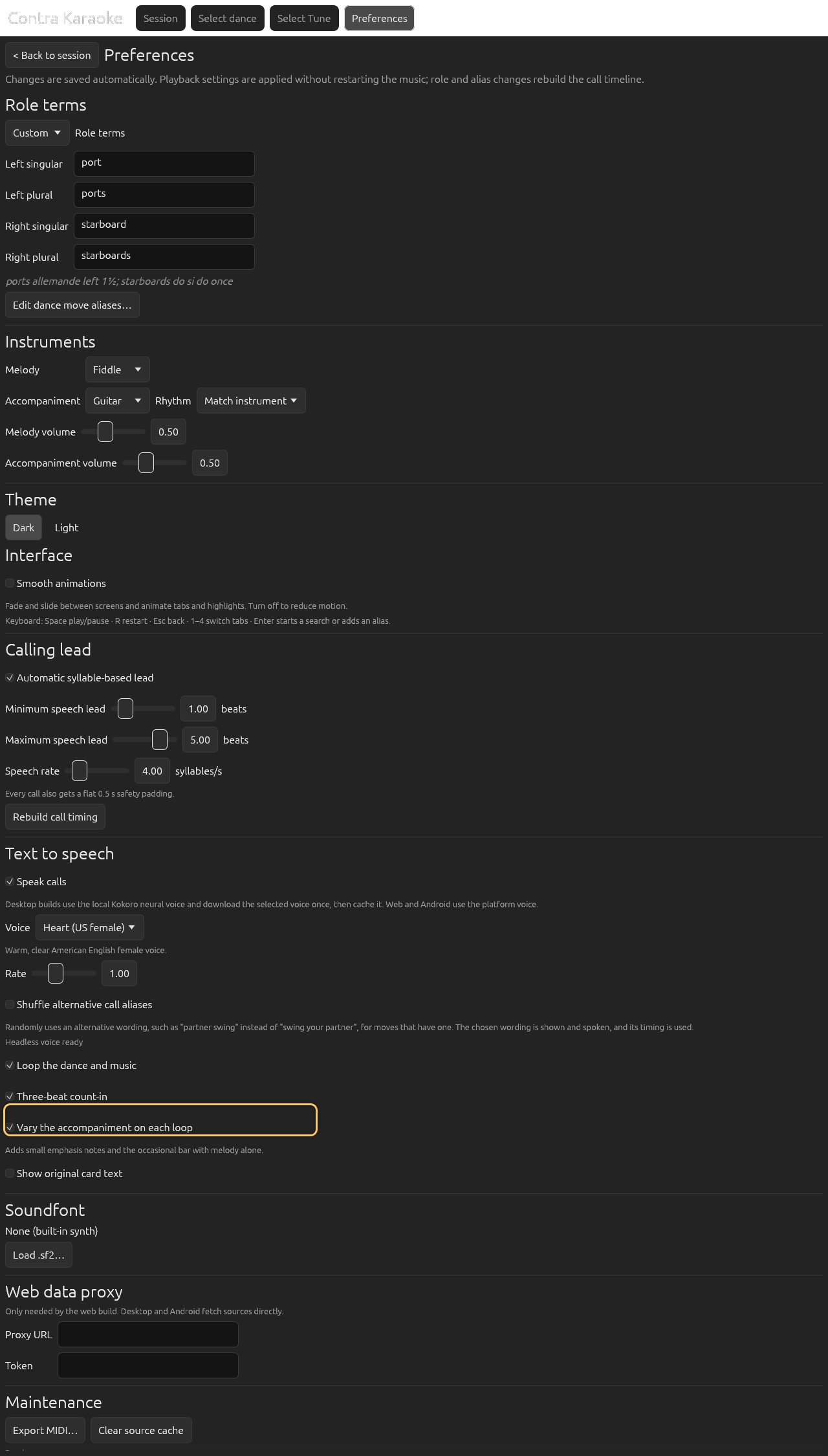
Humanize timing and music variations each expose their parts; the ending eases in over four beats and resolves a fifth below.
The melody is also lifted in velocity and accented on the dance pulse so it stays clearly above the accompaniment. The variation is deterministic for a given tune and arrangement; it keeps the selected rhythm and does not change the dance timing or the 64-beat loop length. On a melody-alone bar the countermelody rests too.
The six variation kinds can be turned on or off individually below the master switch: Vary note lengths, Add chord-tone double stops, Add grace notes, Lift held notes an octave, Add chord stabs, and Let the melody play a bar alone. Disabling one removes only that kind. The melody-alone bar is only chosen where the tune has enough notes to carry it, so a variation can never leave a silent measure.
Human timing
Preferences → Playback → Humanize timing is on by default. A contra band does not play to a click, so each player is allowed to drift a little against the beat:
- every voice — melody, accompaniment, and countermelody, including each player in a section — has its own slow tempo deviation, never more than 0.35 % of the chosen tempo;
- a PID controller, one per player, pulls the accumulated timing error back to the user-set tempo over about sixteen bars, so a player can wander but never settles into a permanent offset;
- notes that begin together as a chord are spread by up to six milliseconds of pitch-level asynchrony. A melody note sounding on its own is not smeared.
The drift is deliberately tiny — under two milliseconds per beat at 240 BPM, and never more than a few milliseconds for a single onset. It makes a repeated loop feel played rather than sequenced without moving the dance: the count-in stays exactly four beats, the 64-beat grid and loop length are unchanged, the calls do not move, and an exported MIDI file stays grid-exact. Percussion is not humanized because it is the audible grid the band plays against.
Turning the setting off prepares a new loop with every note exactly on the grid. The human timing is deterministic for a given tune, so the same tune sounds the same each time it is rendered.
Two switches below the master control choose which effects apply: Tempo drift per player and Spread chord notes. Human timing amount scales both from 0 to 5; 1 is the calibrated amount, 0 sounds exactly like turning humanize timing off, and the onset bounds scale with the amount, so higher settings keep growing evenly instead of saturating. The settings below it tune the tempo controller itself: Kp, Ki, and Kd are the proportional, integral, and derivative gains that pull a player's accumulated timing error back to the beat. Their defaults — 0.5, 0.05, and 0.02 — are the calibrated response; raise a gain to correct sooner, or lower it to let a player wander for longer. None of these controls moves the count-in, the 64-beat grid, the calls, or the loop length.
Apply the change
Instrument, rhythm, player-count, volume, direction, output-mode, effect, and music-variation changes apply without restarting the music. Release the control and the app prepares the new loop in the background, keeps the current beat, and installs it when it is ready. If the session is not playing, press Play to install and start. The caller and band levels apply immediately to the existing buffer.
Soundfont
Bundled: Fluid R3 GM is the default. It is a trimmed subset of Frank Wen's
Fluid R3 General MIDI soundfont, which is MIT licensed; CREDITS.md records the
full notice. The subset contains only the seven programs in the table below,
which is why it is about 22 MB instead of the 141 MB full bank. Percussion is
generated separately, so it needs no drum preset. It needs no network access and
is available on every platform, including the browser and Android builds.
If you have a .sf2 file on Windows or Linux, you can load it to replace the
bundled instruments for the session. The browser and Android builds cannot load
a SoundFont from a file in 0.1.0. A file you load is your responsibility,
including its license.
On Windows or Linux, open Preferences → Band & Sound, select Load .sf2…, and choose a file. The section shows the loaded name and a Use bundled button.
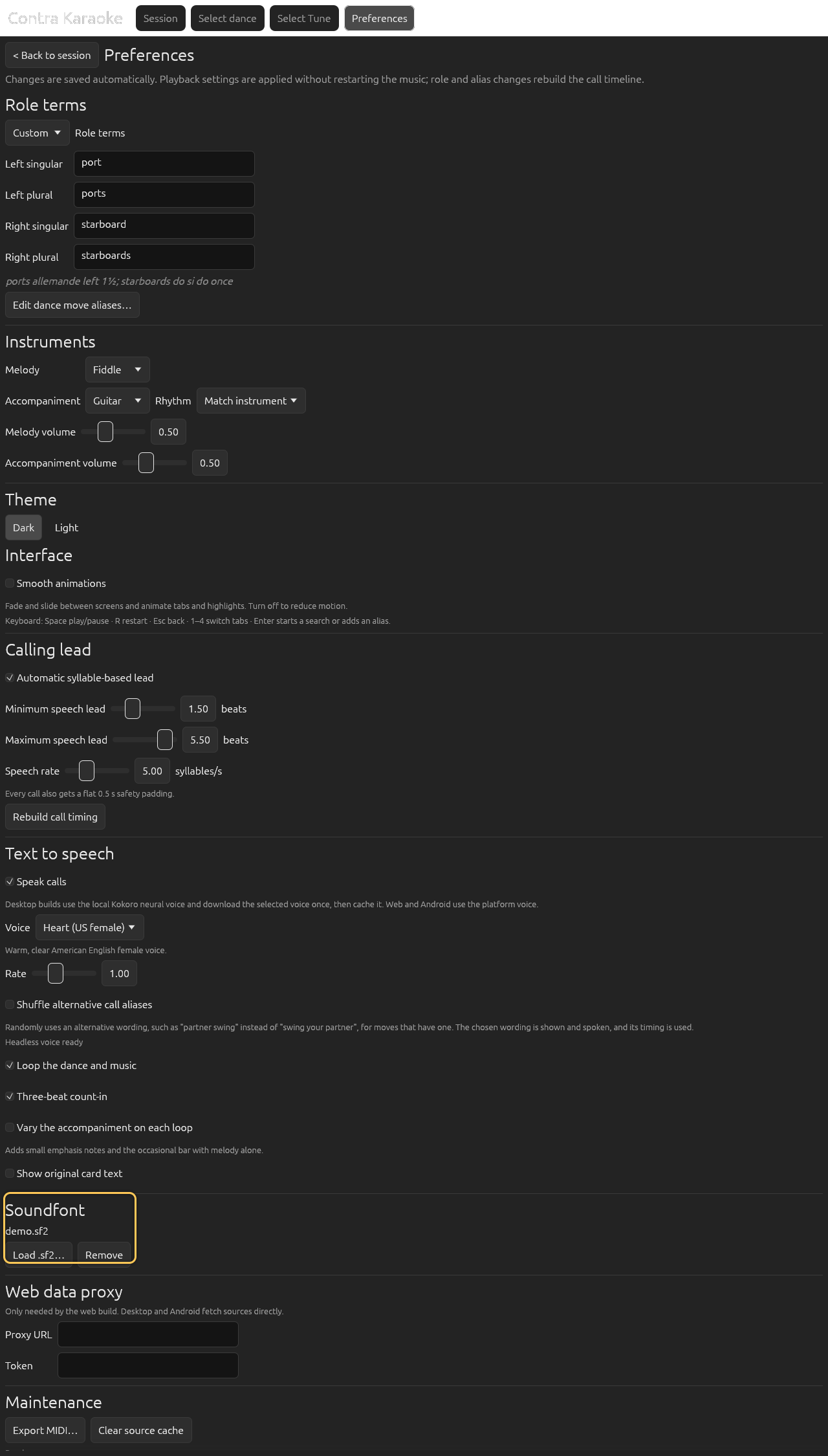
A user-supplied SoundFont replaces the bundled instrument voices. Select Use bundled to return to the packaged Bundled: Fluid R3 GM instruments.
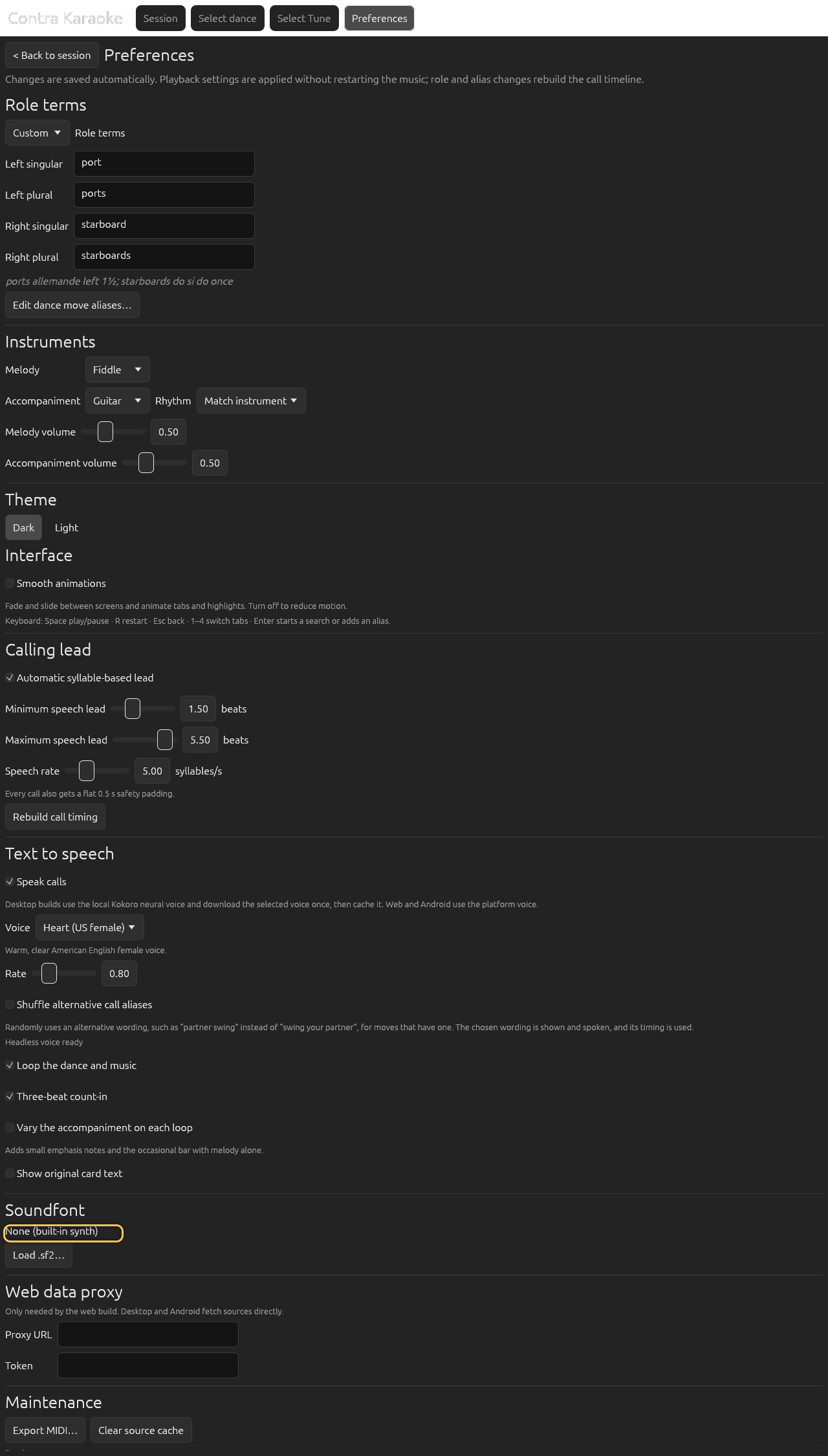
Use bundled returns the session to the packaged instruments.
The chosen instruments map to General MIDI programs in either font:
| Instrument | GM program | In the bundled subset |
|---|---|---|
| Fiddle | 40 — Violin | Yes |
| Accordion | 21 — Accordion | Yes |
| Alto sax | 65 — Alto Sax | Yes |
| Tenor sax | 66 — Tenor Sax | Yes |
| Clarinet | 71 — Clarinet | Yes |
| Piano | 0 — Acoustic Grand Piano | Yes |
| Guitar | 25 — Acoustic Guitar (steel) | Yes |
Any voice can play any pitched part, so the table is not a role list: a clarinet melody and a piano countermelody are valid. Players in a row share the row's program. With a loaded font, each player is a separate General MIDI channel (and its own track in an exported MIDI file), so the font's own round-robin or pan behaviour is not shared between players.
If a font you load does not contain one of those programs, the result depends on the file and may be silent for that part. Choose Use bundled to go back to the packaged instruments.
If neither font can be loaded, the app falls back to a small built-in synthesizer so playback still works. That fallback is not selectable from the interface.
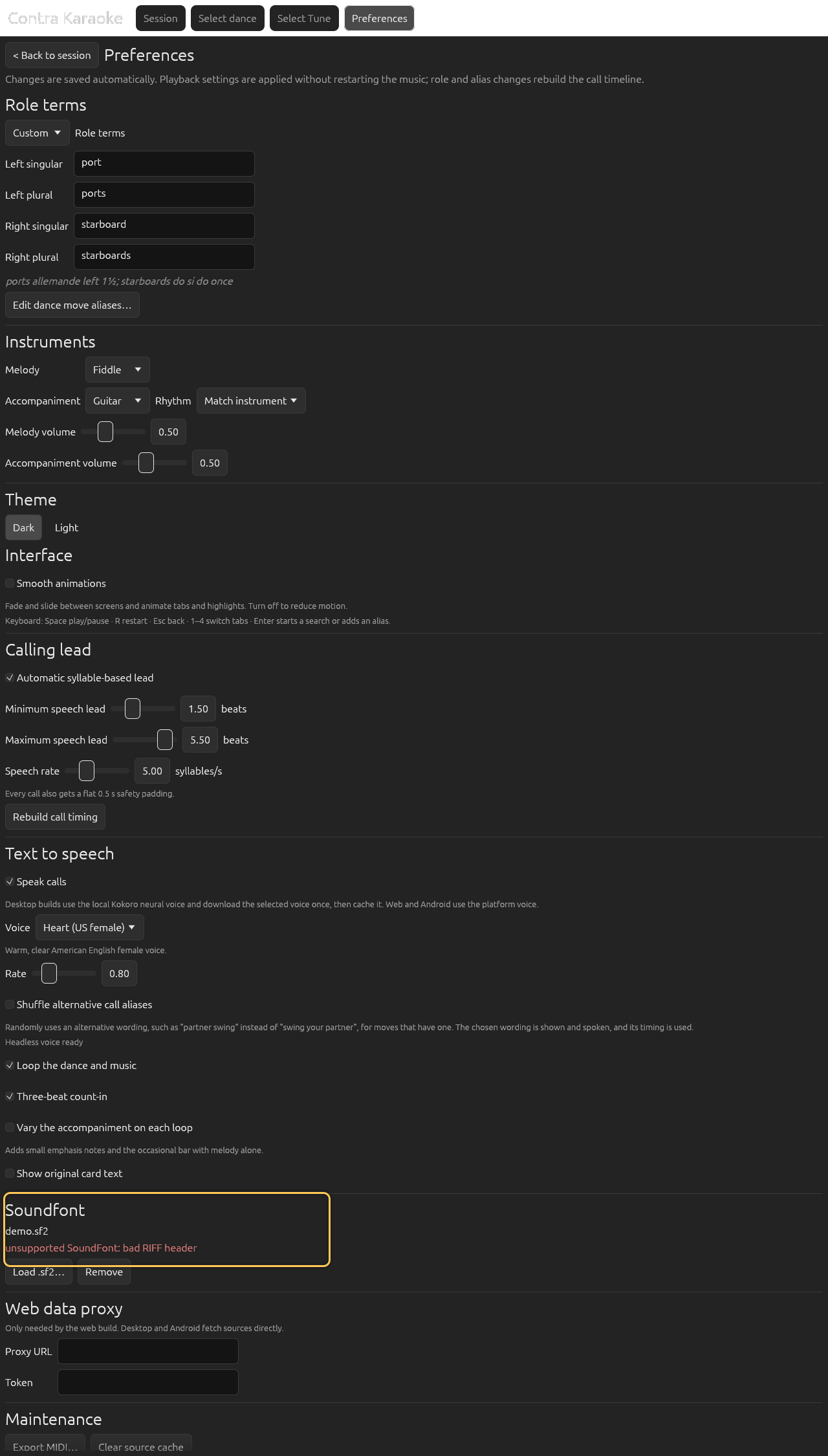
The file picker is a native OS dialog, so it is not captured in the docs screenshots. The screenshots show the resulting Preferences state.
What the arranger plays
The melody follows the ABC note stream, lifted and accented so it carries over the accompaniment. With variations enabled, later passes add diatonic grace notes, chord-tone doubles on strong beats, and an occasional octave lift. The accompaniment follows quoted chord symbols when the ABC has them; otherwise a simple progression is inferred from the key and strong-beat melody notes. The selected rhythm decides which notes sound on which part of the beat. The strum rhythm alternates a full downstroke on the beat with a lighter upstroke off the beat, so the guitar sounds strummed up and down rather than in one direction. The countermelody is derived from the melody and that chord track, so it never needs symbols of its own. The optional percussion follows the selected percussion rhythm, the meter, and the dance-beat grid, and the optional dancer sounds (temporarily disabled) follow the sound cues in the dance card. When a chord tone would sit closer than a minor third to the melody note sounding at the same time, the arranger moves that accompaniment note down an octave so the tune stays clear of its backing. Short fades and peak normalization are applied to the rendered buffer.
Next: Timing and lead.