Session controls
The Session tab is the practice screen. The top row holds the tabs; the session controls below hold the tempo, transport, loop, count-in, speech, and volume settings.
Transport and tempo
| Control | Range / default | Notes |
|---|---|---|
| Tempo | 200–300 BPM by default; the session range is configurable in Preferences → Playback, and the full range is 120–320 | A dance beat is half a bar. At 240 BPM one beat is 0.5 s and a 64-beat dance is 32 s. A tempo outside the configured window stays selectable. |
| Play/Pause | — | One button that shows the action it offers: the play symbol renders pending music and starts or resumes, and the pause symbol stops the music and any speech, keeping the position. |
| Restart | — | Returns to the count-in and clears the call state. |
| End tune | — | Slows the tune's last bar, holds the final chord, then stops. |
| Loop | on by default | Repeats the 64-beat music loop. |
| Cycle tunes | off by default | Plays through a set of saved tunes, changing at a repeat. |
| Count-in | on by default | Four accompaniment beats built from the tune's first chord. |
| Speak calls | off by default | Speaks the active call with the neural voice, or the system voice as a fallback. |
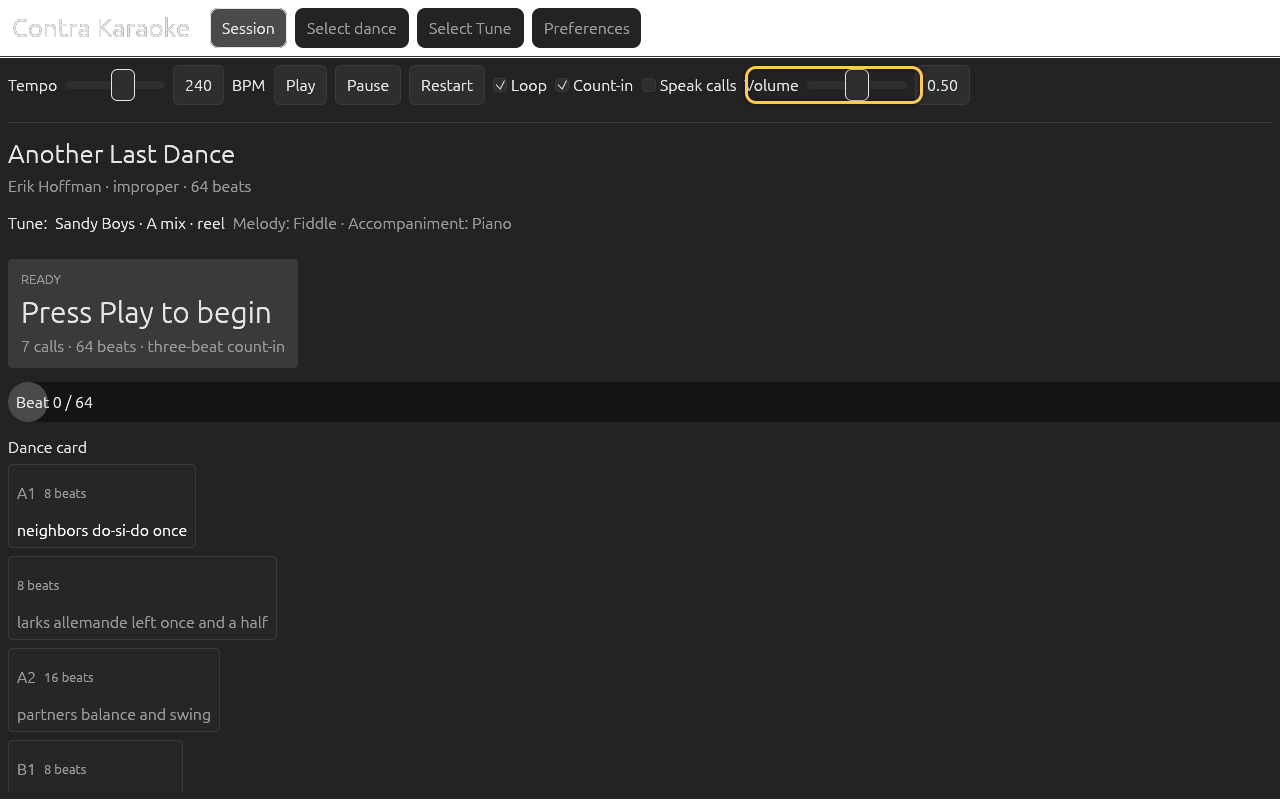
| Caller | 0–1.5, default 1.0 | Level of the spoken calls, independent of the band. |
| Band | 0–1.5, default 0.8 | Master level of the music mix. |
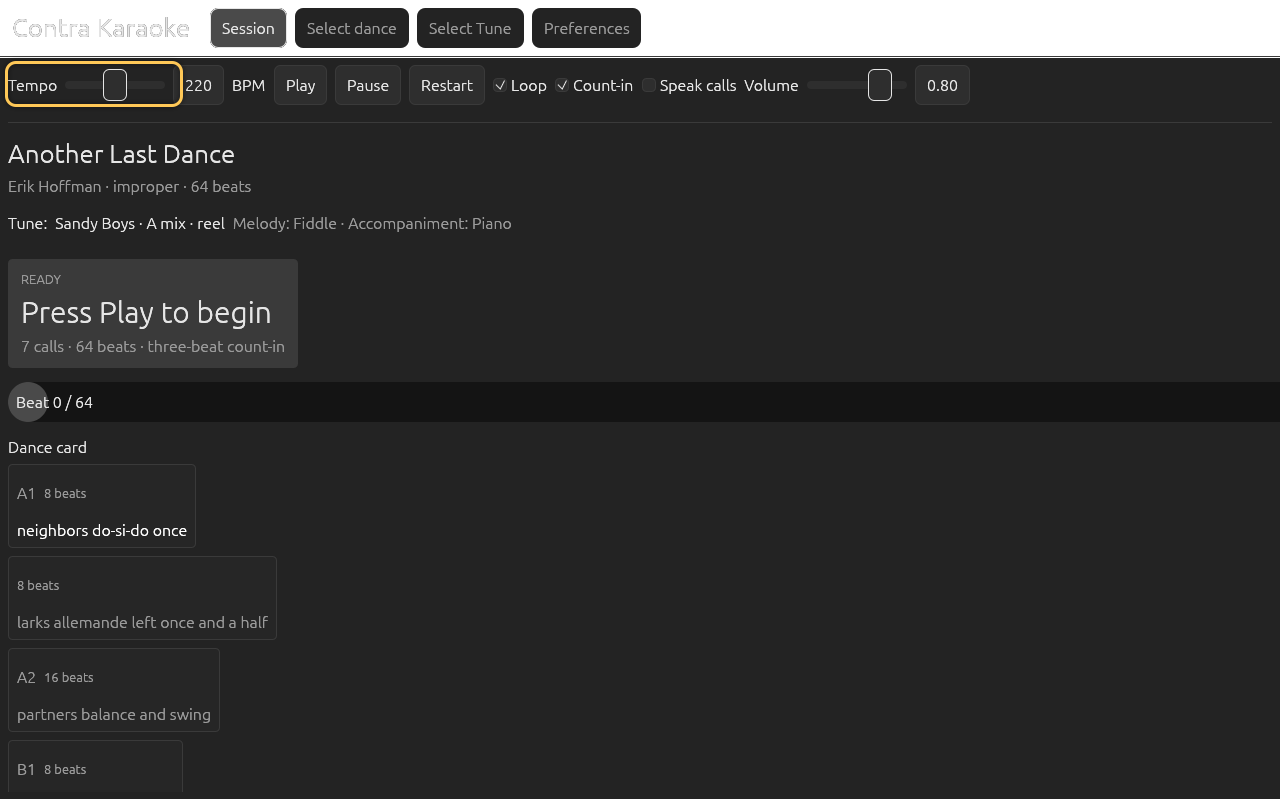
The tempo slider uses a 200–300 BPM window by default. Preferences → Playback → Tempo range sets a different minimum and maximum inside the 120–320 BPM limits, with Reset to 200–300 to restore the default. A tempo outside the window is not snapped: the slider widens just enough to keep the current value selectable.
Changing tempo, count-in, an instrument row, a player count, a row's volume or direction, the band list, the output mode, a percussion rhythm, an accompaniment rhythm, a SoundFont, or Humanize timing marks the music for a rebuild. Playback settings apply without restarting the music: release the control and the app prepares the new loop in the background, keeps the current beat, and installs the new loop when it is ready. The old loop keeps playing in the meantime. The session Caller and Band levels apply immediately. If the session is not playing, it shows:
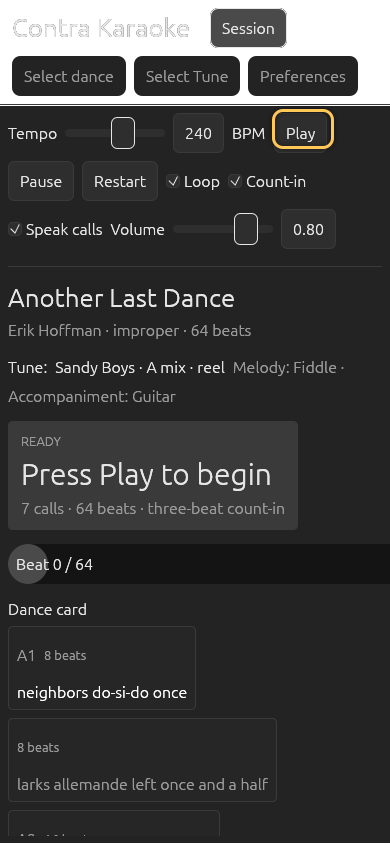
Press Play to prepare the music with these settings.
Press Play to install the prepared loop and start. If preparation has not
finished, the status reads Preparing music… and playback starts when it is
ready. The web build has no render worker and prepares the loop on the press.
Role, alias, and lead changes rebuild the call timeline without re-rendering the
music.
Undo and Redo (Ctrl+Z and Ctrl+Y) put a setting or a dance/tune choice back. A running session keeps its beat when only playback settings changed: the loop is re-rendered and playback resumes where it was. Undoing a dance or tune selection stops the old music and speech and leaves the restored tune ready for the next Play, exactly as choosing it from a picker would.
Background playback
Minimizing the window, covering it, or switching to another app leaves the audio alone: the music keeps playing and the spoken calls keep coming on the same beats. Only the drawing stops.
The transport follows the audio position, not the frame rate, so the caller stays in time whether or not a frame is painted. Pausing is the only thing that stops it. On desktop, the keyboard's play/pause media key still works while the window is in the background. On Android, the headset, lock-screen, and notification controls keep working while the activity is in front or paused; the app does not run a foreground service, so a session that Android stops in the background stops with it.
Keyboard
- Space plays or pauses.
- R restarts from the count-in.
- Esc returns from a download screen to its saved-content list, from the alias editor to Preferences, and from a picker or Preferences to the session. On a phone it first steps out of a Preferences category to the category list. The Android system back button does the same.
- 1-4 switch between Session, Select dance, Select tune, and the dance glossary; 5 opens Preferences from any screen, like the gear button in the header.
- ← / → switch to the previous or next tab, wrapping at the ends.
- Enter starts a search from a search field, creates a folder, or adds a custom alias.
- Ctrl+Z undoes the last preference or dance/tune change; Ctrl+Y or Ctrl+Shift+Z redoes it. The same actions are buttons in Preferences → Appearance.
Shortcuts are ignored while a text field has focus, and the arrow keys are left to a focused slider or list. On desktop, the keyboard's play/pause media key controls the transport even when the window is in the background; on Android, the headset, lock-screen, and notification controls do the same while the app is running. See Keyboard shortcuts.
The call prompt
The large panel at the top of the session, directly under the tab row, is the karaoke prompt. It moves through these states:
| State | Display | What to do |
|---|---|---|
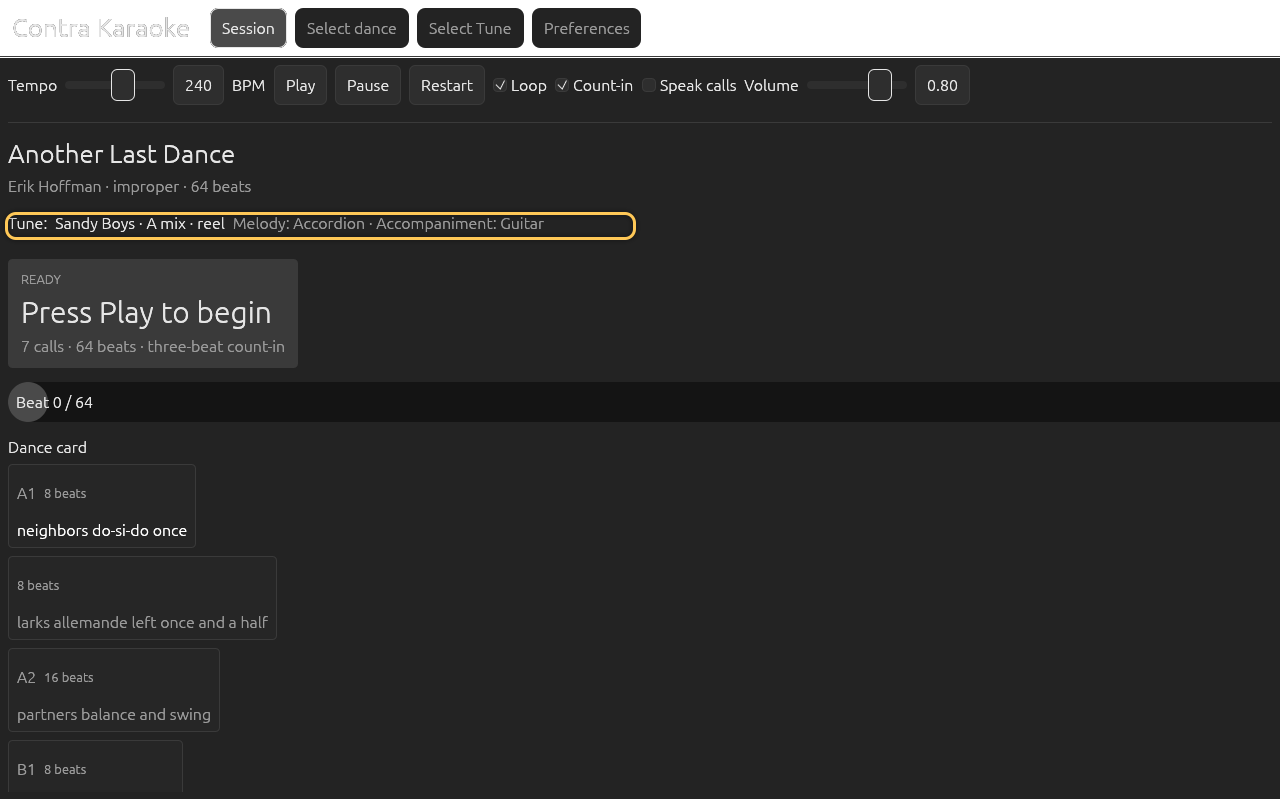
| Ready | READY, Press Play to begin | Press Play to start the prepared music. |
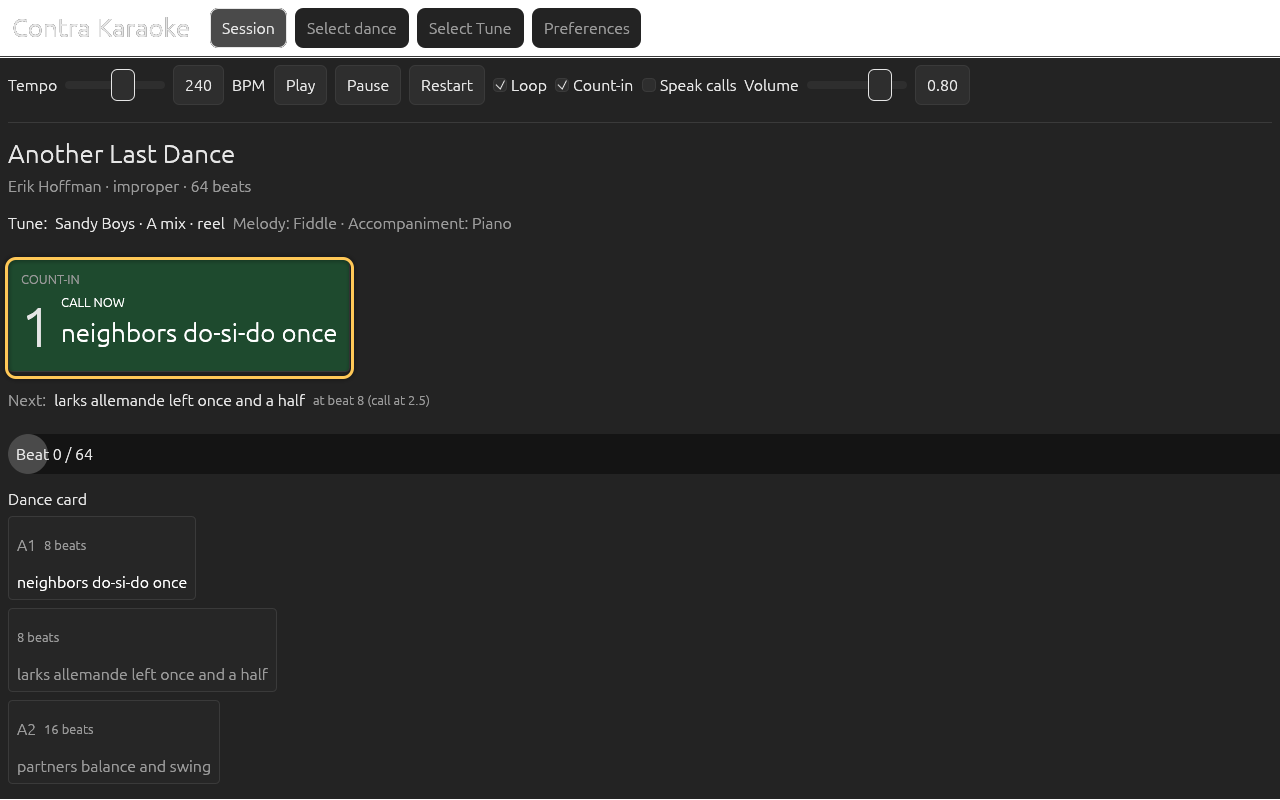
| Count-in | COUNT-IN, a large number, and either CALL NOW or Listen for the first chord | Wait for the loop, or say the first call if it is already due. |
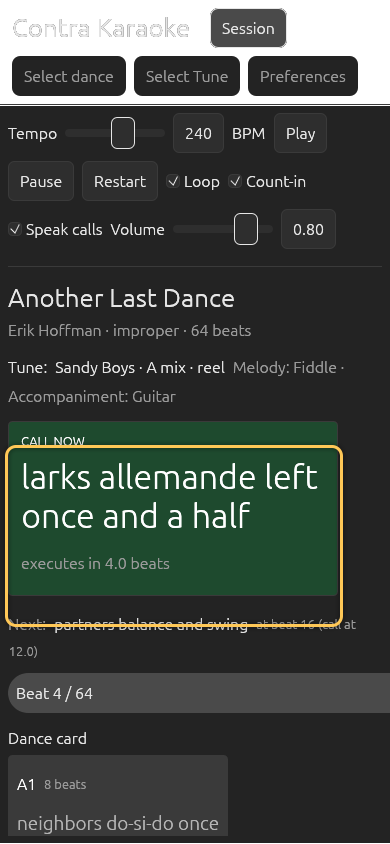
| Calling | CALL NOW, green card | Say the words now. The detail line counts down to the execute beat, and the NEXT: footer previews the following call. |
| Executing | UPCOMING MOVE, red card, the next call, and call in N beats | The figure is happening; prepare to say the next call. The dance card still highlights the figure in progress. |
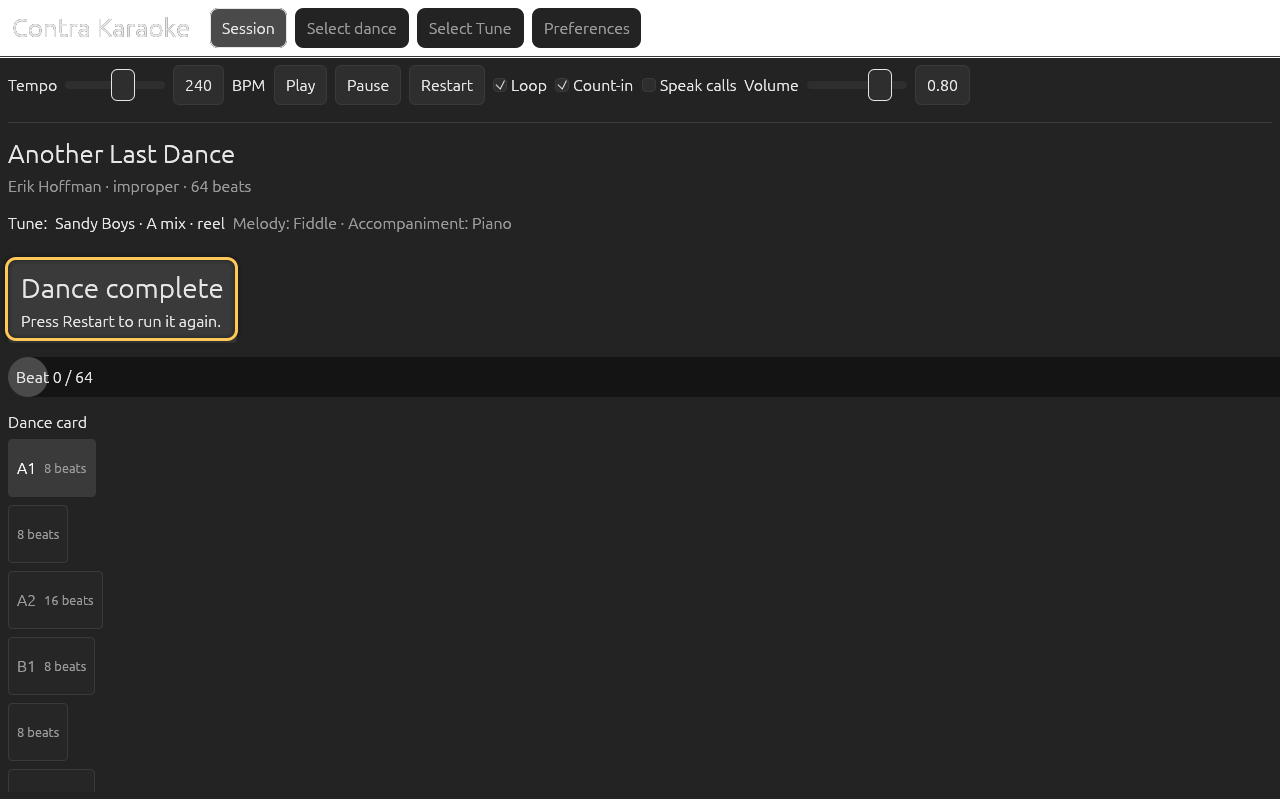
| Finished | Dance complete | Press Restart to run again. End tune also finishes here. |
While a figure executes, the prompt switches to the move you must say next. The
call that follows it stays inside the same card as a NEXT: footer — it is
part of the prompt, not a separate line under it. The card therefore keeps one
height while the session runs, so switching between CALL NOW, UPCOMING
MOVE, and the final figure never moves the controls below. The card reserves
room for two lines of call text and the footer; a longer call wraps and makes
the card taller instead of clipping the words. The idle READY card and the
completed card stay content-sized.
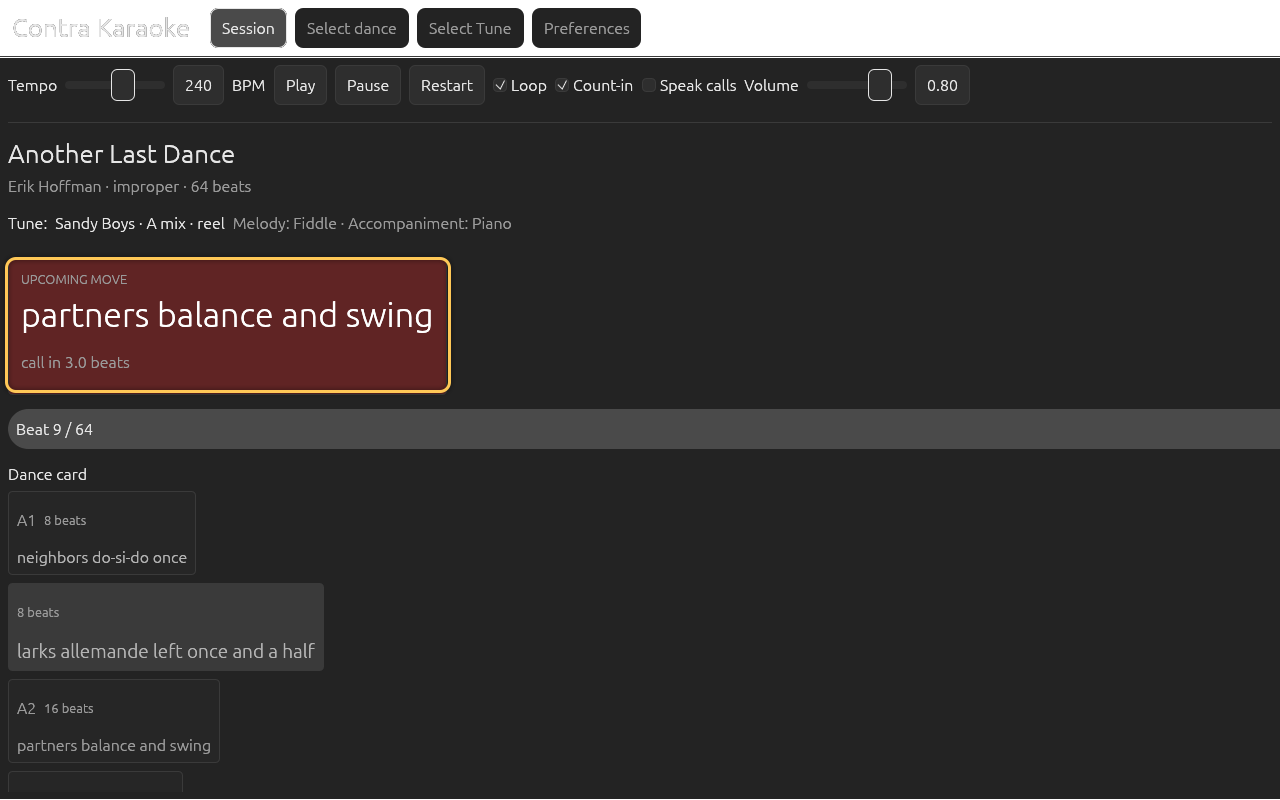
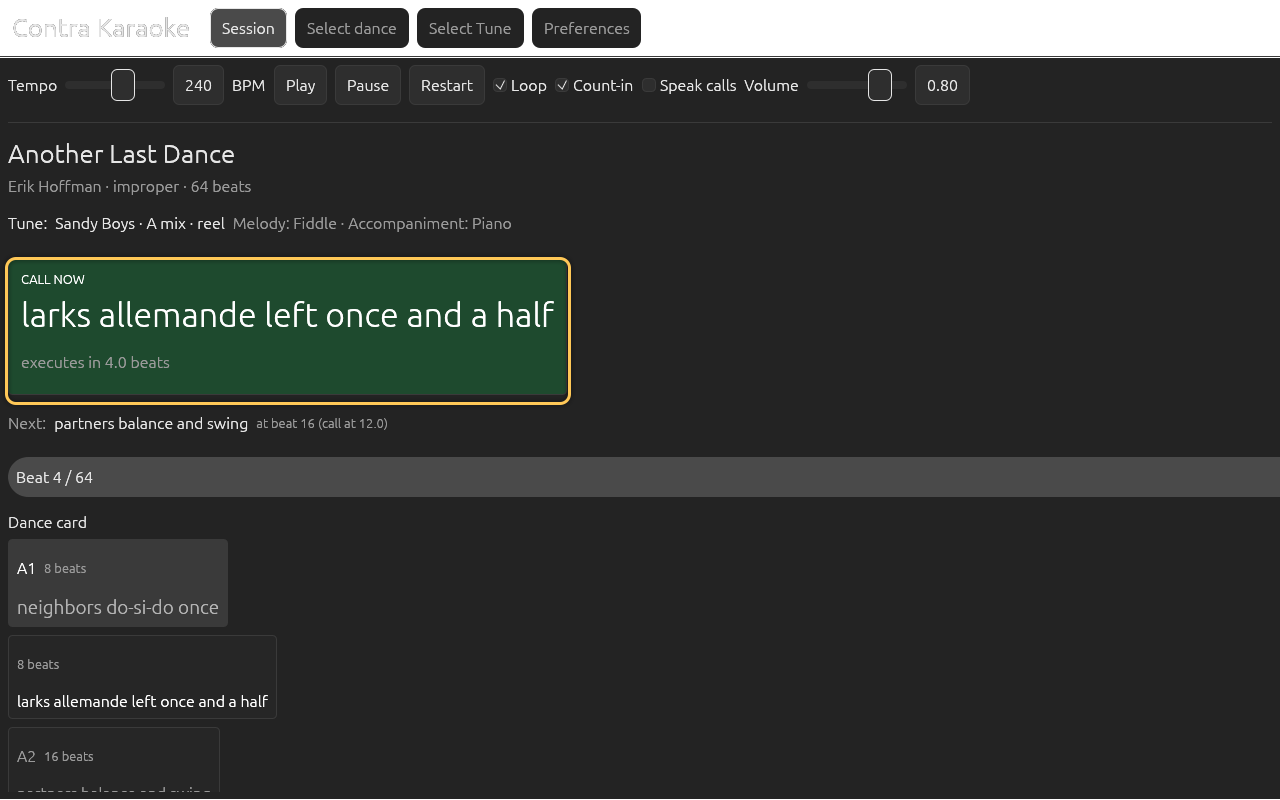
The executes in N beats line is the remaining lead. A short call may show
about two beats; a long call up to six by default once the safety padding
(0.5 s by default) is added and the automatic total is rounded up to a whole
beat. Both this line and the upcoming-move card's call in N beats countdown
round to the nearest half beat and show one decimal (4.0, 3.5). See
Timing and lead.
If Show original card text is enabled in Preferences, the original card wording appears in small muted text next to the rendered call.
Count-in and the first call
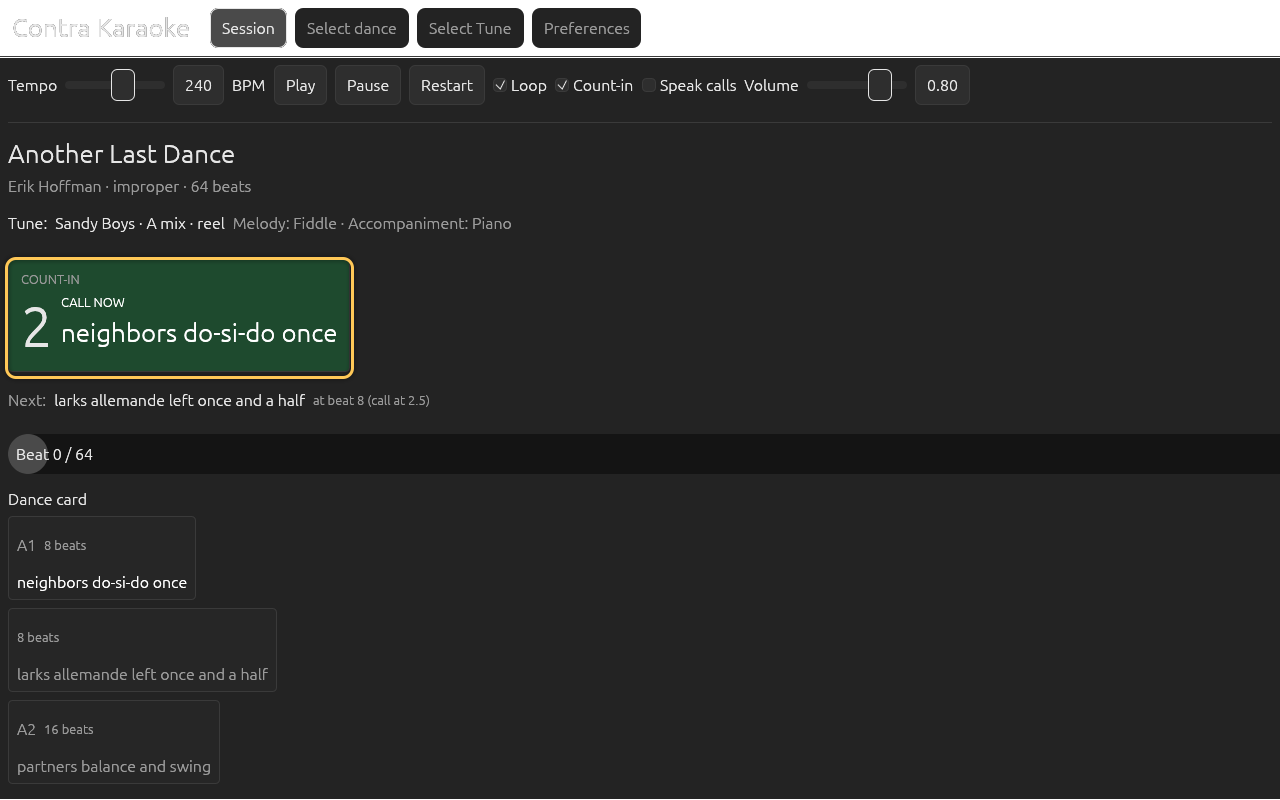
The count-in is four dance beats of accompaniment only. At 240 BPM that is
2.0 seconds. Turn Count-in off to start directly on the first figure. The
setting applies to the next run when the session is idle, and turning it on
while a dance is playing gives the next run a count-in. If you turn it off
during a count-in that is already playing, the app lets that count-in finish and
changes the timeline and the music together at beat 0, so the dance never
restarts in the middle of the count. The first call often starts during the
count-in because its lead is subtracted from beat 0. That is intentional: the
caller needs to say the first figure before the dancers move on beat 0. When a
call is already active during the count-in, the panel shows CALL NOW and
the call text instead of Listen for the first chord. With the count-in off,
the first call is announced as the run starts, and it is never spoken twice or
dropped when the setting changes.
The tune summary and dance card
Below the prompt, the tune line shows the tune title, key, rhythm, and every band
row with its player count such as Fiddle ×2 when a row has more than one
player. The dance card at the bottom of the session shows every figure with its
phrase label, its beat count, and the lead for its call in the top-right corner
as call 4.0 beats. The active figure row is highlighted as the music moves.
The card uses compact padding by default, so a standard dance fits whole on a desktop session tab without scrolling. Preferences → Appearance → Dance card padding switches to Sparse for the roomier rows the card used before. A longer card still scrolls inside its box, and the setting also spaces the card figures in the saved-dance and download previews.
On a wide window the space below the controls is split into two boxes: the dance information and beat meter on the left, and the dance card on the right. The card scrolls inside its box, so a long card never pushes the prompt or the controls off screen. Phone and tablet widths keep the stacked layout, with the card below the meter.
The Glossary button beside the Dance card heading, or the Glossary tab in the top row, opens the in-app Dance glossary. Many terms in the prompt and on the card are underlined as well; selecting one opens its entry directly. The glossary is a reading aid and does not change the loaded dance or its timing.
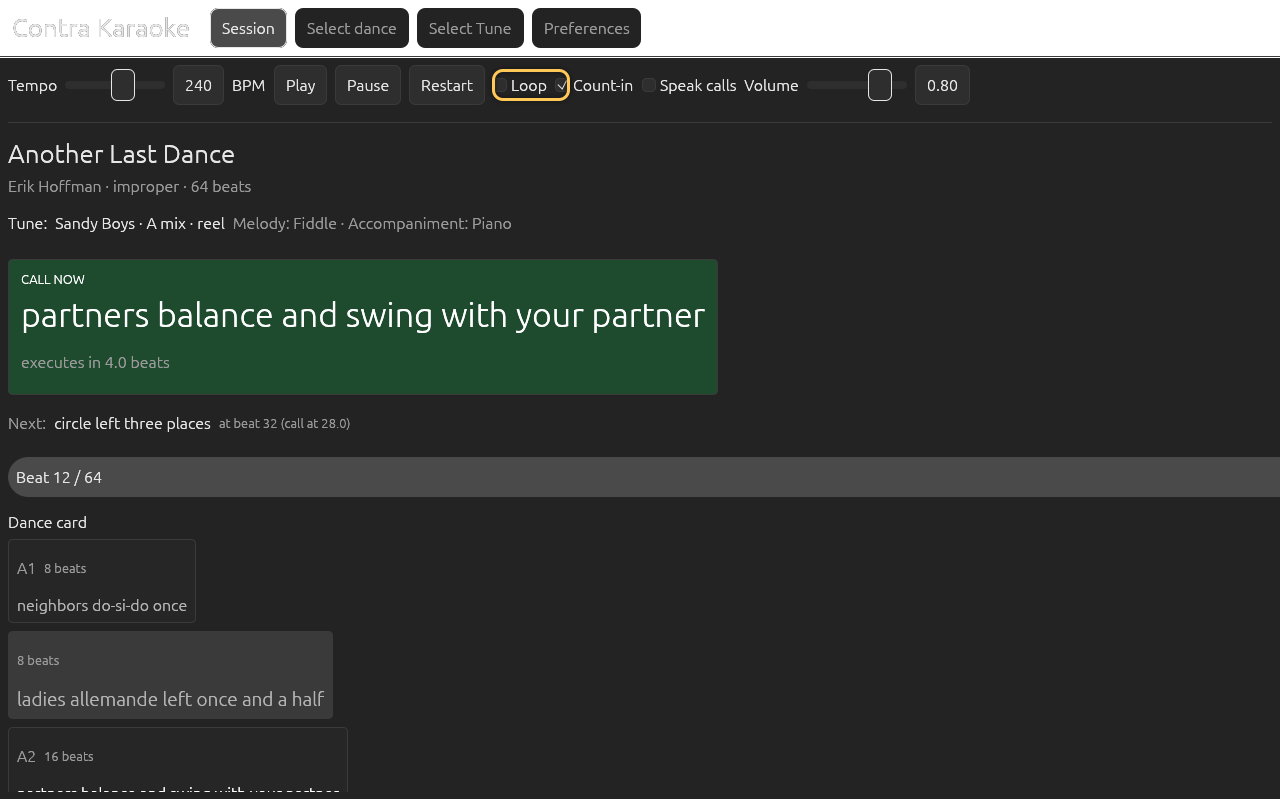
The progress bar shows the current beat out of the 64-beat loop, and its text
names the transport state: Ready, Count-in, Playing, Paused, Ending,
or Finished. The state is there because a paused session sounds the same as a
muted one. During the count-in the bar stays at zero and the text counts the
beats left.
Looping, pausing, and finishing
- With Loop on, the 64-beat music repeats from beat 0 and the call sequence restarts with it.
- With Loop off, the audio stops at the end of the loop and the prompt shows Dance complete.
- The Play/Pause button stops both audio and TTS while the music runs; the same button resumes from the current position.
- Restart resets to the count-in, not to the beginning of the card.
Ending the tune
Select End tune while music is playing (or paused) to finish the way a band would. Four dance beats before the end of the loop the arranger splices into a rendered ending: the accompaniment thins, the tempo eases, the final melody note rings, and the final chord is held for a few seconds before the audio fades out. The final chord and its closing melody note resolve a perfect fifth below the written ones by default. The prompt shows SLOW FINISH while the ending plays, and Dance complete when it is over.
In Preferences → Playback, Gradual ending turns the four-beat reveal off, so only the final bar is replaced and stretched. Resolve the final chord a fifth lower keeps the written chord and melody when it is off.
The ending is prepared with the music, so it starts without a delay. Press Cancel ending before the ending begins to keep playing normally. With Loop off, End tune still plays the slow ending instead of stopping abruptly.
session-endingCycling tunes
Contra bands usually stay on one tune for several minutes and change at a repeat. Cycle tunes does the same with your saved tunes:
- Open Select tune and add each tune with Add to tune set in the preview, or select a folder and use Use this folder as the tune set.
- Turn on Cycle tunes in the session controls.
- Set Change tune every to the number of 64-beat times through. The default is eight, about four minutes at 240 BPM; the session line shows the actual time at the current tempo.
The next tune is rendered during the current tune's last time through, so the change is ready at the boundary. The call timeline continues unchanged, and the new tune starts at beat 0 without a second count-in. Cycle tunes needs Loop on, because a non-looping run stops after one pass. The web build has no background renderer, so it prepares the next tune at the change instead.
session-tune-setSharing a session (web)
The browser build can put the whole setup into the page address. Open Share this session in the session summary and the app copies a link that carries:
- the dance card: title, choreographer, formation, notes, and every figure with its beats;
- every tune in the tune set, in order, including its ABC music;
- how many times through each tune changes, and which tune starts.
The link is self-contained, so a friend needs no download and no data proxy. Opening it adds the cards to their saved libraries, selects the dance, restores the tune set, and starts on the same tune. A shared card with the same source replaces that saved copy, the same way downloading it again does. Their own preferences — role terms, band, volume, and lead timing — are left alone.
Links are compressed but can still be long. The panel keeps the address selectable, so if the browser blocks the automatic copy, select the text and copy it by hand. A damaged or newer-format link leaves the current session in place and shows a short error. A link can hold at most 100 tunes.
Spoken calls
Enable Speak calls in the session controls or in Preferences. The visual prompt is always shown; speech is optional. The app speaks each active call once, stops speaking when you pause or disable speech, and clears the spoken-call state when you restart or rebuild the timeline.
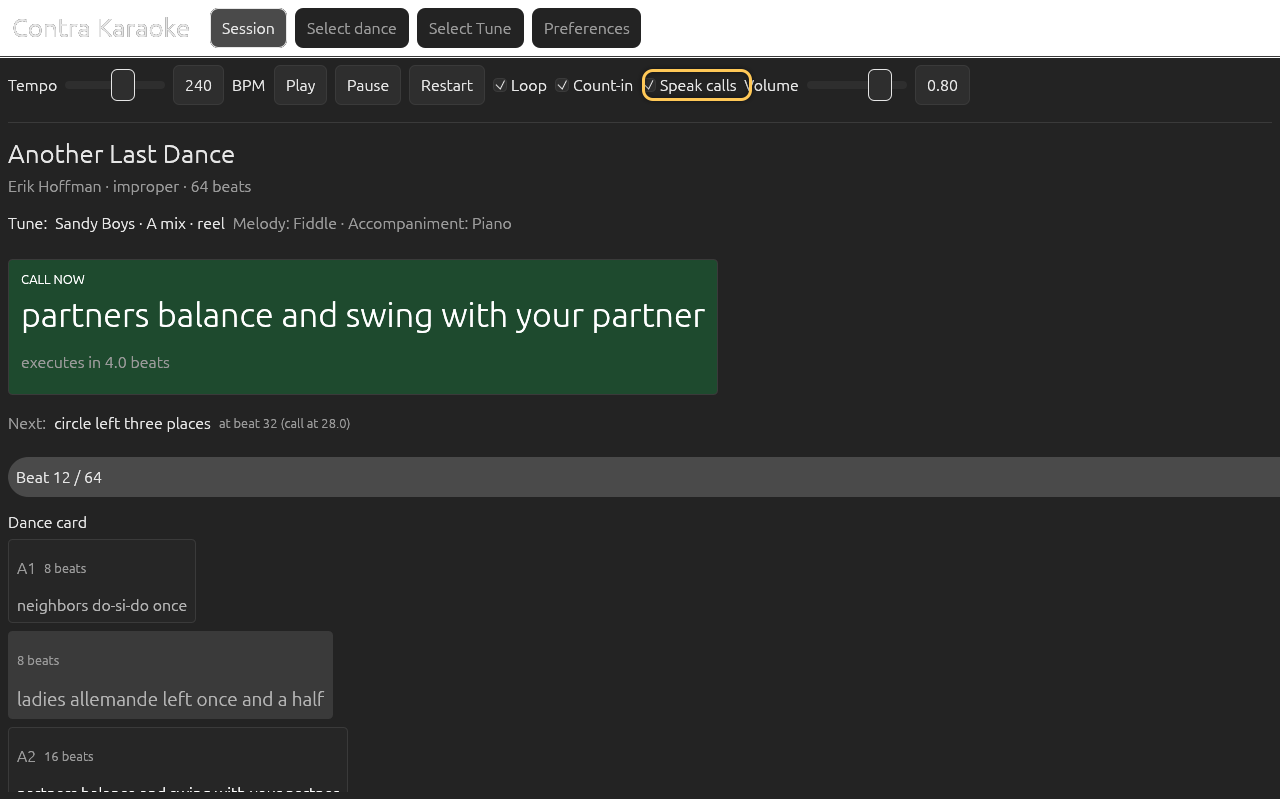
See Text to speech for availability and rate.
Volume
The session has two sliders. Caller sets the spoken calls and Band sets the whole music mix. They are independent: a quiet band still lets the caller through, and turning the caller down leaves the music alone. Each band row's own Volume lives in Preferences → Band & Sound, under the shared Band volume master.
Preferences
Preferences has six categories: Calling (role terms, lead timing, spoken calls), Band & Sound (the band list, output mode, SoundFont, effects), Playback (loop, count-in, tempo range, variations, human timing), Appearance (theme, motion, dance card padding, shortcuts, undo), Data & Storage (dance-source pointer, web proxy, cache, MIDI export, memory use), and About (version, credits, project links). A desktop shows the category list in a left frame and the selected category's settings beside it. A phone shows the list first and opens one category at a time; the back control, Esc, and the Android system back button return to the category list, and a second Back returns to the session.
Find a setting at the top of Preferences searches every category by setting
name, category, or a common synonym. Type volume to see Caller volume,
Band volume, each instrument's level, and the dancer-sound level; type
bpm to reach Tempo range, or glossary to reach its appearance option.
Each match names the category it belongs to. Selecting a match opens that
category, scrolls its section into view, and clears the search; Clear
search returns to the category layout without leaving Preferences. The
search is cleared automatically the next time Preferences opens, so it never
hides the categories on a later visit. On a phone the field and results use
full-width rows that meet the same 44-pixel touch target as the category list.
Maintenance and memory
Preferences → Data & Storage has Export MIDI…, Clear source cache, and a Memory use section. The memory table measures the bundled and decoded SoundFont, the rendered music buffer, the prepared rotation buffer, fonts, the sheet-music texture, saved libraries, caches, undo snapshots, and the optional neural voice, and gives a total. Refresh memory use rebuilds the table after a setting or a session changes.
The biggest optional consumers are the neural voice (turn Speak calls off to release it and its prepared deliveries; they reload from the cache when enabled again), the four prepared deliveries per call (set Deliveries per call to 1 to skip them), and the four music variation passes per render (turn Vary the music on each loop off for one pass). Cycling tunes also keeps the next rendered tune in memory. See the memory notes for the measured numbers and the remaining options.
About and project links
The About text is the About category of Preferences. It shows the program name, its version, a short description, the author (Nicholas Gower), and links to the project website and the source code.
about-windowIt is part of the Preferences screen, so it never covers the session, traps focus, or suspends the transport and tab shortcuts. Press Esc or select Session to leave.
Narrow windows
At phone width the session tab uses its compact layout. The top row keeps four short tabs — Session, Dance, Tune, and Terms — beside the pinned gear button that opens Preferences, without the wordmark. On a wide window the gear also carries the word Preferences when the header has room; the text is dropped before the wordmark. The tempo, caller, and band sliders span the screen with their value boxes, and Play/Pause, Restart, and End split one row evenly. Loop, cycle tunes, count-in, and spoken calls stay on one wrapping row. Every control keeps a 44-pixel touch target.
When the window is too short to show the prompt, controls, progress, and dance card together, the whole session page scrolls; the prompt stays at the top of that page. On a taller phone the prompt stays put and only the dance card scrolls. The saved-content and download screens use a single scrolling column at phone width, with full-width fields and the preview below the results.
On a touch screen, swipe left or right across empty content to change tabs. A press that starts on a control — a button, slider, folder row, splitter, or open menu — belongs to that control, so dragging from it never changes tabs. A mostly vertical swipe scrolls instead. Sliders are guarded on a touch screen: tap the rail (a padlock and rounded outline mark it) to unlock the level, then drag sideways to change it. The padlock goes away while a slider is unlocked, tapping or swiping anywhere outside it puts the padlock back, and the page does not scroll while you drag an unlocked level. A swipe that starts on a locked slider still scrolls. On a desktop with a touch screen the guard follows the input you used last: touching the screen guards the sliders, and moving or clicking with the mouse releases them again.
Next: Role terms.