Your first session
This is the shortest useful path through the app. It uses the bundled defaults first, then shows how to replace them.
Before you start
- Launch the installed app, a source build, or the hosted browser copy. See the installation pages or Build and run.
- Have an audio output device available. In a browser, press Play once to allow audio.
- The first time you download a dance or tune, the app needs network access to ContraDB and ABC Session Tunes. The bundled defaults do not.
1. Look at the starting screen
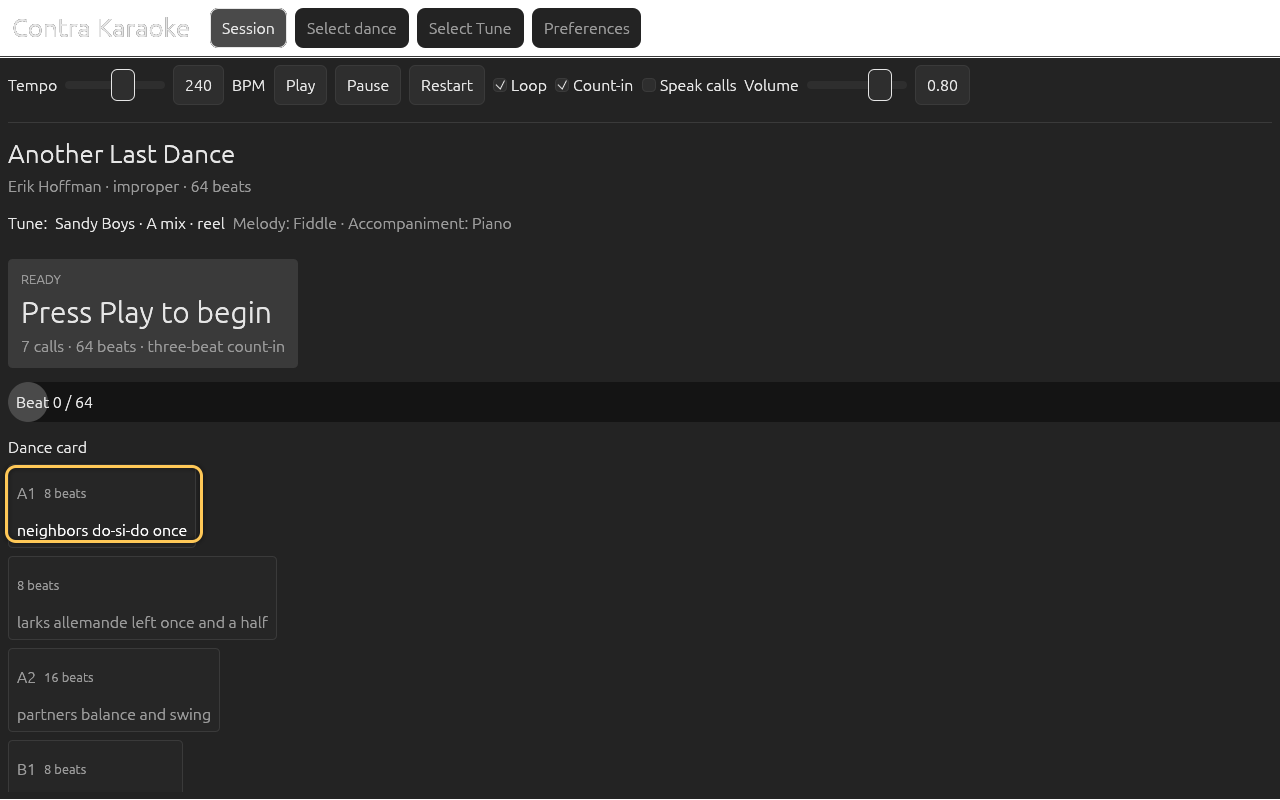
The app opens on Session with Another Last Dance and Sandy Boys
loaded. The dance card and tune summary are already populated. The prompt at
the top of the session says READY, and the line below the controls says
Press Play to prepare the music with these settings.
Start the app and confirm that the dance, tune, and tempo controls are visible. Do not worry that the music has not been rendered yet.
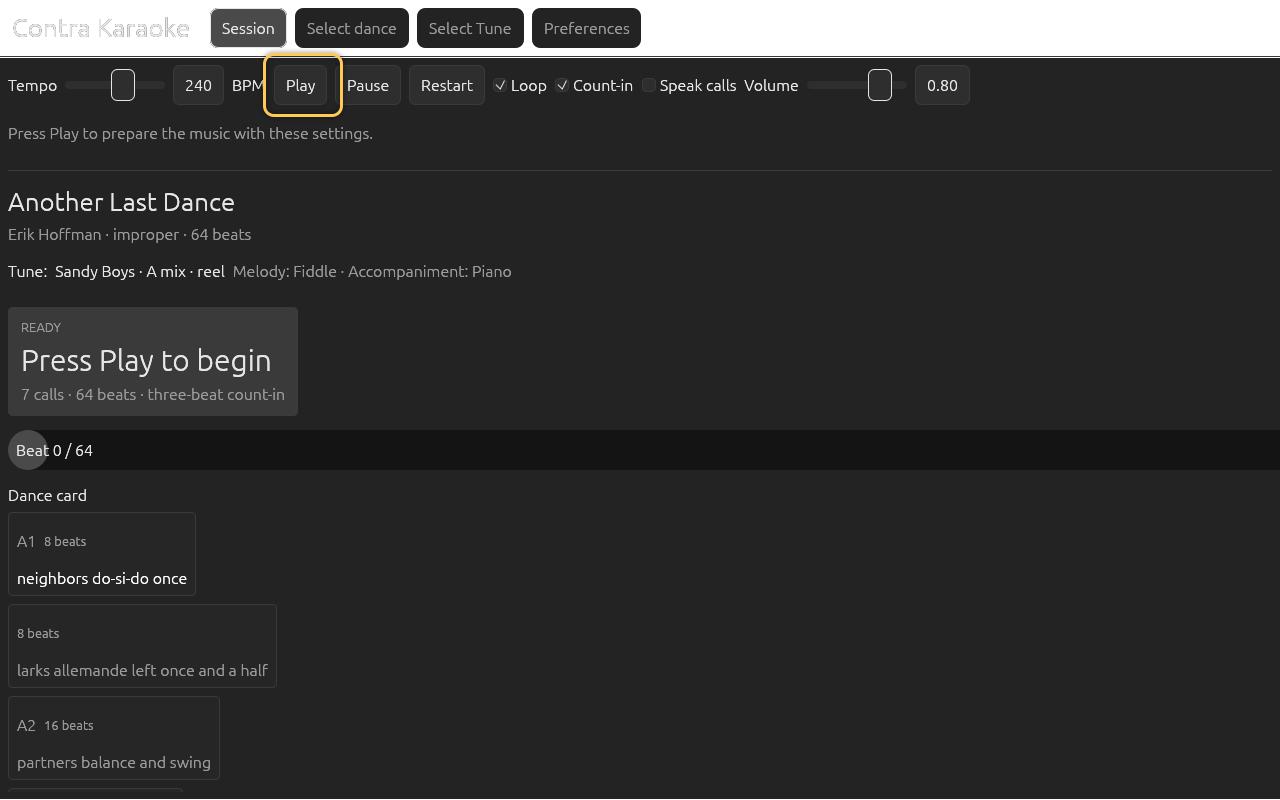
On launch the bundled default dance and tune are ready; press Play to render the music.
The app prepares the arrangement in the background as soon as the session is
idle. The first Play installs that prepared loop and starts the count-in; if
you press Play before preparation finishes, the status reads
Preparing music… and playback starts as soon as the loop is ready.
2. Choose a dance
Select dance lists the dances saved on this device. The bundled default is already there, and the current dance is not replaced until you choose Use this dance.
Select Select dance in the top tab row. Search saved content, select a card to preview it, and press Use this dance in the preview to load it.
Screenshot pendingdance-librarySelect dance lists your saved cards; search them, group them into folders, and load one without a network. To add another dance, select Download dance. This opens the ContraDB search screen; previewing a result does not save it.
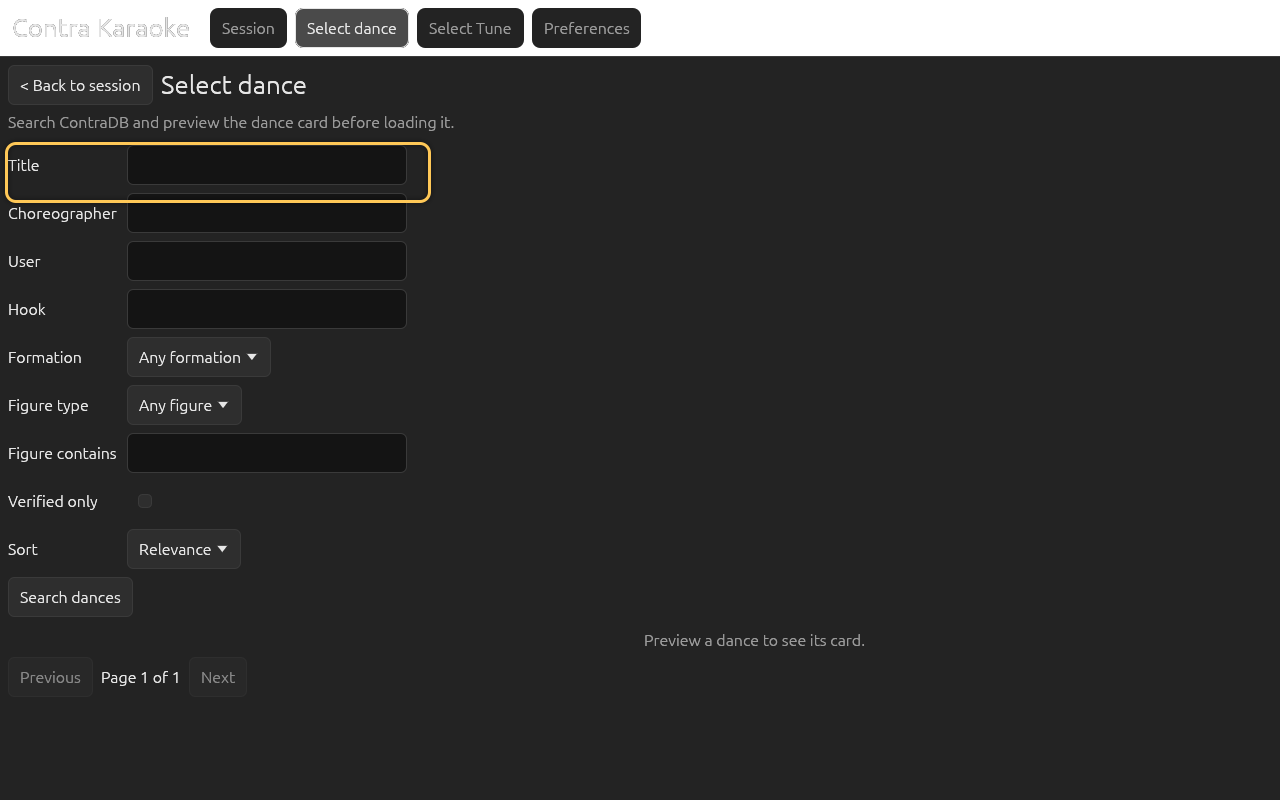
Download dance selects its source and searches it, then previews a card before saving it locally. Type part of a title in Title and select Search dances. The default results are ten per page; use Next and Previous to page.
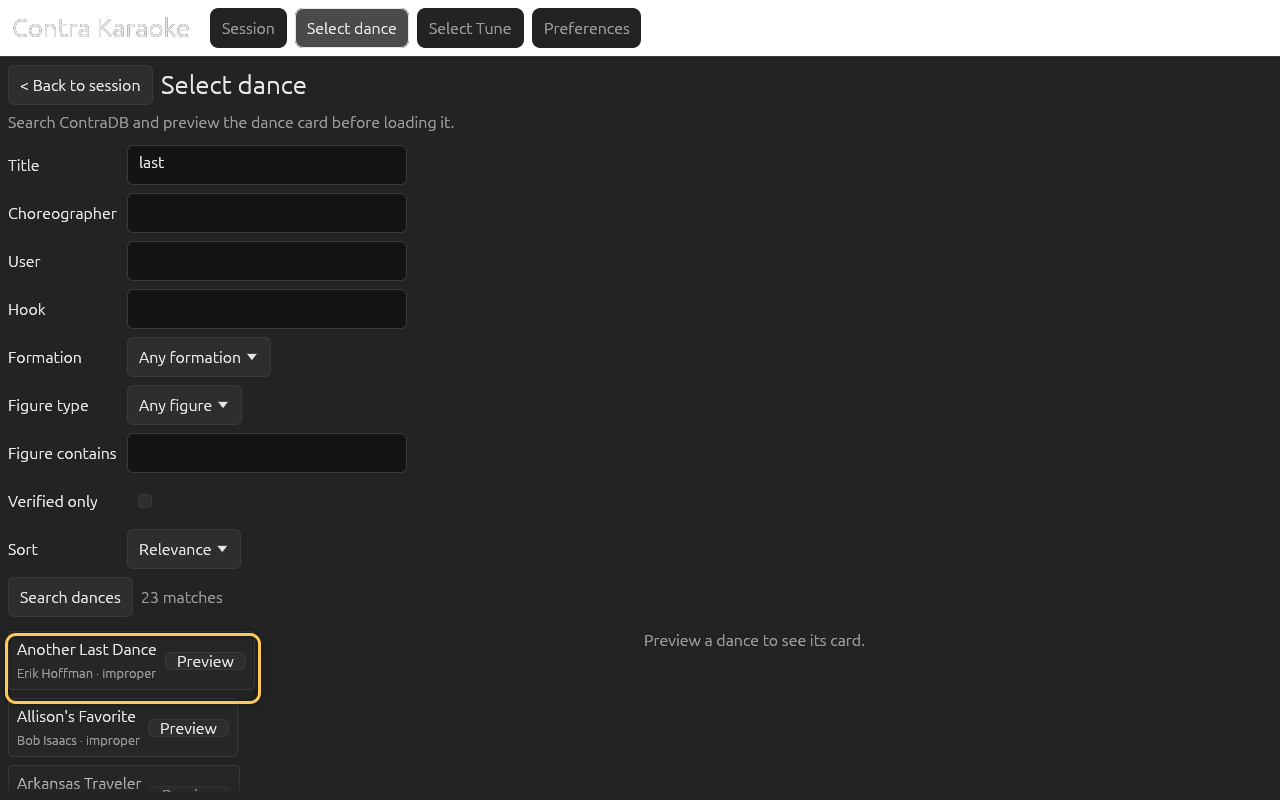
Results show the title, choreographer, and formation; Preview opens the figures. Select a result row to preview it, read the figure list and beat total, then select Download dance to keep it or Use this dance to download and load it immediately.
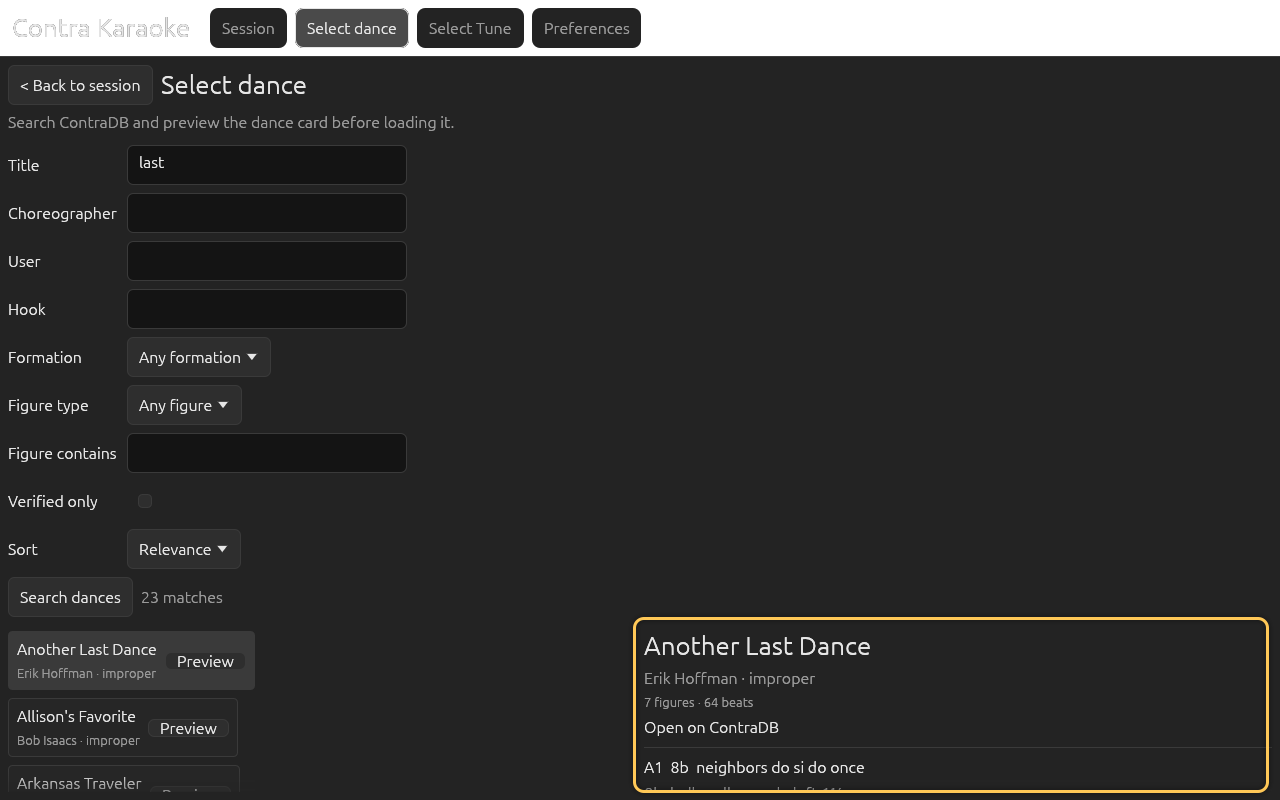
Download the card for offline use or load it immediately; either action saves it to your library.
You can also filter by Choreographer, User, Hook, Formation, Figure type, or Figure contains, show only Verified only dances, and change Sort. See Choosing a dance for the full search and folder reference.
3. Choose a tune
Select tune lists the tunes saved on this device. Its search and folder panel work like the dance library.
Select Select tune in the top tab row, then select a saved tune to see its sheet music.
Screenshot pendingtune-librarySelect tune lists your saved tunes with an offline sheet-music preview. Select Download tune to search ABC Session Tunes for another melody.
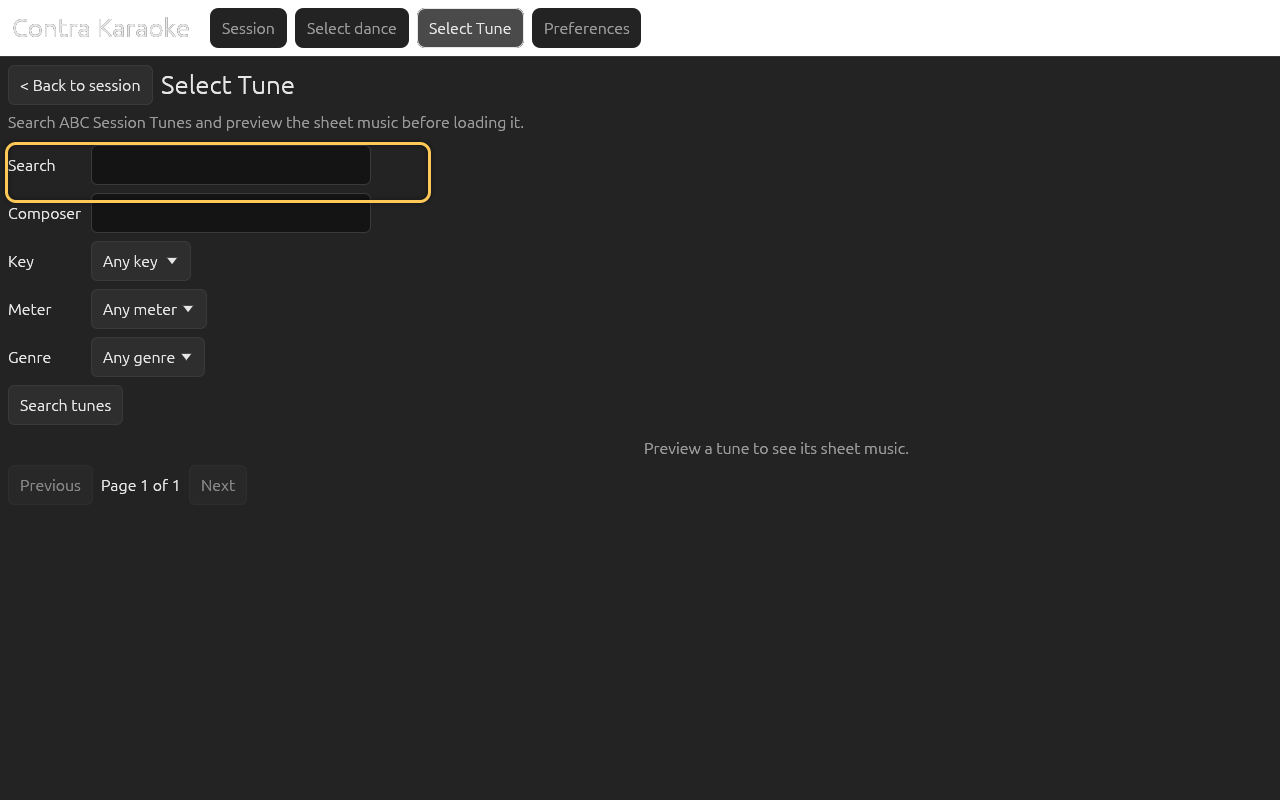
Download tune searches ABC Session Tunes and previews the sheet music. Search by title or composer, optionally filter by Key, Meter, or Genre, then select a result row to preview it. Download tune saves the tune and Use this tune saves and loads it.
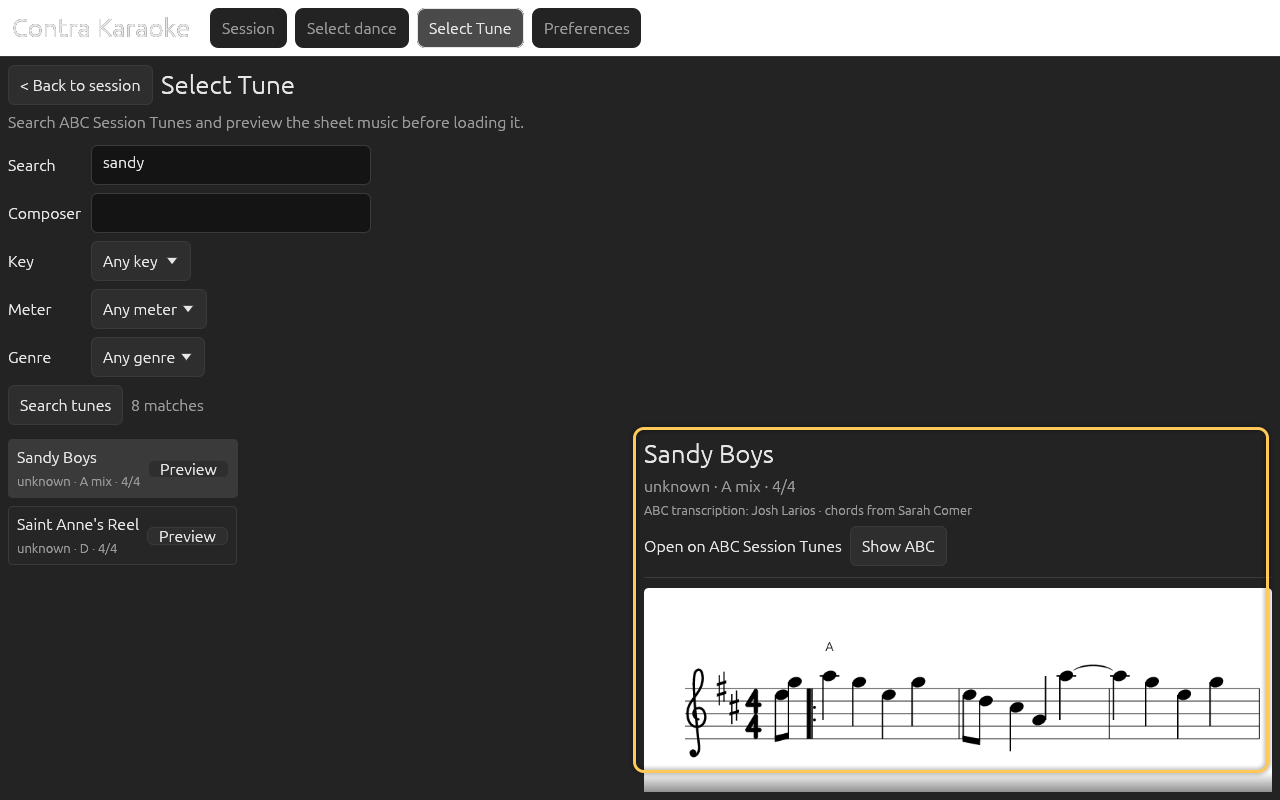
The preview engraves the ABC as sheet music; Download saves it and Use loads it.
The preview engraves the ABC as sheet music. Show ABC switches to the source text; edits there are not saved and do not change the tune. The preview also links to the tune on ABC Session Tunes when a source URL is available.
4. Set the tempo
The default is 240 BPM, which gives a 0.5-second dance beat and a 32-second 64-beat dance. The slider ranges from 120 to 320 BPM.
Move the Tempo slider. On a touch screen, tap the padlocked rail first, then drag sideways. The app shows the prepare-music message when stopped; while playing it prepares the new loop in the background without restarting, keeps the current beat, and installs it when it is ready.
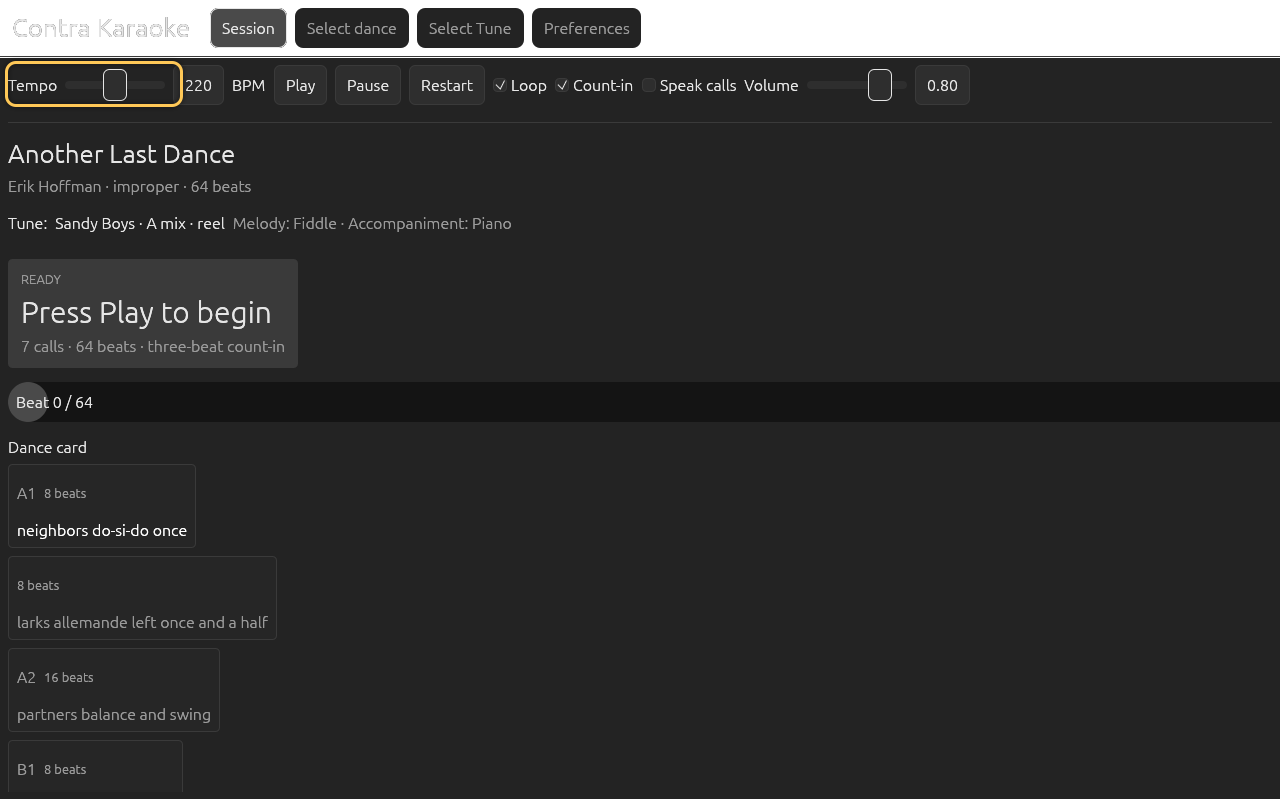
Tempo changes mark the music for a rebuild; press Play to apply them.
5. Start the session
Press Play. The music starts with a four-beat count-in built from the tune's first chord. If the first call has already started, the count-in panel shows CALL NOW and the call text.
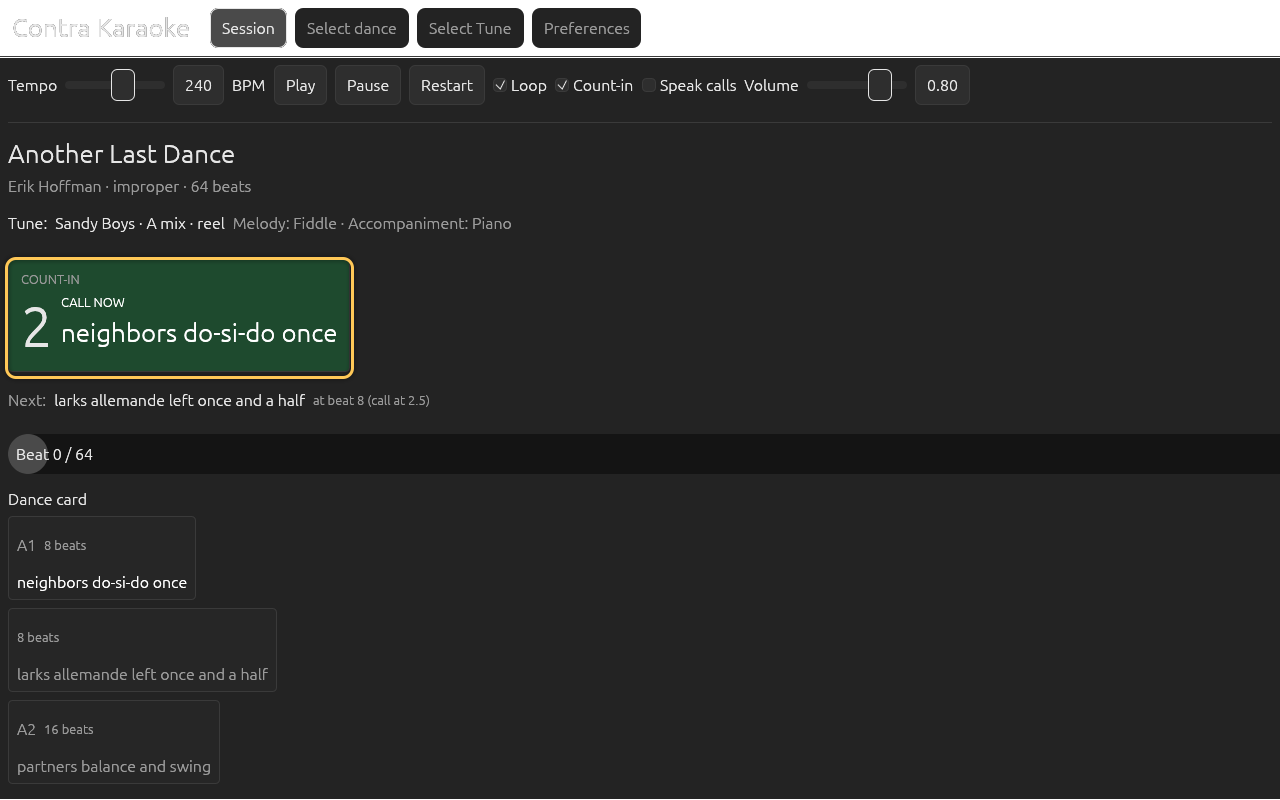
The four-beat count-in sets the tempo before the 64-beat loop begins. Follow the call prompt at the top of the session. It turns green for CALL NOW, then red for UPCOMING MOVE as the figure executes and it previews the next call. The NEXT: footer inside the card previews the call after the one it names, and the card keeps the same height in both states.
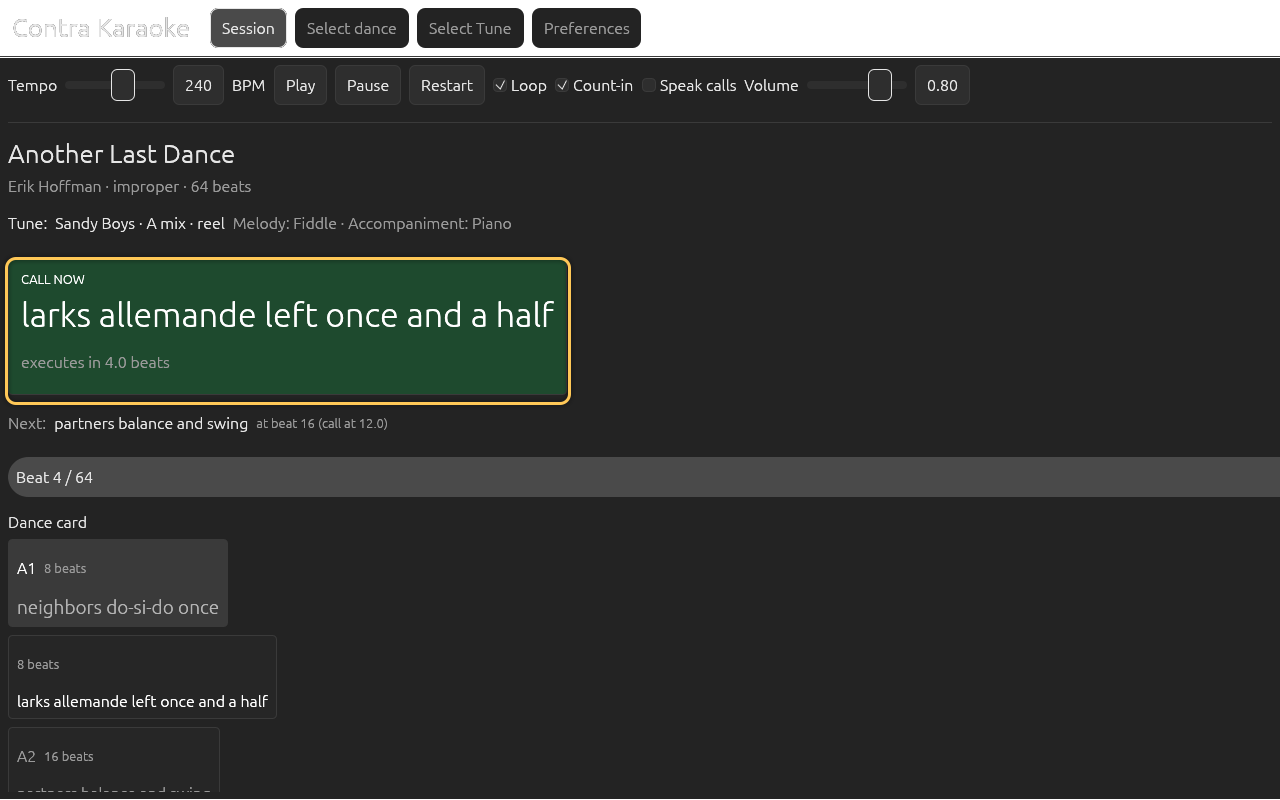
The large prompt is the call to say now; its footer previews the next call, so the panel keeps one height. Change a setting such as tempo or an instrument. While playing, the new loop is prepared without stopping the old one. When stopped, the prepare-music message returns and the next Play applies it.
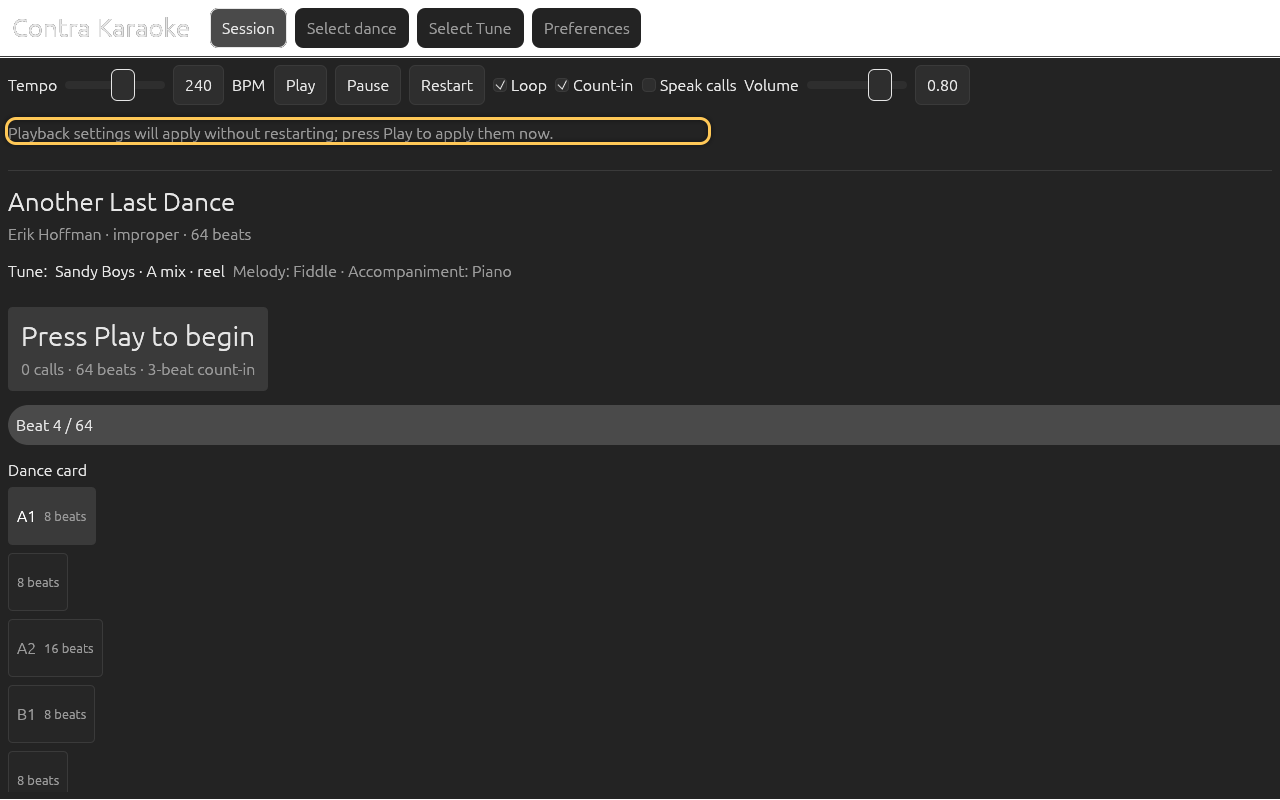
Playback settings apply without restarting; press Play to apply them immediately. Press the Play/Pause button while the music runs: it shows the pause symbol and stops the music and any speech. Press it again to resume from the same position.
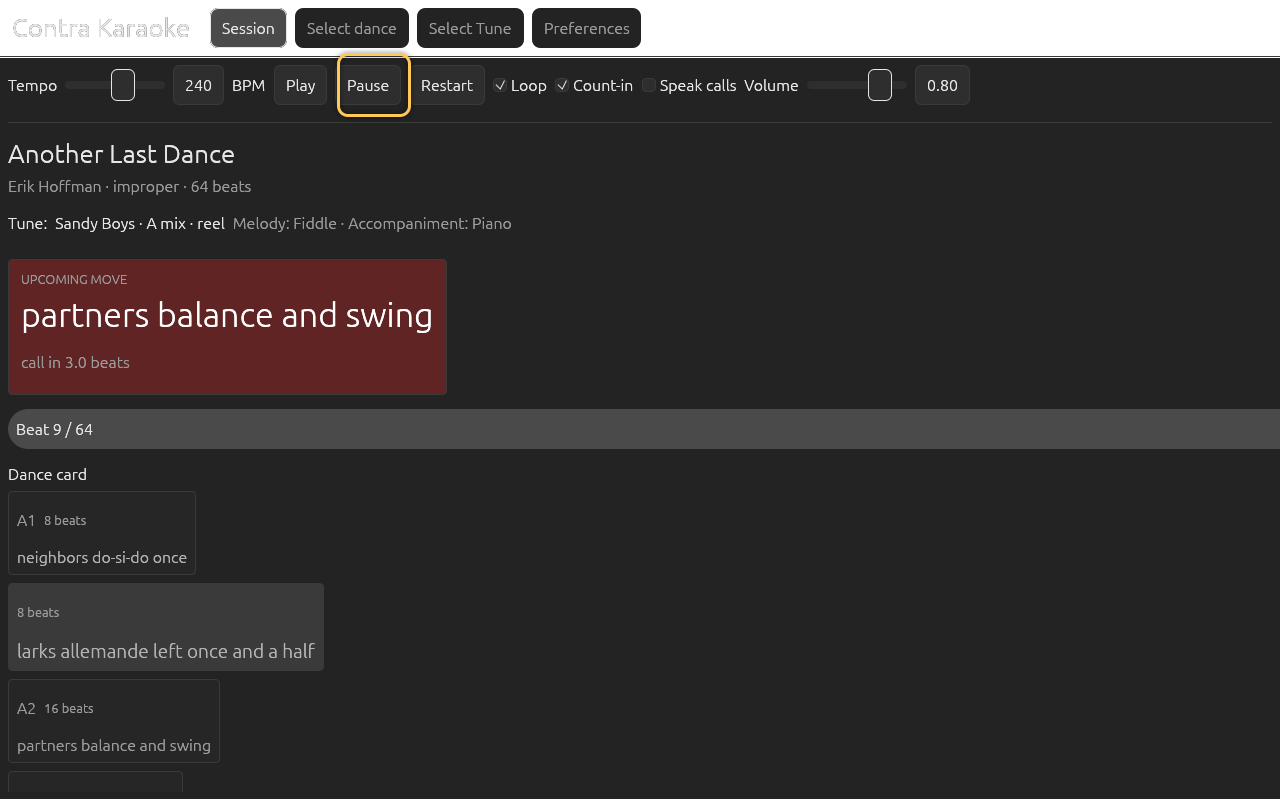
Pause stops the music and any speech; Play resumes from the same position. With Loop off, the dance ends with Dance complete. Press Restart to run it again from the count-in.
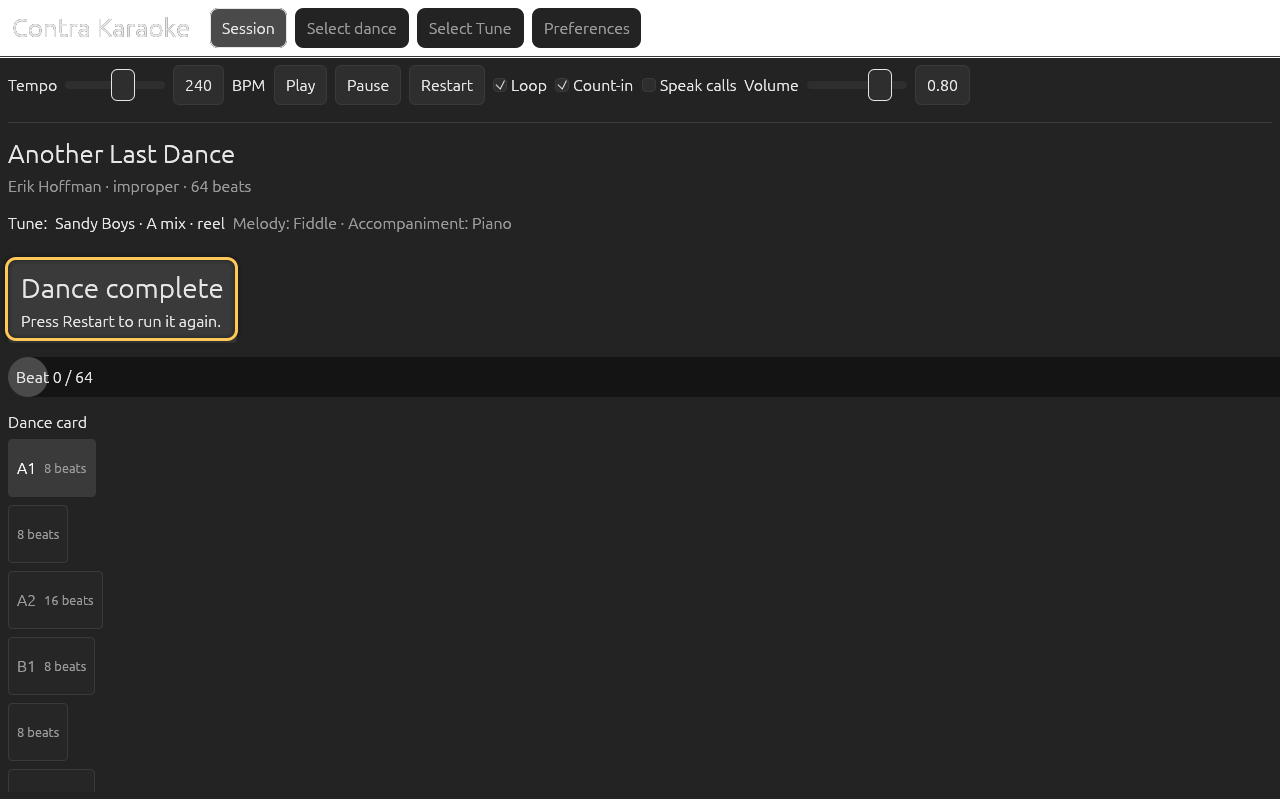
With looping off, the session stops at the end of the loop.
With Loop on (the default), the 64-beat music loop repeats from beat 0 and the call sequence restarts with it. A card shorter than 64 beats leaves music playing after its last call. A card longer than 64 beats is not fully reached in 0.1.0: the playhead resets at the loop boundary. Prefer cards whose preview total is 64 beats.
Pausing is visible without sound: the progress bar names the transport state, so
after pausing it reads Paused · beat 12 / 64 and stays there until the same
button resumes from the same beat.
What the call prompt means
| Label | Meaning |
|---|---|
READY | Nothing has started yet. Press Play. |
COUNT-IN | The four accompaniment beats before beat 0. If a call is already due, the panel shows CALL NOW and its text. |
CALL NOW | Say the displayed words now; the dancers execute shortly. |
UPCOMING MOVE | The figure is executing; the prompt turns red and shows the call to say next. |
DANCING | The figure is executing and there is no following call; the prompt is muted. |
Dance complete | The music reached the end with looping off. |
The executes in N beats line counts down to the figure's execute beat. It is
not a metronome; the music is the clock. The dance card prints each call's lead
as call N beats, and both live countdowns — executes in and call in —
are rounded to the nearest half beat with one decimal (4.0, 3.5).
If something does not work
- No sound: check the audio device. The session shows an
Audio device:message when the app had to fall back to silence. - The music takes a moment to start: the app prepares the loop in the
background. If the first Play arrives before it finishes, the status reads
Preparing music…and playback starts when it is ready. There is no separate progress screen in 0.1.0. - A search fails: dismiss the red bottom panel with Dismiss and retry. The current dance or tune is not replaced by a failed search.
- A call starts during the count-in: that is expected. The first call is placed before beat 0 so the words finish before the first figure.
Next: Choosing a dance.