Choosing a dance
Select dance lists the dances saved on this device. Saved dances are available offline; they are not the same as the temporary source cache. The bundled default, Another Last Dance, is in the list from first launch.
The current dance is not replaced until you press Use this dance. Press Esc to return to the session without changing the loaded dance.
Find a saved dance
dance-libraryType into Search saved to filter the list. The search is local and matches:
- the dance title;
- the choreographer;
- the formation;
- and the words of the figures on the card.
Every word you type must match, so belle ralph finds Belle of the Ball but
belle erik does not. The chip at the top right of the list names the current
grouping and its saved count: All dances when nothing is filtered, or the
folder you selected. Select a saved card to read its figures, beat total, and
source link on the right.
The saved list and the card preview fill the height below the search field and scroll inside their own panes, so a long card or a long folder list never pushes the search field off screen. Each saved row is one click target: clicking it previews the card, and the row itself has no buttons. Use this dance, Delete dance, and Move to folder live in the preview. On a desktop, drag the divider between the list and the preview, or between the folder panel and the list, to resize them. Reset panes in the folder panel restores the default widths; the phone layout stays stacked and does not resize.
dance-library-searchThe folder panel on the left filters the list:
| Choice | Shows |
|---|---|
| All dances | Every saved dance. |
| Unfiled | Dances that are not in a folder. |
| A folder name | Only the dances in that folder. |
Organise saved dances into folders
Type a name in New folder and select Create folder. The folder appears in the panel, ready for cards to be moved into it.
Screenshot pendingdance-library-searchSaved content is searched locally; the folder panel filters the list and offers rename and delete. Select a saved card and use Move to folder in its preview to choose Unfiled or a folder. On a desktop you can also right-click a card (or press and hold it on a touch screen) and pick the folder from the menu. The card moves immediately and the counts update.
Screenshot pendingdance-librarySelect dance lists your saved cards; search them, group them into folders, and load one without a network.
Folders can be reordered. Drag the grip on a folder row to a new position: a line shows where it will land and the moved row stays lifted until you release it. On a touch screen, press and hold the folder first (a quick tap still selects it); the row shows a hold-progress line and lifts when it is ready to move. Move up and Move down in the folder controls reorder the selected folder without a pointer.
Folder names are case-insensitive, so you cannot create both Warmups and
warmups. Select a folder in the panel to reveal Rename folder and
Delete folder. Renaming keeps the folder's dances with it. Deleting a folder
does not delete the dances; they become unfiled. Delete dance in a card's
preview deletes that saved copy only; it does not unload a dance that is already
in the session.
Download another dance
Select Download dance at the top of Select dance to open the search screen. Downloading is explicit: previewing a card does not save it.
Import and export dance JSON
Import dance JSON at the top of Select dance adds a card from a local JSON file. The importer accepts:
- a file exported by Export as JSON, including its
formatandversionfields; - a plain dance object with
title,choreographer,formation,preamble,notes, andfigures; - a ContraDB-shaped object using
choreographer_nameandhook, with figures as objects or plain strings.
A figure is {"phrase": "A1", "beats": 8, "text": "neighbors do si do"}, and a
plain string figure gets a phrase of none and eight beats. The card must have a
title and at least one figure with a positive beat count; otherwise the red
error panel explains the problem and nothing is added. A successful import is
saved to your dances and opened in the preview, but the loaded dance is not
replaced until you select Use.
Select a saved dance, then Export as JSON to write the versioned exchange
document. It contains format: "caller-karaoke-dance", version: 1, the dance
fields, and every figure, so the file can be read back by this app or inspected
by another tool. The desktop build uses a save dialog, the browser downloads the
file, and Android saves it in the app's export folder and offers Share.
The screen searches the dance source selected at the top of Download dance: ContraDB (the default) or The Caller's Box. The same menu used to live in Preferences → Data sources; that page now only names the current source and links to it. The selector shows the source's address and result limit; changing it clears the current results because the filters and pages belong to the old site. Saved dances keep their own source, and the preview's Open on … link always returns to that source. The form shows only the filters the selected source understands.
The search form stays at the top, the Previous and Next row stays at the bottom, and the result list and preview share the height in between. On a phone the form, results, and preview stack into one scrolling page.
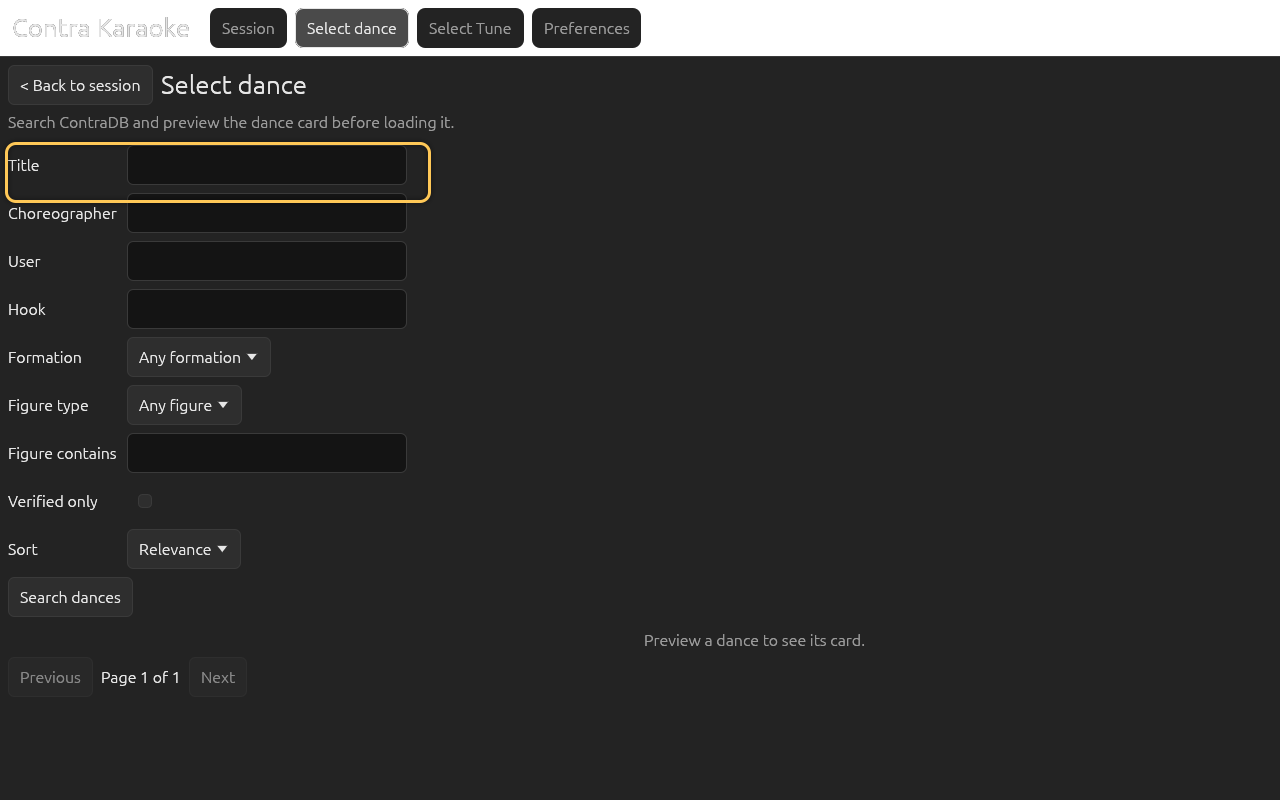
| Field | What it does |
|---|---|
| Title | Matches words in the dance title. |
| Choreographer | Matches the choreographer name on ContraDB. The Caller's Box labels this field Author and matches the dance author. |
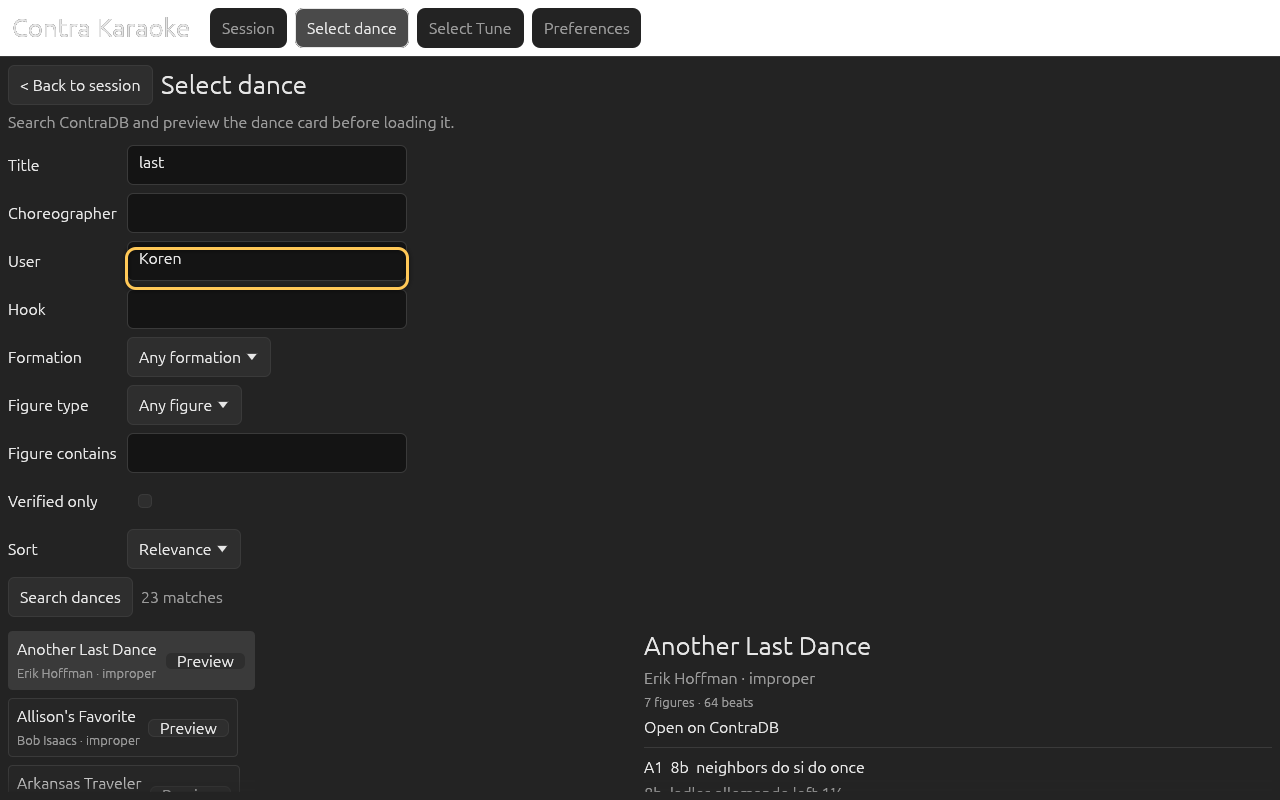
| User | Matches the ContraDB user who contributed the card. |
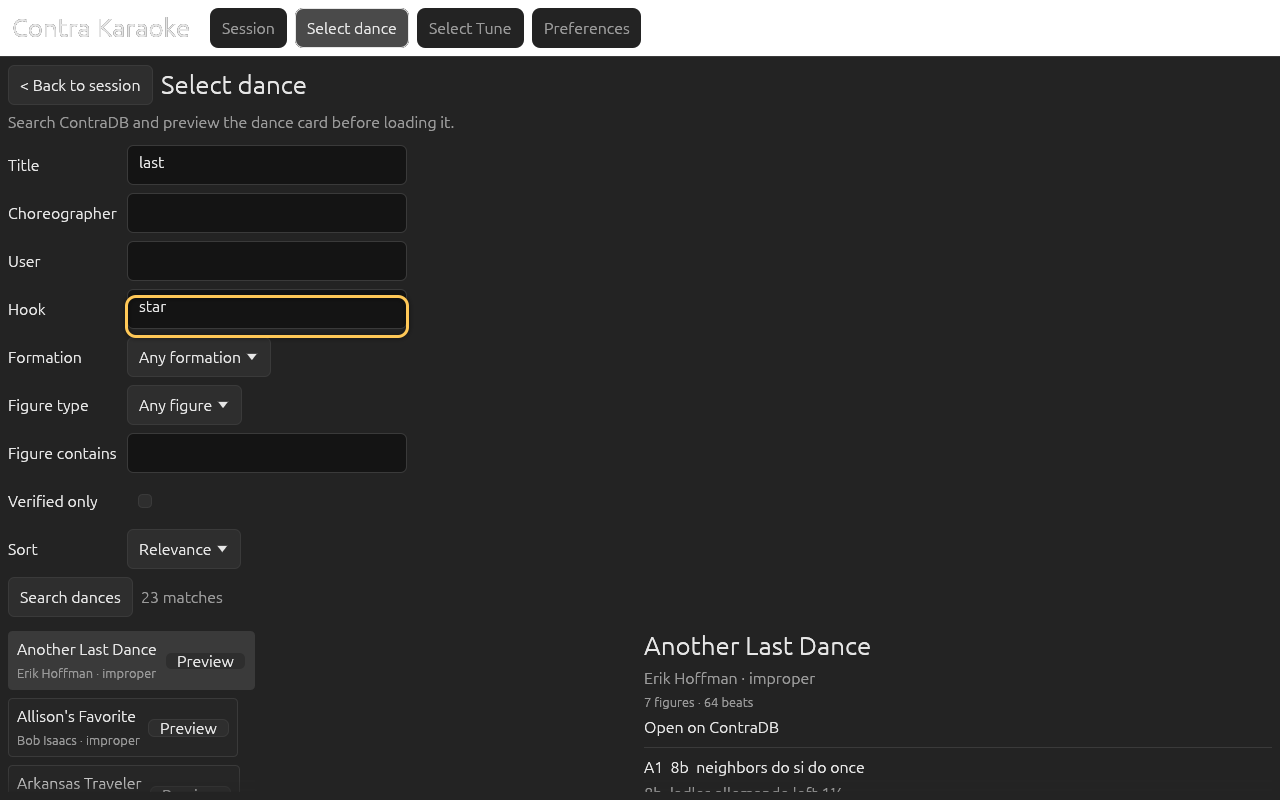
| Hook | Matches the card's short hook/tag line. |
| Formation | A formation menu. ContraDB offers Improper, Becket, Proper, Everything else, or Any formation; The Caller's Box offers that site's own formation list, matched exactly. |
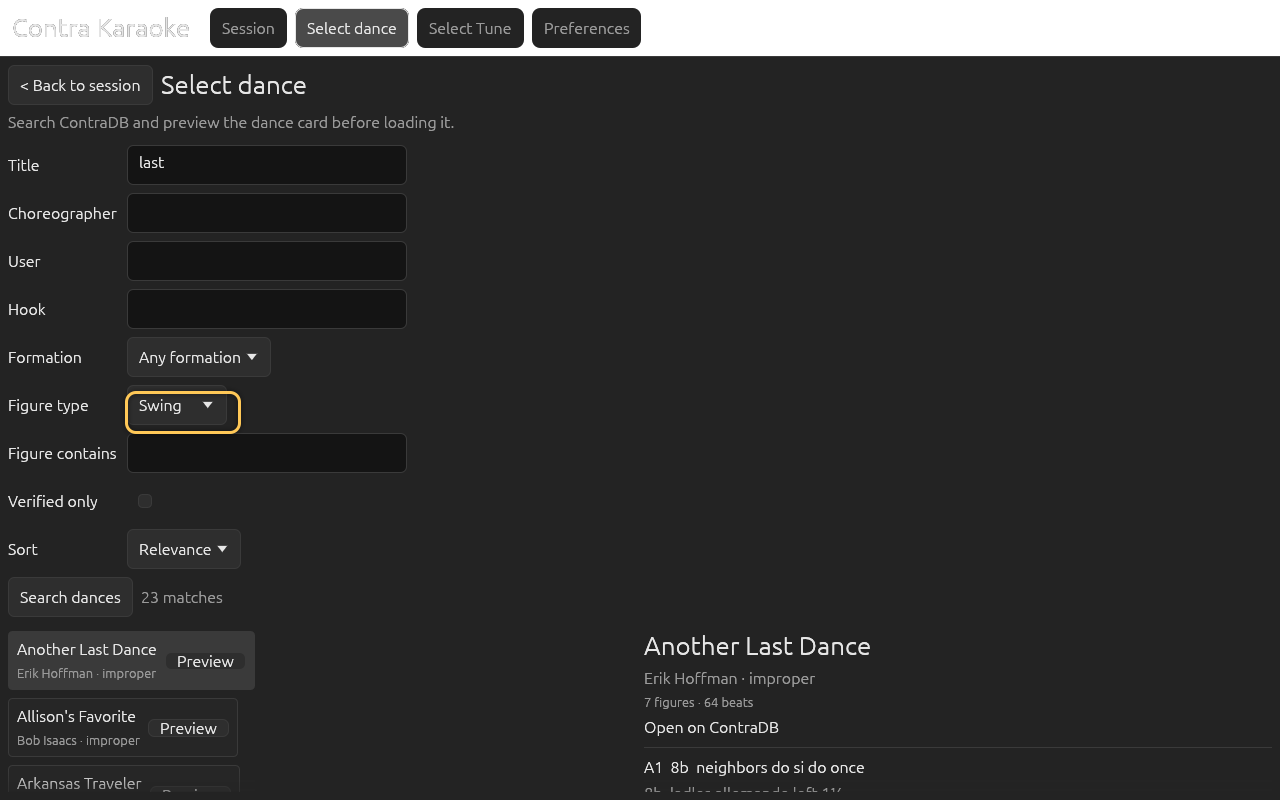
| Figure type | A move-type selector: Swing, Allemande, Do-si-do, Balance, Chain, Circle, Star, Hey, Gyre, Promenade, Long lines, Right and left through, Pass through, Petronella, Mad robin, Box the gnat, Swat the flea, Roll away, or Slide. |
| Figure contains | Searches the card text for a move phrase, for example chain or balance. |
| Verified only | Restricts results to ContraDB's verified tag. |
| Sort | Relevance, Title A–Z, Title Z–A, Choreographer A–Z, or Newest. |
User, Hook, Figure type, Verified only, and Sort are ContraDB-only; they disappear while The Caller's Box is selected.
Figure type takes precedence over Figure contains when both are set on ContraDB: the provider sends a move-type filter and ignores the free-text figure clause. Use one or the other when you want a predictable search. The Caller's Box has only the free-text figure search.
Figure contains is a text match against the card, not a move-type classifier. Use a short distinctive phrase; the alias classifier runs only after a dance is loaded.
Search and page through results
Fill in a field and select Search dances. Results appear on the left with title, choreographer, and formation. A downloaded line marks cards that are already in your saved dances.
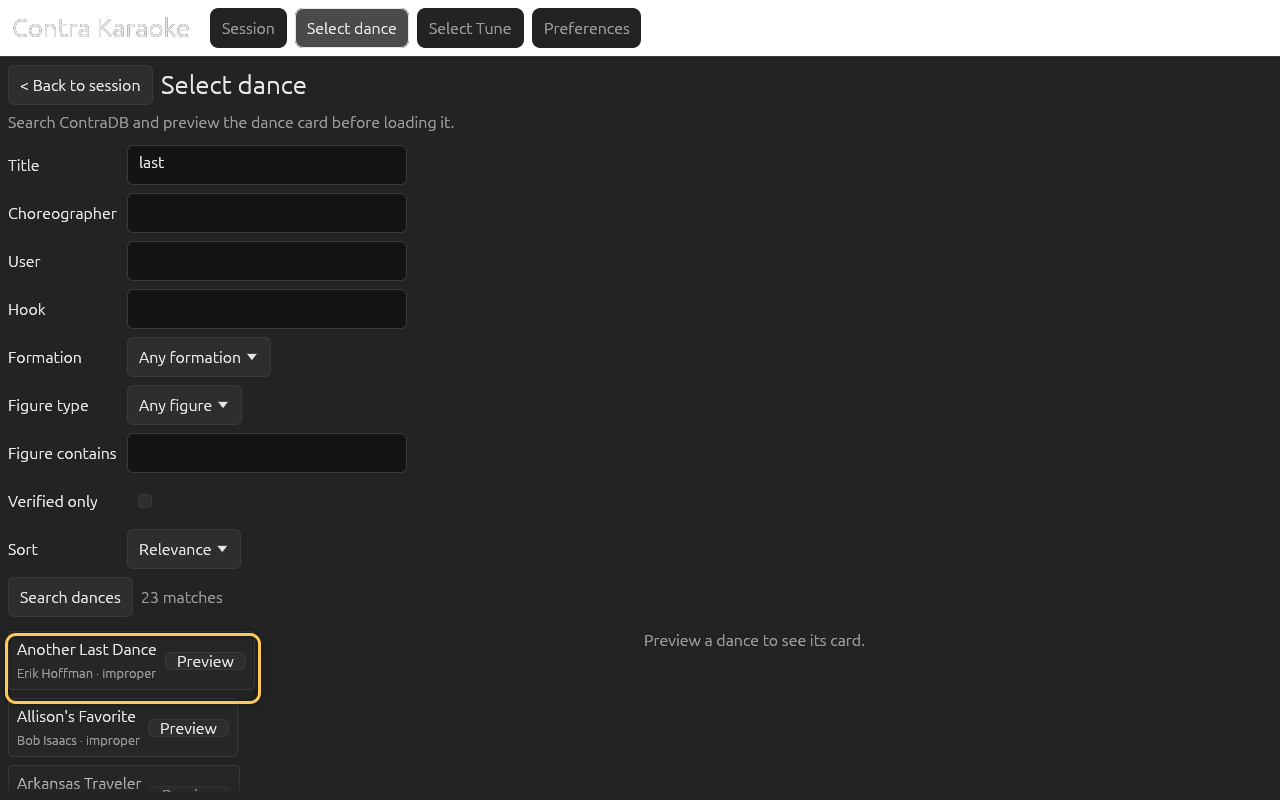
Results show the title, choreographer, and formation; Preview opens the figures. Change Sort, then search again. Sorting applies to the next request.
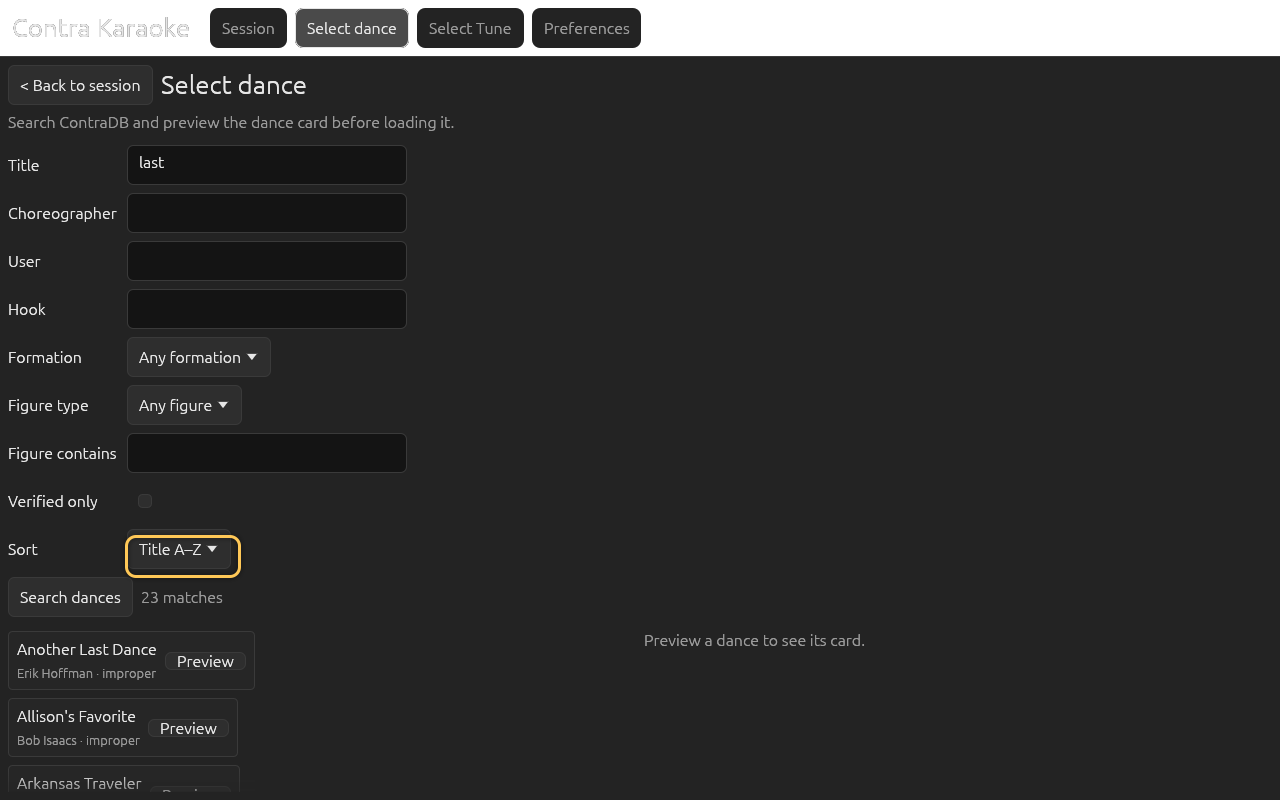
Sorting applies the next time Search dances runs. Use Previous and Next under the results. The current page and total are shown between them; results are ten per page. The Caller's Box has no pages: it returns at most 50 matches and the screen says how many the query matched, so narrow the search to see the remainder.
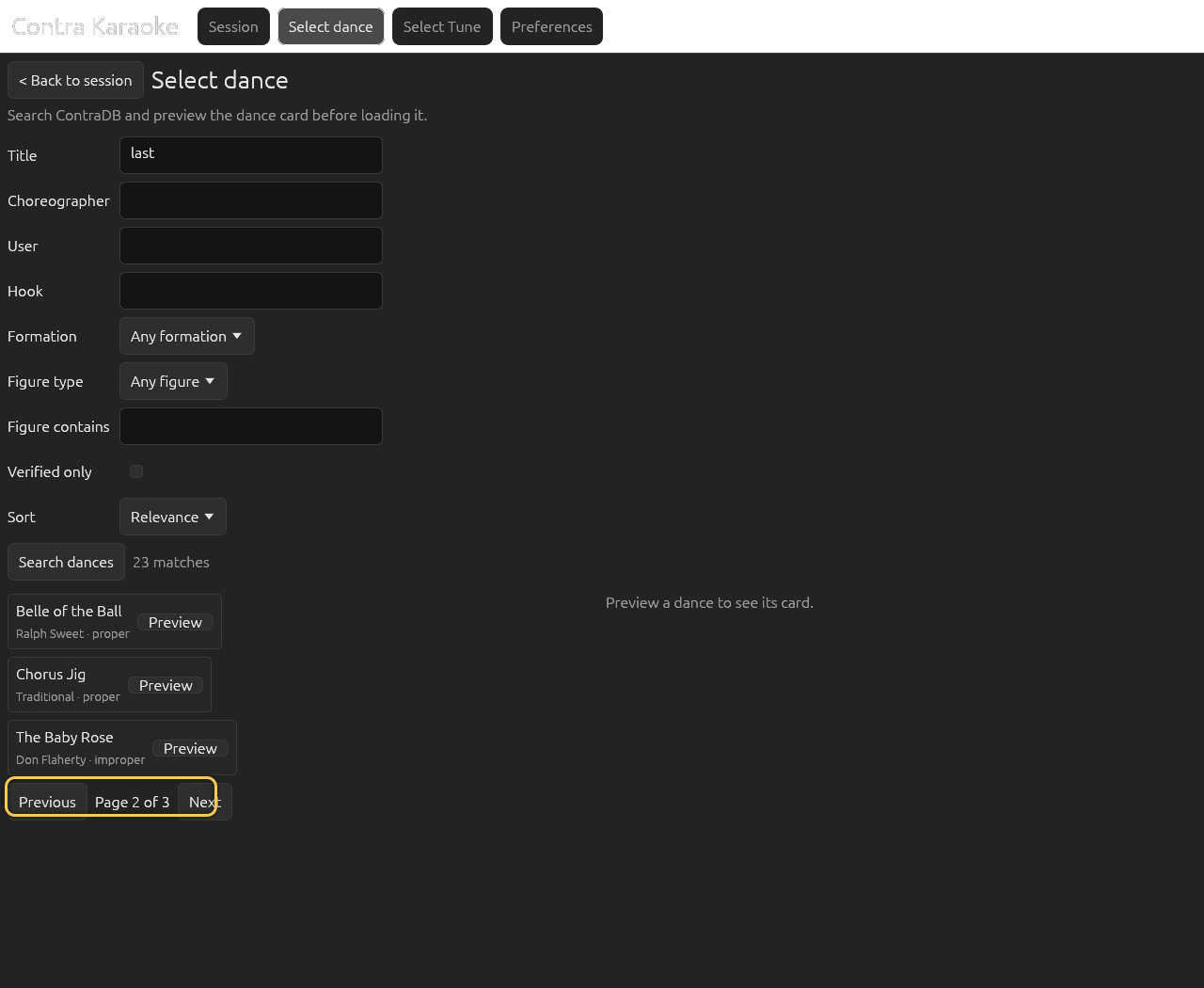
Results are shown ten at a time.
Preview and download
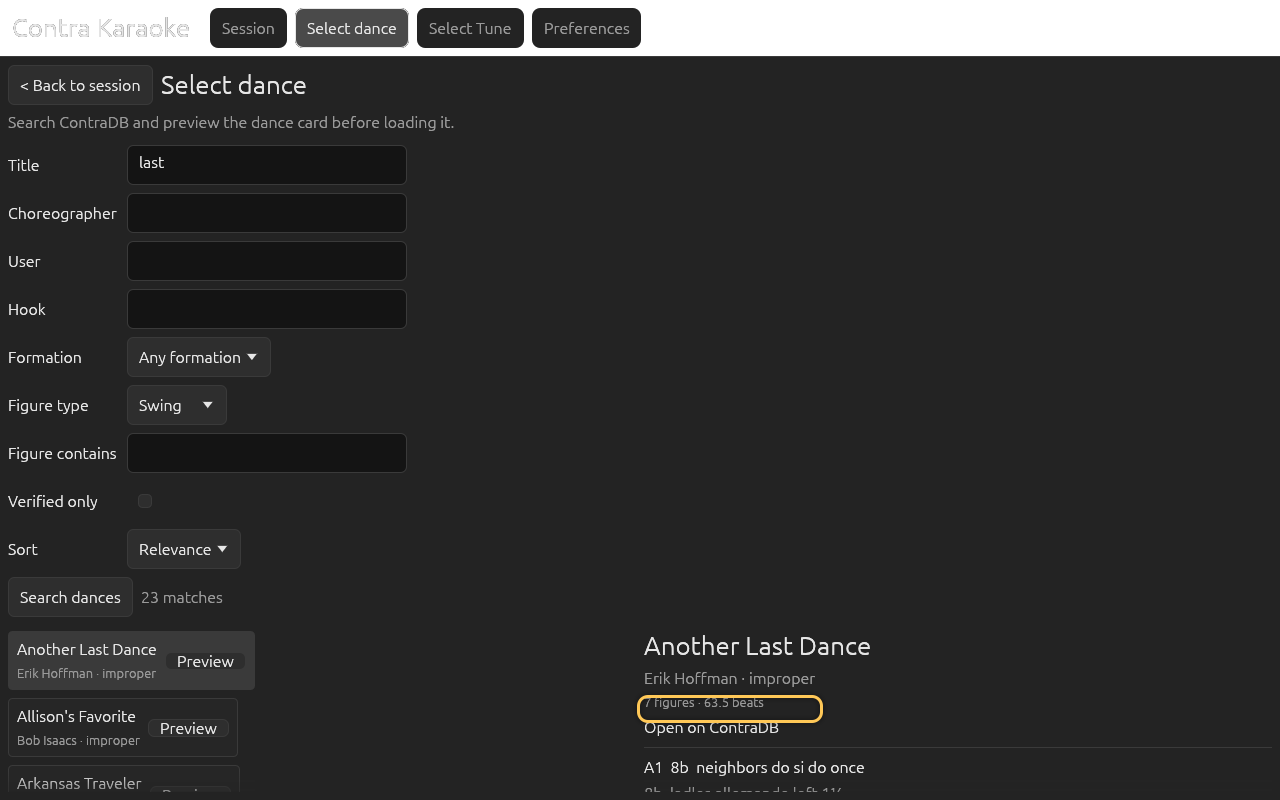
Select a result row to preview it. The right column shows the title, choreographer, formation, figure count, beat total, each figure with its phrase label and beats, and an Open on … link to the card's own source. Select Download dance to add the card to your saved dances, or Use this dance to download and load it at the same time.
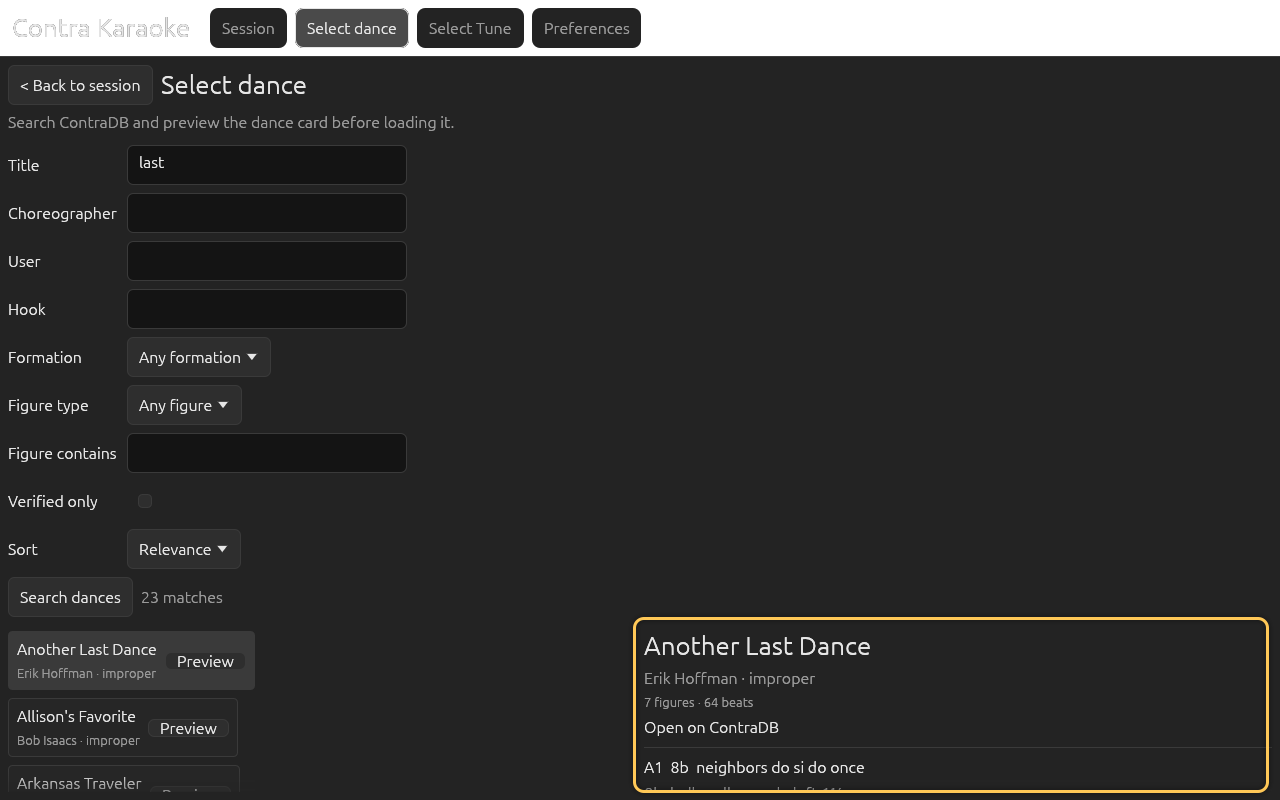
Download the card for offline use or load it immediately; either action saves it to your library.
A card that is already saved shows Download again and an already downloaded note; downloading again refreshes the stored card and keeps its folder.
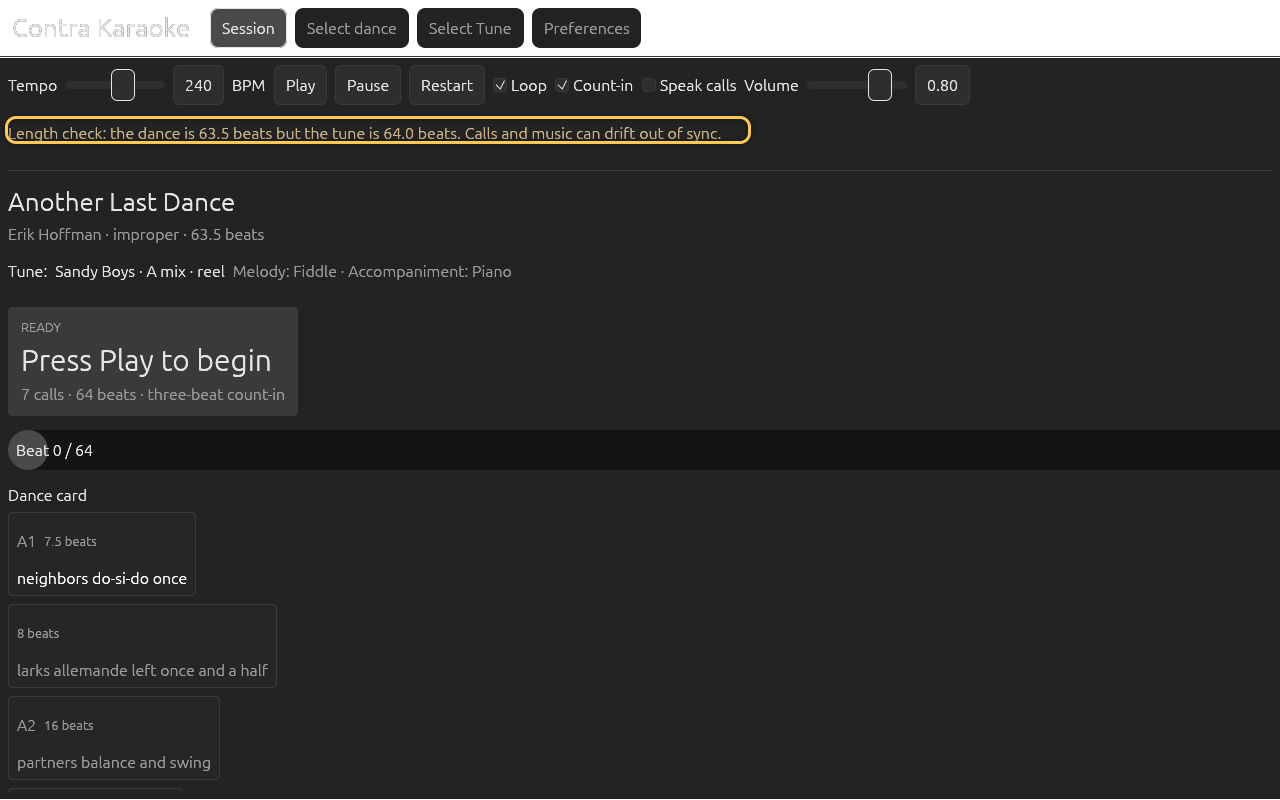
A standard contra card is 64 beats, which is exactly one 64-beat music loop. Cards that total fewer or more beats can be saved, but the current transport has only one 64-beat loop:
- calls follow the card's cumulative figure beats up to beat 64;
- a short card leaves music playing after the last call;
- a long card's figures after beat 64 are not reached, because the playhead resets at the loop boundary.
The preview shows the card total. After you load it, the session compares the dance total with the tune body length and shows a length check warning when they differ. It does not rescale either one. A card longer than 64 beats is still not fully reached because the transport has one 64-beat loop.
Load the dance
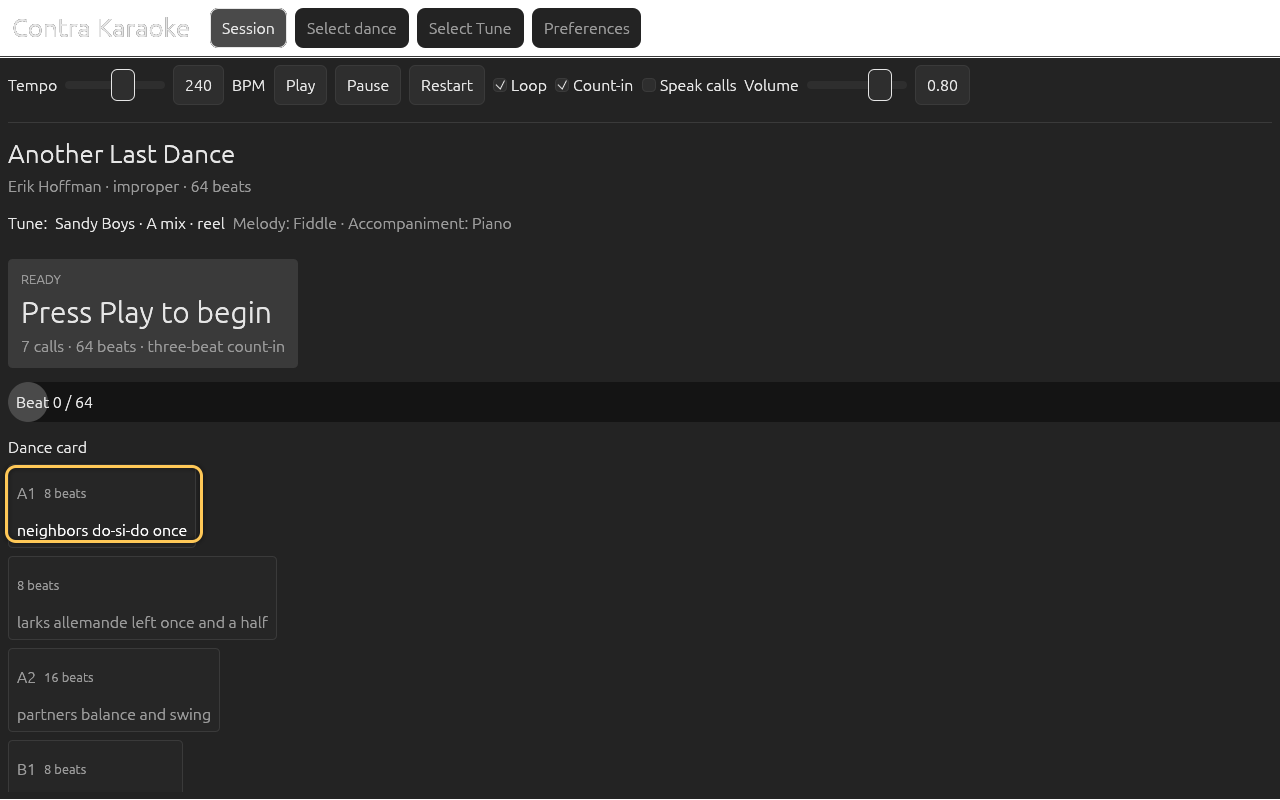
Select Use this dance in the download preview or in the saved-card preview. The app returns to Session, replaces the card, rebuilds the call timeline, and starts preparing the new arrangement in the background. Press Play to start it.
Errors and storage
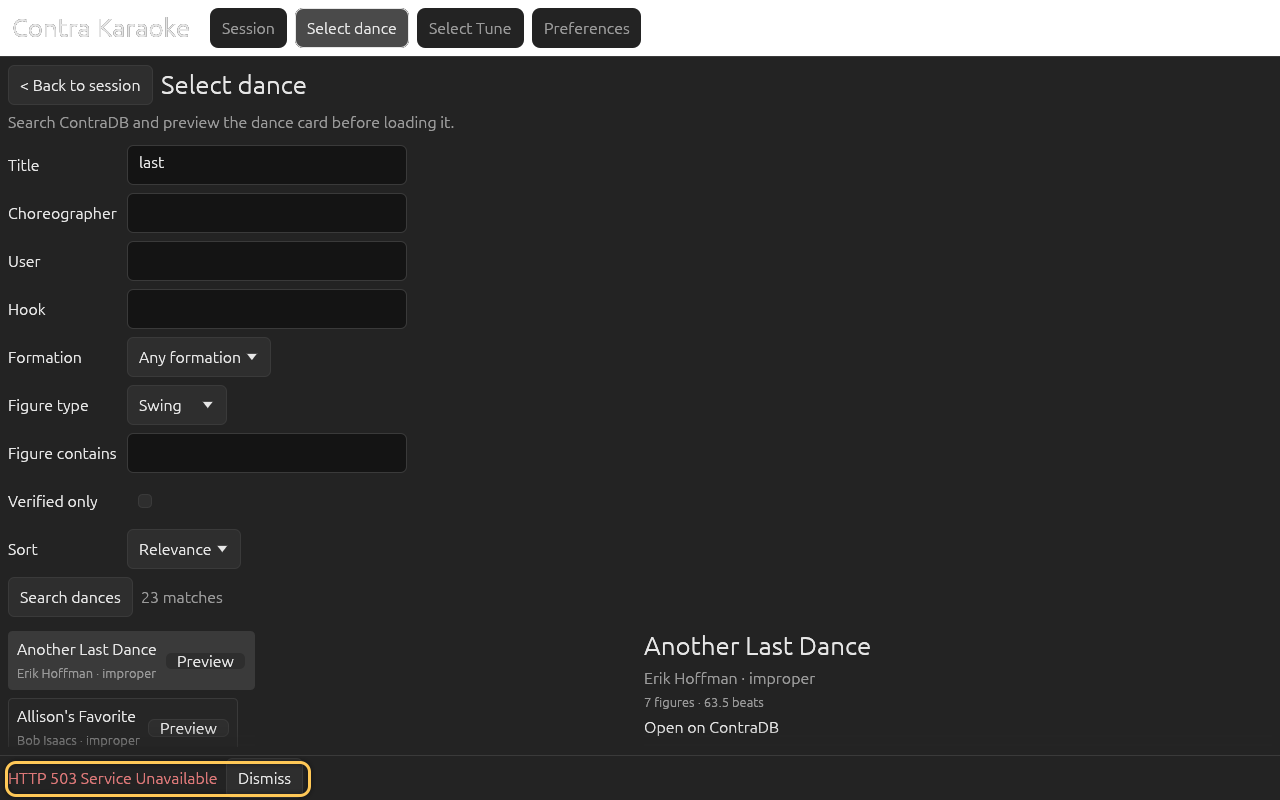
A failed search or detail request appears in a red panel at the bottom of the Download dance screen. Select Dismiss to close it. The current dance stays loaded.
Saved dances are stored with your app data: JSON files on desktop and Android,
localStorage in the browser. They survive Clear source cache in
Preferences → Data & Storage, which only clears the temporary search and
detail responses. See Cache and offline.
Attribution
Dances come from ContraDB or The Caller's Box and remain the work of their choreographers and transcribers. The preview includes an Open on … link for the loaded card; use it to check the original source and credit. The bundled default is Another Last Dance by Erik Hoffman (ContraDB 2409).
The Caller's Box additionally publishes a contra move glossary that explains the shorthand used in its cards. Caller Karaoke's own Dance glossary turns many of those terms into links in the call prompt and dance card.
Next: Choosing a tune.