Install on Windows
Caller Karaoke is distributed as a 64-bit Windows installer and a portable ZIP in the latest release. There is no stable signed release yet, so Windows may show a SmartScreen warning.
Requirements
- 64-bit Windows 10 or 11.
- An audio output device. Windows TTS voices are optional.
- Network access for the first dance or tune search. The bundled defaults work offline.
Download
Version 0.2.0 · unsigned build
The main button downloads CallerKaraoke-0.1.0-windows-x64-setup.exe, the
installer. The menu on the button offers
CallerKaraoke-0.1.0-windows-x64-portable.zip, the portable build. Release
artifacts carry version 0.1.0 and may be replaced by a later build. They are
not code-signed.
install-windows-releaseInstall with the setup program
Run the setup program. The wizard opens on Select Destination Location, which defaults to
C:\Program Files\Caller Karaoke; choose whether to create a desktop shortcut, then finish the install.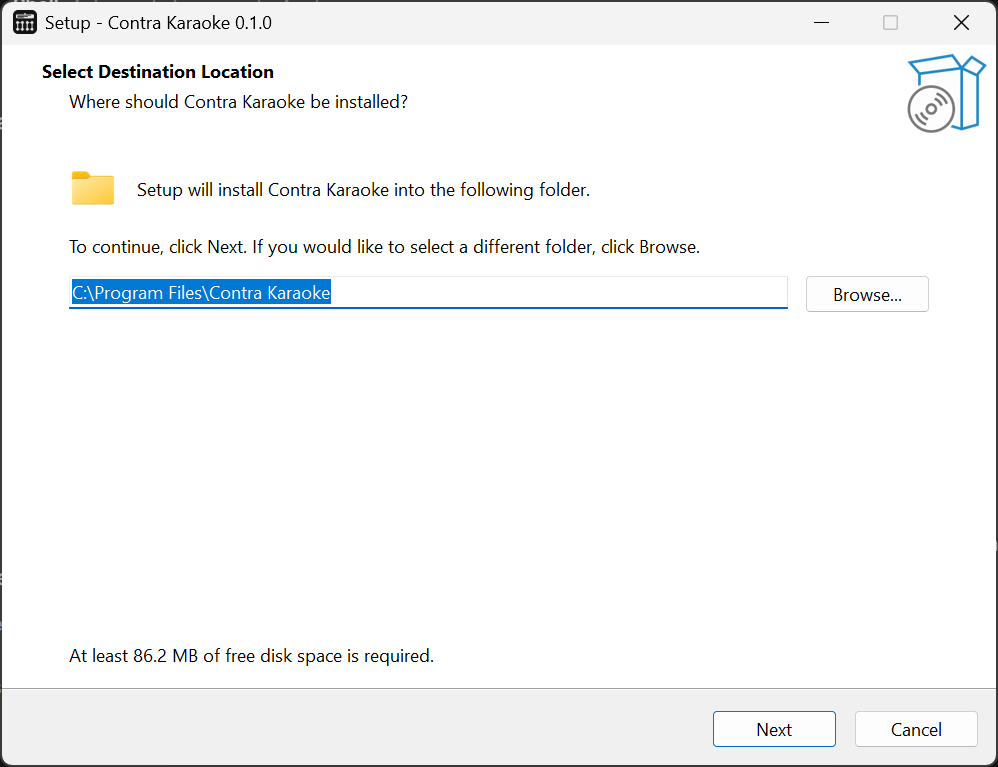
Follow the wizard, choose whether to create a desktop shortcut, and finish. If Windows SmartScreen appears because the release build is unsigned, select More info, verify the publisher/URL, and choose Run anyway only if you downloaded it from this repository's release page.
Screenshot pendinginstall-windows-smartscreenOnly run the unsigned build if it came from this repository.
The installer writes to the standard Program Files location and registers an uninstaller. It does not install a service.
Use the portable ZIP
Extract the ZIP to a folder you can write to, then run
caller-karaoke.exe.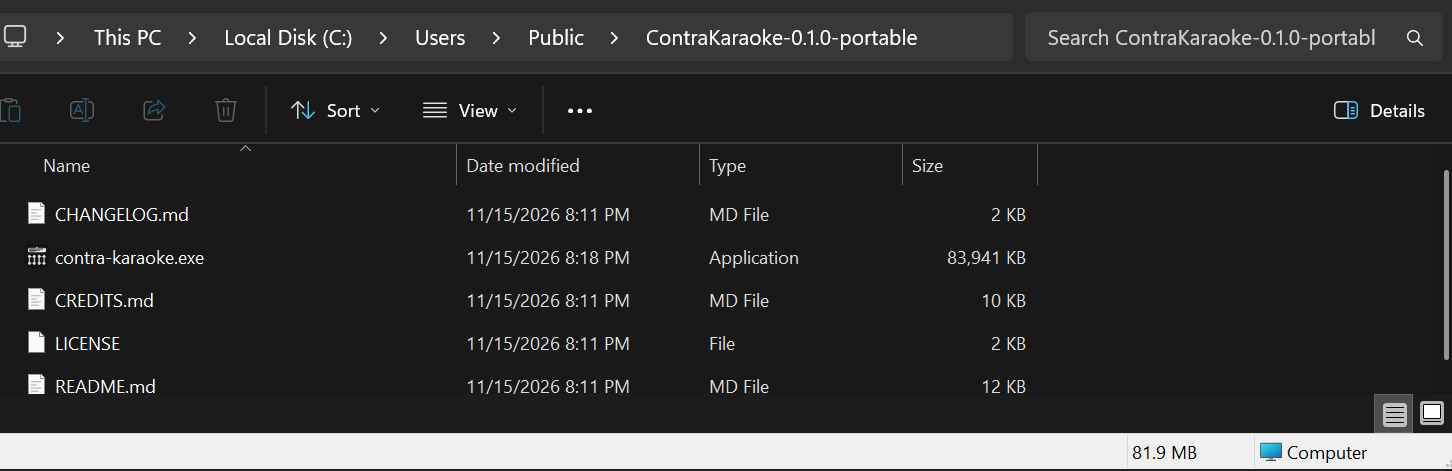
The portable build runs from its folder and does not write to the registry.
The portable build does not write to the registry. Preferences and the source cache are still stored in the standard per-user configuration and cache directories, so the app behaves the same across installer and portable builds.
First launch
The app opens on Session with Another Last Dance and Sandy Boys. Press Play to start; the loop is prepared in the background, and the first call may start during the count-in. See Your first session.
If SmartScreen or antivirus blocks the unsigned executable, verify the SHA-256
from the release's SHA256SUMS.txt and use the More info path rather than
disabling security features.
Media keys and the system media overlay
Caller Karaoke registers with System Media Transport Controls, so the keyboard's Play/Pause key, the media overlay that appears when you press it, and the media controls in the Quick Settings panel drive the session from any window. The overlay shows the loaded dance as the title, the tune as the artist, and Caller Karaoke as the album, so you can see what is loaded without focusing the app.
- Play starts or resumes the session.
- Pause pauses it and stops speech; the beat is kept, so the next Play resumes from the same place.
- Stop pauses. Next and Previous are ignored.
These controls work while the window is minimized and while a text field has focus. If another app is the current media session, Windows may send the key there instead; pause that app or use the app's own Play/Pause button.
Uninstall
Use Settings → Apps → Installed apps → Caller Karaoke → Uninstall. For the portable build, delete the extracted folder. Removing the app does not automatically remove the per-user cache or preferences.
Build from source instead
If you prefer not to run an unsigned binary, build the desktop app from source. See Build and run for the Rust toolchain and commands.
Next: Your first session.